
 Share
Share
 Print
Print
|
|
|
|
|


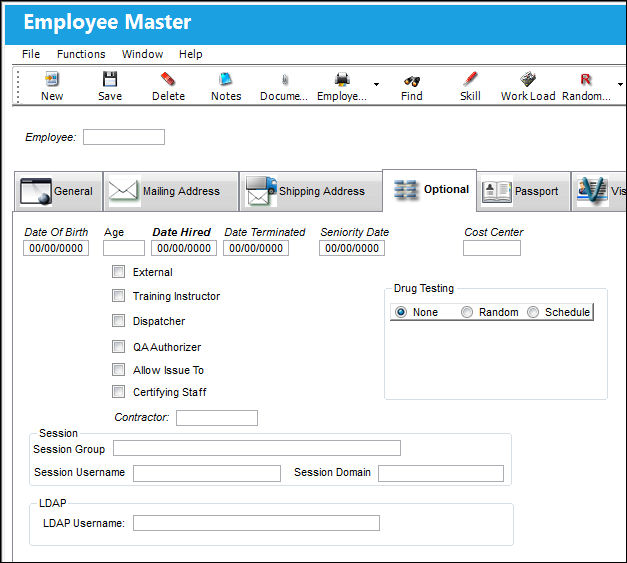
Employee Master, Optional Tab
The Employee Master, Optional tab contains the following information:
 Note: All employee Personal Identification Information (PII) is encrypted throughout the system to ensure this sensitive information remains secure.
The following information/options are available in this window:
_____________________________________________________________________________________
Date Of Birth
The employee's date of birth.
Date Hired
The employee's hire date.
Users may enter and save a future date for this field.
Date Terminated
The employee's employment termination date.
This field must be set to 00/00/0000 when creating new employees in the system.
Seniority Date
The employee's seniority date.
Company
Select a company to resolve defects.
- This field only appears if the Switch
 COMPANYMULTI is set to 'Yes'.
Cost Center
The Cost Center associated with the Employee. When an Employee with a Cost Center is assigned to W/O Task Card manual labor, the W/O Actuals for that labor will contain the specified Cost Center information. For more information refer to the Actuals Button, via the Work Order Button in the Production Training Manual.
External checkbox
Indicates that this employee's location is external. When selected the Customer and Contract Number fields appear.
Customer
The appropriate customer code in reference to the employee. This field appears when the External checkbox is selected.
Contract Number
The contract number that references the contracted (external) employee. This field appears when the External checkbox is selected. This field is available as part of the setup for Training billing. For detailed information on this setup refer to How to Bill for Training via the Training Training Manual.
Training Instructor checkbox
Select this checkbox to indicate that this employee is an eligible Trainer in the organization. This employee can then be defined as the “Trainer” when selecting an instructor for Training Courses. Training Courses are set up via the Training module.
Trainer Class Control  button
This button appears when the Training Instructor checkbox is selected. For information regarding this button, refer to the Trainer Class Control Button via the Employee Master, Optional Tab of the Settings Training Manual.
Dispatcher checkbox
Select this checkbox to indicate that this employee is an eligible Dispatcher in the organization. This employee can then be defined as the “Dispatcher” when deferring or resolving a defect.
- DSPNTFR - (Dispatcher Notified (field) Mandatory On The Resolution/Defer Tab) - If set to Yes, the Dispatcher Notified field will be mandatory on the Resolution or Defer Tab of the Defect Report.
Q/A Authorizer checkbox
Select this checkbox to indicate that this employee is an eligible Q/A Authorizer in the organization. This employee can then be defined as the “Q/A Authorizer” when authorizing a concession.
- QAAUTHREQ - (Validate QA Authorizer) - When set to Yes, the system will not allow a Concession to be saved if approved by an employee who is not set up as a QA Authorizer. When set to No, the system will allow a Concession to be saved if approved by an employee who is not set up as a QA Authorizer.
Allow Issue To checkbox
Select this checkbox to allow the issuing of parts to this employee via Inventory/Update/ Inventory Transaction. Manual Issue, Express Issue, and Picklist Issue will be affected. If this checkbox is deselected for an employee, that employees name will not appear in the 'Issue To' drop down menu selection in any of the above mentioned windows.
- ISSUETOC - (Issued To - Use Employee Code Only) switch affects the Allow Issue To checkbox. If set to Yes, Manual Issue, Express Issue, and Picklist Issue will be allowed (only) to employees who have the Allow Issue To checkbox checked via Settings/Update/Employee/ Optional Tab.
Certifying Staff checkbox
Select this checkbox to indicate that this employee is authorized to certify forms.
Expiration Date 
This indicates the expiration date of the Certifying Staff designation. This field only comes up when the Certifying Staff checkbox is selected.
Contractor
The contractor (derived from the Vendor Master) associated with the employee. The Vendor that is selected to fill this field must have the Service checkbox checked (via Settings/Update/Vendor/ General Tab).
Drug Testing (radio button selection)
Choose the employee's drug testing parameter by selecting one of the following radio buttons:
- None
- Random
- Schedule Days
Schedule Days
The number of days to elapse before the first drug test.
Last Test Date
The last date that this employee was drug tested.
Test Status
The status of the test.
Allow Assign To checkbox
Select this checkbox to add this employee to the list of employees who can be Buyers for a Requisition.
This checkbox is part of Switch ASIGNTOSYSTRANCODE's functionality. When set to Yes, the Requisition Buyer can only be those Employees with this checkbox selected. This checkbox is only available when this switch is set to Yes. When set to No, the Requisition Buyer must be a User. This checkbox is not available when set to No. For more information refer to Switch ASIGNTOSYSTRANCODE via the Requisition Switches Manual.
Session Group
Enter a Session Group.
The Group profile selected for a Session Group in the Security Explorer, General Tab is inherited by an employee with the same Session Group in the Employee Master, Optional tab.
For additional information, refer to the Security Explorer, General Tab via Security Explorer which can be found in the System Administration Training manual.
Session Username
This is the same as the user's Windows Username. If this field is not populated, the Logon As option will not work correctly. For additional information, refer to the Security Explorer, Update User Option via Security Explorer which can be found in the System Administration Training manual.
Session Domain
The Windows domain name where the user logs in through. If this field is not populated, the Logon As option will not work correctly.
LDAP (Lightweight Directory Access Protocol) Username
This is the LDAP user identification reference. This must be set up before a user can login using the LDAP credentials.
The LDAP function only applies to customers who have an Interface set up.
For additional information regarding the LDAP, refer to the LDAP Sign On Method, via Logging in to TRAX of the System Administration Training Manual.
_____________________________________________________________________________________
Share
Print
|
©1997-2026 Trax USA Corp. All rights reserved. This manual may not be copied, photocopied, reproduced, translated, or converted to any electronic or machine-readable form, in whole or in part, without prior written approval from Trax USA Corp. |
 |