
 Share
Share
 Print
Print
|
|
|
|
|


All modifications to a user's profile must be done through the Security window of the Security Explorer. If creating a new user select the New User  button. To update an existing user select the Update User
  button. Both options will open the Security window. Refer to the New User / Update User Buttons for more information on accessing the Security window.
The following fields are available from the Security, General tab.
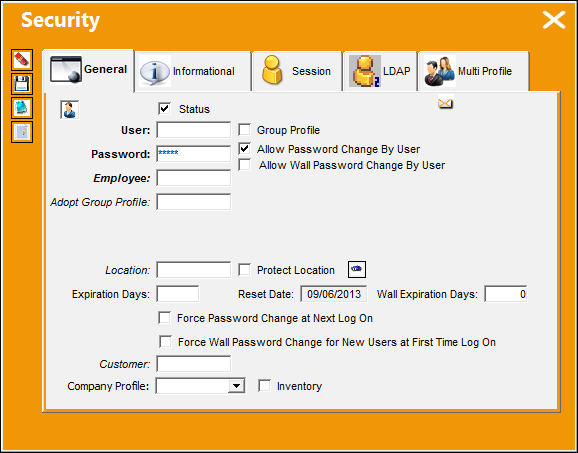
If creating a new user, the Security window appears as displayed above (with no existing user information). If updating an existing user's profile, that user's information will be displayed.
The following information/options are available in this window:
_____________________________________________________________________________________
User  / User Group
  icon
icon
The User icon signifies a single user profile while the User Group icon indicates a group profile. The User Group icon is displayed when the Group Profile checkbox is selected or when an existing Group Profile is being updated.
Status checkbox
Select this checkbox to indicate that the employee is active. When not selected, the User is considered inactive. When inactive, the Status  checkbox is displayed in red and the User
  icon is crossed out in red. Inactive users cannot log on to TRAX. This checkbox is selected by default.
User
The employee's username. When creating a new user, this username must be created for the employee. Once saved, this field cannot be changed. When updating an existing user, this field cannot be updated.
System Administration Switch  SECMID sets the minimum number of characters that a username must contain. For more information refer to the System Administration Switches Manual.
Group Profile checkbox
The Group Profile checkbox must be selected in order to create a new Group Profile. The checkbox is only available when the Security window is accessed through the New User button or when an existing Group Profile is updated. Once selected the following fields are not available: Password, Employee, Adopt Group Profile, Reset Date, and Wall Expiration Days. When selected, the Profile Description and Session Group fields become available. The User icon also changes to the Group icon. For detailed information on the Group Profile functionality, refer to the Group Profile Checkbox.
Password
The user's individual log-on password. A user can change their own password if the Allow Password Change By User checkbox is selected (below). This field is not available when the Group Profile checkbox is selected.
Password requirements are defined by the following System Administration switches: SECMPAS - Security Password Minimum Number of Characters. SECMALP - Security Password Minimum Number of Alpha Characters. SECMNC - Security Password Minimum Number of Numeric Characters.
Please refer to the System Administration Switches Manual for more information.
Allow Password Recovery checkbox
Select this checkbox to provide the user with the password recovery functionality. For more information refer to Password Recovery via System Standards.
Allow Password Change By User checkbox
Select to allow the user to be able to change their own password.
Allow Wall Password Change By User checkbox
Select to allow the user to be able to change their own Wall password.
Employee
The user's employee name. The employee name must first be created in the Employee Master. This field is not available when the Group Profile checkbox is selected.
Adopt Group Profile
Enter the Group Profile that the user's security access will be copied from (optional). For detailed information see the Adopting a Group Profile section below. This field is not available when the Group Profile checkbox is selected.
If after a group profile is adopted and changes to the user's securities are made, if the user profile is modified in any way and re-saved, the group profile's security settings will be re-applied to the user's profile. Once the group profile is revalidated, any additional security changes that had been made to the user's profile will be reverted to the group profile's settings.
For more information on adopting multiple group profiles, refer to the Security, Multi Profile Tab.
Profile Description
Allows administrators to provide a description of the group.
This field is only available when the Group Profile checkbox is selected. For more information refer to the Group Profile Checkbox.
Session Group
The LDAP/Active Directory group that the administrator wants the Employee to be associated with. This functionality is part of an interface-driven logon method. For more information consult a TRAX Interface Administrator.
This field is only available when the Group Profile checkbox is selected. For more information refer to the Group Profile Checkbox.
Location
The default Location for the user (optional). This will automatically populate the Location field on windows that require the Location.
Note: User Profiles that adopt a Group Profile (see Adopt Group Profile above) cannot have a different Location than the Group Profile. The Group Profile's Location will override the individual user profile's Location.
Protect Location checkbox
Select to protect the Location field on the system for this user so that the default Location cannot be changed.
Note: User Profiles that adopt a Group Profile (see Adopt Group Profile above) cannot have a different Protect Location checkbox selection than the Group Profile. The Group Profile's Protect Location checkbox selection will override the individual user profile's Protect Location checkbox selection.
Additional Location  button
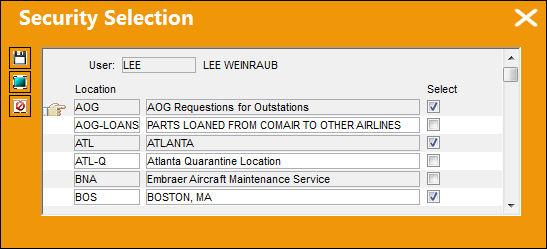
Select this button to add multiple Locations to the user profile. TRAX displays the following window when this button is selected.
Click the select checkbox next to the Locations where the user must be added. Select the Save  button to save the new Locations as part of the user profile.
Expiration Days
The number of days that the Log-in Password (above) will expire after the Reset Date.
Note: User Profiles that adopt a Group Profile (see Adopt Group Profile above) cannot have a different Expiration Days value than the Group Profile. The Group Profile's Expiration Days field will override the individual user profile's Expiration Days field.
Wall Expiration Days
The number of days that the Wall Password will expire after the Reset Date. This field is not available when the Group Profile checkbox is selected.
Reset Date
This date is the starting point for the user's password. The individual user's password will be expired once the amount of Expiration Days (above) is reached. The Expiration Days period begins on this Reset Date. This date applies to the user's Log-in Password and their Wall Password. This field is not available when the Group Profile checkbox is selected.
Force Password Change At Next Log On checkbox
Select this checkbox to make a password change mandatory the next time the user logs on to TRAX.
 Note: When a user requests a password change, their session information will be disabled. This forces the user to reset their password on the login screen. This functionality is customer specific and may not be available to all users.
Force Wall Password Change for New Users at First Time Log On checkbox
Select this checkbox to make a password change mandatory the next the time the user logs on to the group's Wall.
Customer
The Customer Code which the user is associated to. When this is specified, the customer's Inventory Owner will be defaulted in the Owner field of the Inventory Transaction, Inventory Supervisor, and Inventory Query windows. The Inventory Owner is set up in the Customer Master, General Tab. For more information refer to the Settings Training Manual.
Company Profile drop down
Select a Company to associate to the user's Security Profile.
Inventory checkbox 
When selected, only results for the Company Profile selected will be displayed in the Inventory Transaction, Inventory Query, and Inventory Supervisor windows for the user. (By default, the Company field in the Other tabs of the mentioned windows will be set to the selected Company. This field can be overridden manually.) This checkbox is part of the Multi-Company functionality. Switch COMPANYMULTI must be set to Yes is order for it to be visible. For more information refer to Switch COMPANYMULTI via the G/L Interface Switches Manual.
Force PIN change at next Log On checkbox
Select this checkbox to make a PIN change mandatory the next time the user logs on to TRAX. For more information regarding the setup of the Employee PIN (Personal Identification Number) functionality, refer to the Enroll Badge Button, via the Employee Master in the Settings Training Manual.
_____________________________________________________________________________________
Select the Save button to save all user information.
Adopting a Group Profile:
In order to apply a Group Profile onto a User, the desired group must be entered in the Adopt Group Profile field.
For example, notice that this User has the following security settings:
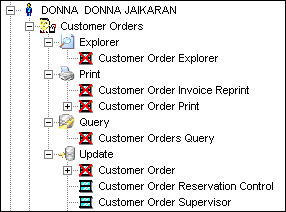
Note the security settings for the following Group Profile (ADMIN):
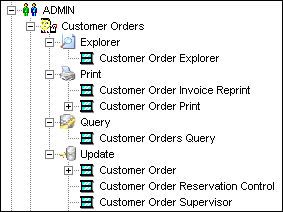
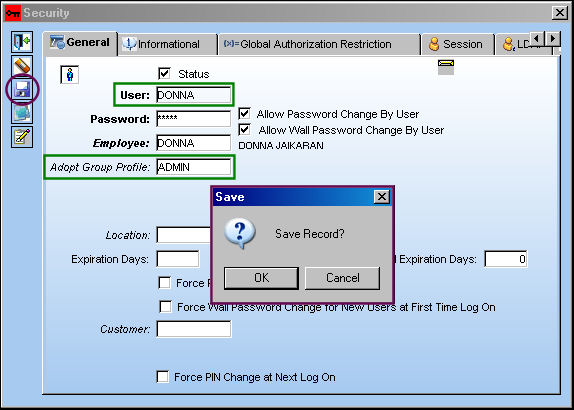
Right-click on User 'DONNA' and select the Update User button. In the Adopt Group Profile field, enter 'ADMIN'. Select the Save button.
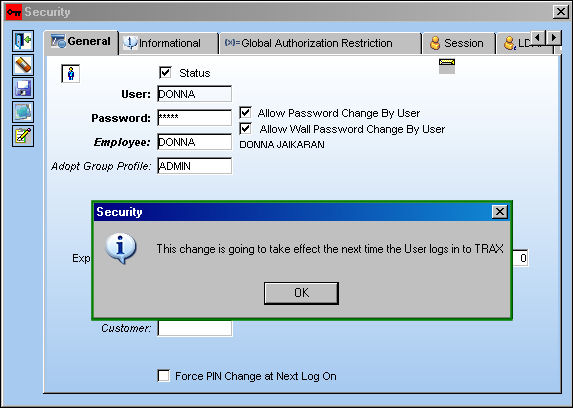
The following information box appears. Select 'OK.'
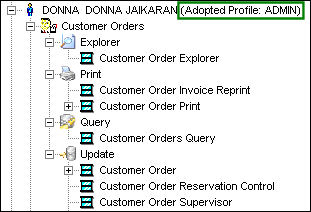
When user 'DONNA' logs into the system, notice that her security has been adopted from the group profile 'ADMIN.'
User Profiles that adopt a Group Profile cannot have a different Location, Expiration Days, or Protect Location checkbox selection than the Group Profile. The Group Profile's Location, Expiration Days, and Protect Location checkbox selection will override the the same values for the individual user's profile.
Share
Print
|
©1997-2026 Trax USA Corp. All rights reserved. This manual may not be copied, photocopied, reproduced, translated, or converted to any electronic or machine-readable form, in whole or in part, without prior written approval from Trax USA Corp. |
 |