
 Share
Share
 Print
Print
|
|
|
|
|


Password Recovery

The password recovery functionality is designed to support users by providing an intuitive tool that allows users to troubleshoot their password without the use of a TRAX Administrator. The temporary password provided is a system generated code that when entered, will allow the user to reset their password.
The 'Forgot TRAX Password' tool is user specific and security-controlled. For more information, refer to Security Setup located at the bottom of this topic.
The verification methods provided for password recovery can be set up via Settings/ Update/ Employee Master.
Prior to entering the specified user, note that the 'Forgot TRAX Password' link is not available.
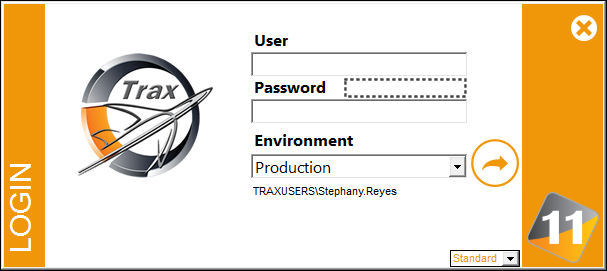
Once the user name is entered in the appropriate field, the 'Forgot TRAX Password?' link will be available.
The 'Forgot TRAX Password' tool is user specific and security-controlled.
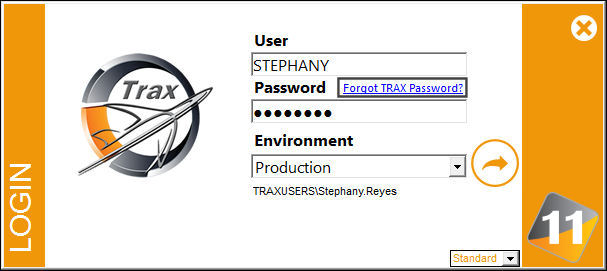
After selecting the 'Forgot TRAX Password?' link, the login options change to allow the password retrieval. The Employee drop down is displayed for multiple employees linked to that user. Select the associated employee.
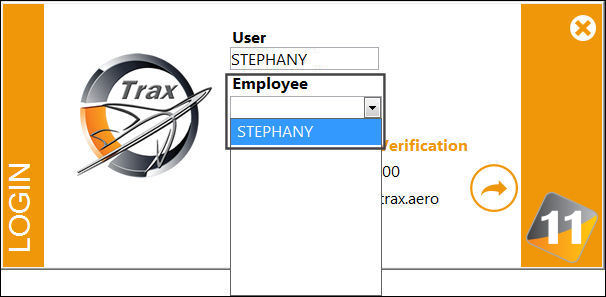
Select the Employee from the drop down menu and the method to retrieve a temporary password.
To retrieve a temporary password via a phone number, select the Phone checkbox and the temporary password will be sent to the phone number provided in the Employee's contact information.
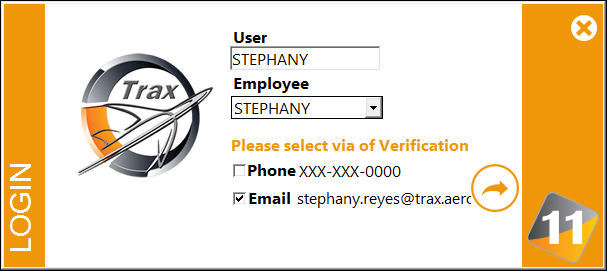
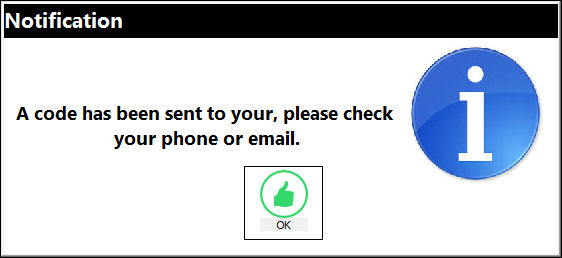
Select the Log in  button and the following notification message will display:
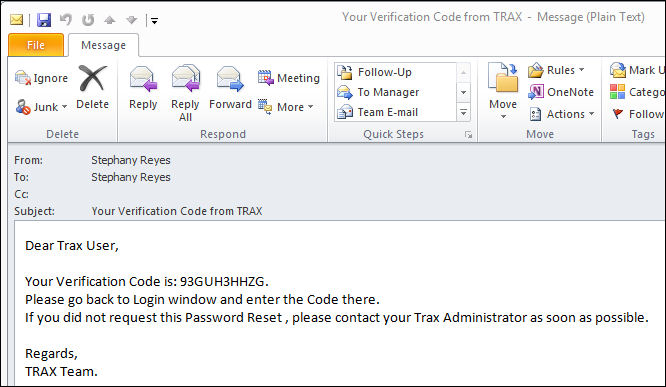
User 'Stephany' has effectively received the password retrieval code via email:
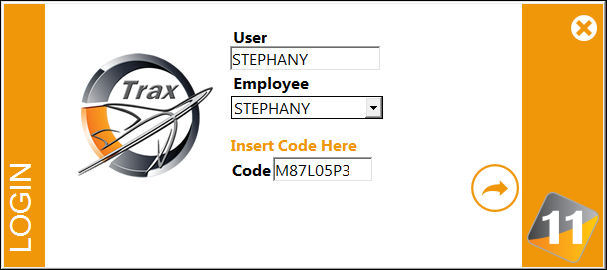
Enter the system generated code into the Code field and select the Log in button.
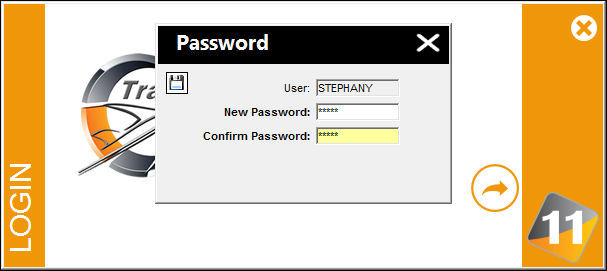
Once the code is entered, the system will prompt the user to enter a new password. Select the Save  button to save all changes.
Security Setup:
In order to use the password recovery functionality the user must have the appropriate security setup.
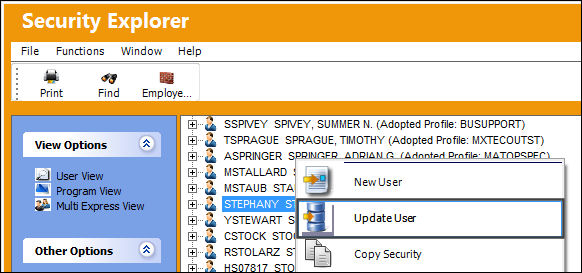
In the Security Explorer window, locate the user and select 'Update User':
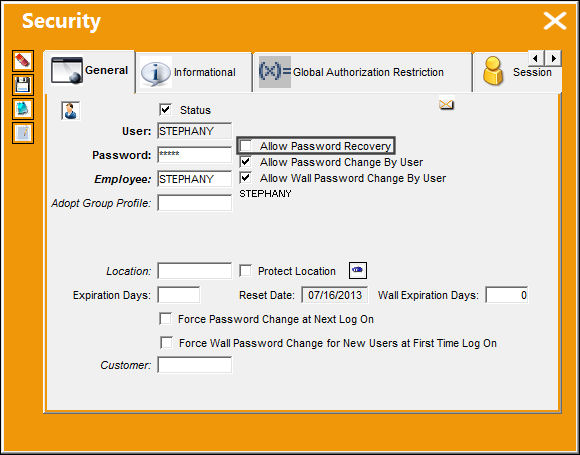
The user security information will display. On the right hand-side of the General tab, the Allow Password Recovery checkbox is provided. To provide the user with password recovery, select the ' Allow Password Recovery' checkbox and save the record.
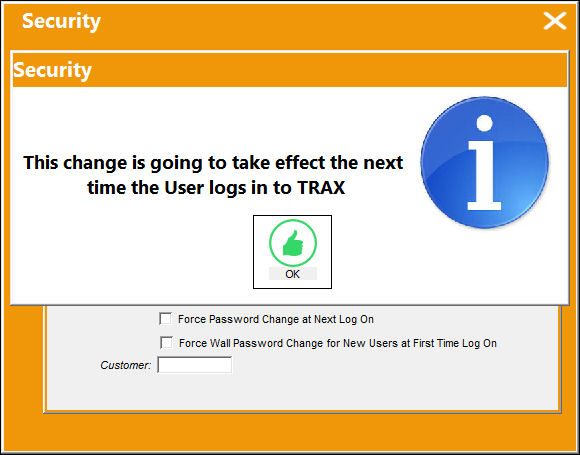
The following prompt will display notifying the user that the changes will take effect in the next TRAX session.
Share
Print
|
©1997-2026 Trax USA Corp. All rights reserved. This manual may not be copied, photocopied, reproduced, translated, or converted to any electronic or machine-readable form, in whole or in part, without prior written approval from Trax USA Corp. |
 |