
 Share
Share
 Print
Print
|
|
|
|
|


Logging Into TRAX
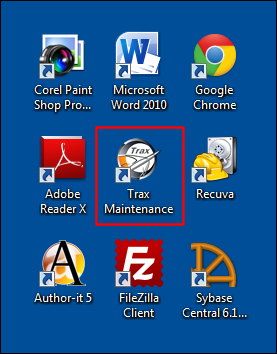
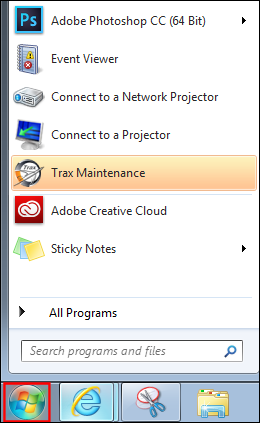
From the user's computer desktop, double-click on the TRAX  icon, or select the Start Command button of Windows ®. Select the TRAX icon to access the user Log On window.
TRAX from Desktop:
TRAX from Start Command Button of Windows ®:
TRAX displays the Log On to Trax window as follows:
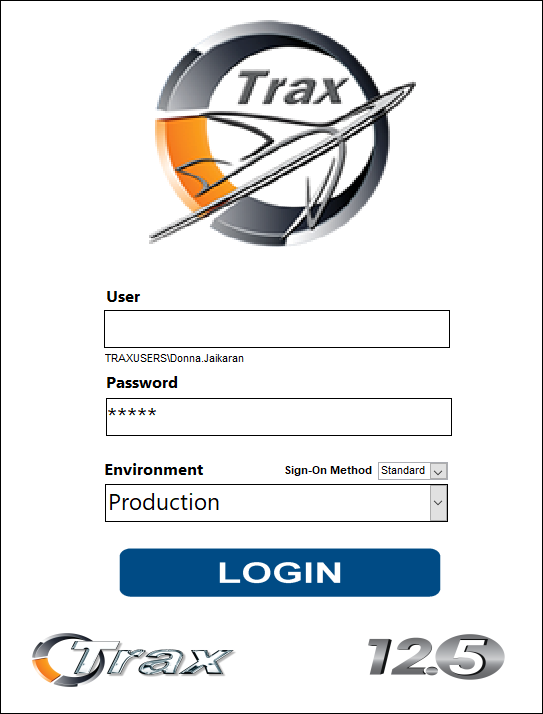
The following information/options are available in this window:
_____________________________________________________________________________________
User
Enter the pertinent username of the employee attempting to access the application. The username is created via the Security Explorer. The username can be for the specific individual logging into TRAX (e.g., JDOE) or the username of a shared group profile (e.g., MECH-AV).
Password
The password linked to the above username. The Password is also linked to the username via the Security Explorer.
Environment
Select the name of the database to be logged into.
Sign-On-Method
Select one of the following sign on methods. For additional information refer to Sign On Methods via Logging Into TRAX, which can be found in the System Administration Training manual.
- LDAP
- ProxCard
- Session
- Standard
Login button
Select the Login button to enter the application.
Login as option
The Login as option allows the user to log into TRAX without having to enter their user or password. For additional information of the 'Login as' option, refer to Login As via Logging Into TRAX which can be found in the System Administration Training manual.
Exit button
Select the Exit button to exit the Log On to Trax window.
_____________________________________________________________________________________
The user may also select the Login As button if available. (See below for more details.)
After logging in, TRAX displays the Control Panel Explorer as follows:
 The Host/ machine name is now visible in the Control Panel. This is useful whenever a user reports that the application has locked up for them, for any reason. If the users session must be killed, the help-desk knows immediately which session has been locked up and must be re-started. This saves the help-desk time, as prior to this modification, determining the user's machine was a lengthy process.
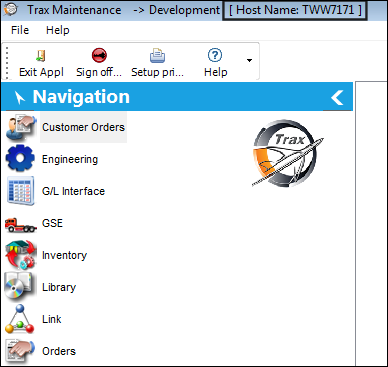
To sign off the system, select the Exit Application  button from the Control Panel Explorer.
The system will prompt the user with a pop-up message as shown below.
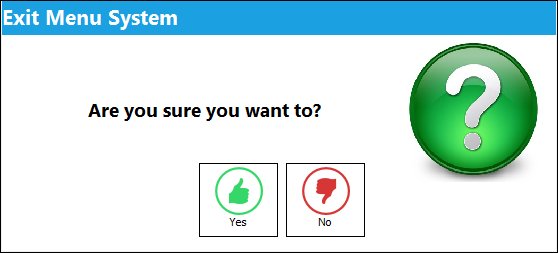
Select Yes to exit.
To temporarily sign off from the system, the user may select the Sign Off User  button. TRAX automatically closes and re-displays the User Log On window.
Share
Print
|
©1997-2026 Trax USA Corp. All rights reserved. This manual may not be copied, photocopied, reproduced, translated, or converted to any electronic or machine-readable form, in whole or in part, without prior written approval from Trax USA Corp. |
 |