
 Share
Share
 Print
Print
|
|
|
|
|


The Group Profile checkbox from the Security, General tab must be selected in order to create a new Group Profile. The checkbox is only available when the Security window is accessed through the New User  button. Group Profiles in TRAX are an effective way of granting security access to groups depending on the common user needs of the group members. Once a Group Profile is created, the group's security settings can be applied to individual users by entering a Group Profile in the Adopt Group Profile field of the Security, General tab.
Group security profiles may be updated in the Security Explorer using any of the views: User, Program, or Multi-Express. As programs are selected or de-selected for the group, such configurations end up applying to all members of the group. Group security access, however, is secondary to individual security access. A user may be a member of a group, and have access according to his or her group, however, if the user needs access to program(s) that other group members do not need, he/she may be granted such access and yet still be a member of the group without the other members having access to such programs.
To create a Group Profile, select the Group Profile checkbox in the Security, General tab from the Security Explorer. Once selected, several fields of the window become unavailable while other fields become available.
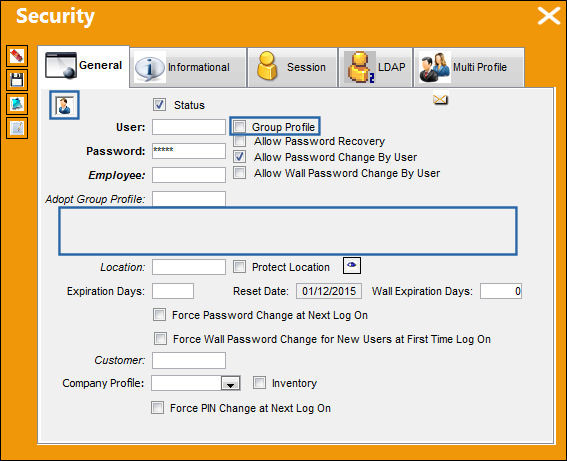
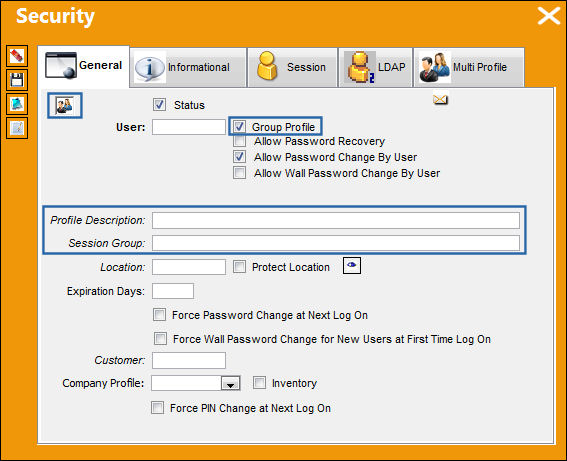
When selected, notice that two fields have become available and the User  icon has changed to the User Group
  icon.
icon.
The Group Profile checkbox is only available when the New User button is selected in the Security Explorer. The checkbox is not available when the Update User  button is selected in the Security Explorer.
Once the Group Profile checkbox is selected, the following fields are not available in the Security, General tab: Password, Employee, Adopt Group Profile, Reset Date, and Wall Expiration Days.
The following additional fields will be available when creating a new Group Profile:
_____________________________________________________________________________________
Group icon
Indicates a Group Profile. This icon indicates a group when the Group Profile checkbox is selected.
Group Profile checkbox
Select this checkbox to establish a user group. If checked, the record currently being worked on is converted to a group profile that can then be adopted by other users. This offers the ability to create a group, apply security settings to the group, then add users to the group so those users will automatically obtain that group’s security settings. For information on how to apply a Group Profile to a User, refer to the Adopt Group Profile field of the Update User Button, General Tab.
Once selected, the Password, Employee, Adopt Group Profile, Reset Date, and Wall Expiration Days fields are not available. When selected, the Profile Description and Session Group fields are available. The User icon also changes to the Group icon.
Profile Description
Allows administrators to provide a description of the group.
This field is only available when the Group Profile checkbox is selected.
Session Group
The LDAP/Active Directory group that the administrator wants the Employee to be associated with. This functionality is part of an interface-driven logon method. For more information consult a TRAX Interface Administrator.
This field is only available when the Group Profile checkbox is selected.
_____________________________________________________________________________________
Click on the Save  button to save all information.
For more information on the other fields available when the Group Profile checkbox is selected refer to the Security, General Tab.
Share
Print
|
©1997-2026 Trax USA Corp. All rights reserved. This manual may not be copied, photocopied, reproduced, translated, or converted to any electronic or machine-readable form, in whole or in part, without prior written approval from Trax USA Corp. |
 |