
 Share
Share
 Print
Print
|
|
|
|
|


From the Employee Master window, users can set up the Proximity Reader for employees (which can be used instead of, or in addition to, the Wall Password).
TRAX displays the Employee Master Window. Find an already existing employee or create a new one.
Select the Enroll Badge  button.
 The user must have security to use the Proximity Card Enroll Badge in the Employee Master via Settings.
TRAX displays the Employee Badge Enrollment window.
The user may select from one of the two following options:
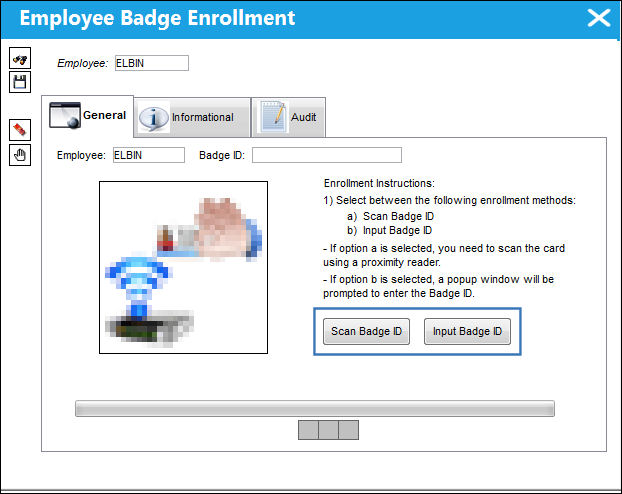
The following information/options are available in this window:
_____________________________________________________________________________________
Employee
The Employee number or code representing the employee.
Badge ID
The employees Badge ID.
Scan Badge ID button
Select this button to scan the employee's Badge ID.
Input Badge ID button
Select this button to input the employee's Badge ID.
PIN
The user's PIN (Personal Identification Number).
This field only becomes visible when the Switch  WALLPIN is set to Yes. For additional information, refer to configuration Switch WALLPIN, via the Settings Switches Manual.
Force Change at Next Log On checkbox
Select this checkbox to make a PIN change mandatory upon the users next Logs On.
This field only becomes visible when the Switch WALLPIN is set to Yes. For additional information, refer to configuration Switch WALLPIN, via the Settings Switches Manual.
_____________________________________________________________________________________
The Informational and Audit tabs allow for additional information relevant to the record to be viewed.
Share
Print
|
©1997-2026 Trax USA Corp. All rights reserved. This manual may not be copied, photocopied, reproduced, translated, or converted to any electronic or machine-readable form, in whole or in part, without prior written approval from Trax USA Corp. |
 |