
 Share
Share
 Print
Print
|
|
|
|
|


The Enroll SecuGen Fingerprints  button allows users to enroll fingerprints for SecuGen devices and use them for signing in to Trax and for Wall Passwords. Make sure that the SecuGen device is installed and ready to use on the PC being used.
 This button is security controlled via Settings/ Update/ Employee Master/ Enroll SecuGen Fingerprint Button.
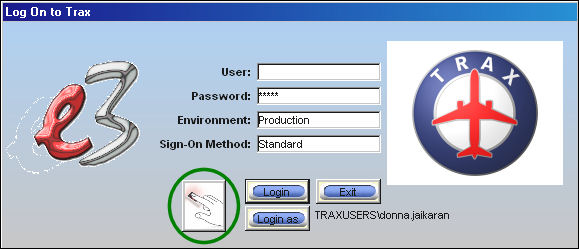
Once the device is installed and detected, the following will appear in the Log on window. Sign in to TRAX.
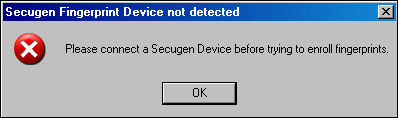
If the device is not connected, or the correct drivers are not installed, the following hard warning will appear:
Go to Settings/Update/Employee Master
Select the New  button to create a new Employee record, or select the Find
  button to find an existing Employee record.
From the Employee Master, General Tab, select the Enroll SecuGen Fingerprints button.
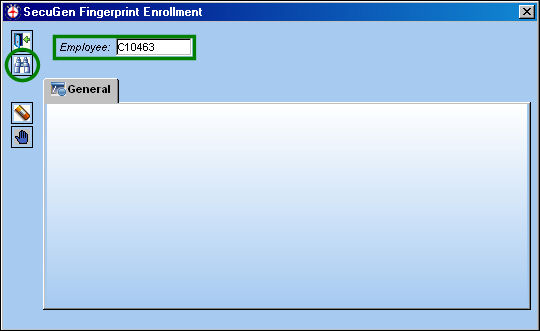
TRAX displays the SecuGen Fingerprint Enrollment window. Right click in the Employee field and select an employee from the drop down menu. Select the Find button.
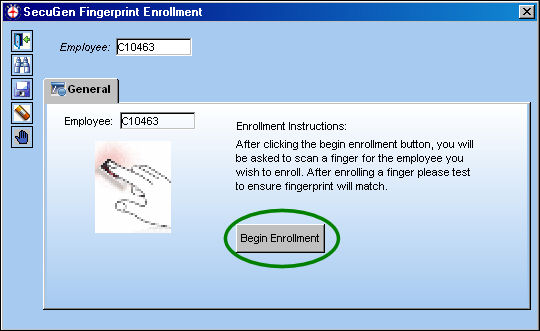
The General tab becomes populated with the below information. Read the Enrollment Instructions and select the 'Begin Enrollment' button.
The following pop up window appears. Select the 'Adjust' button.
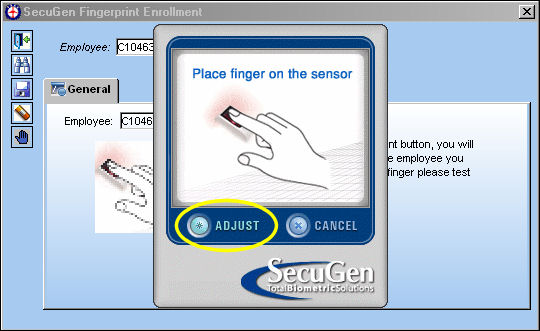
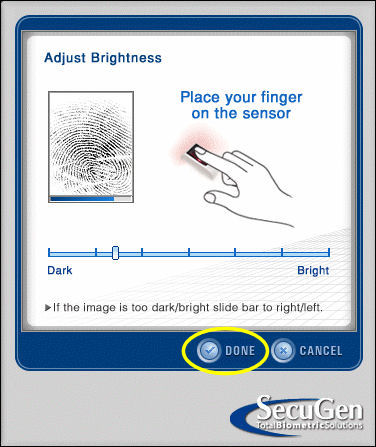
The following will appear. Place finger on sensor. Once the image of the fingerprint is suitable, select the 'Done' button.
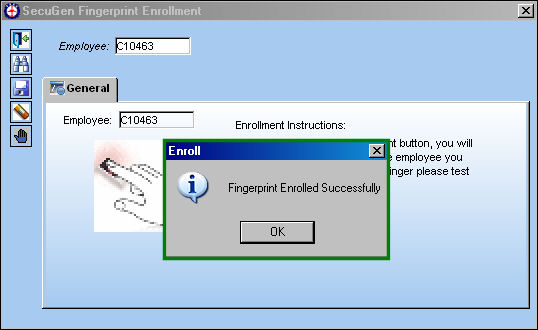
The Enroll information box appears confirming that the fingerprint has been enrolled successfully. Select 'OK'.
Testing the Process:
From the following window, find an employee whose fingerprint has been successfully enrolled. Select the Test button.
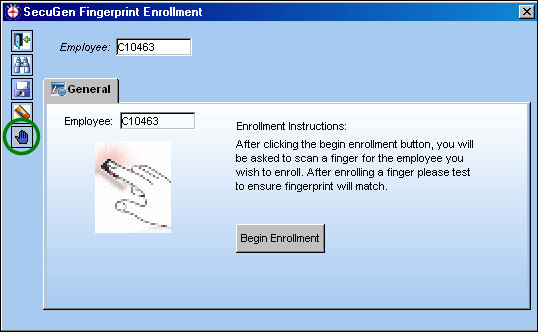
Select the 'Adjust' button.
Place finger on sensor and select the 'Done' button.
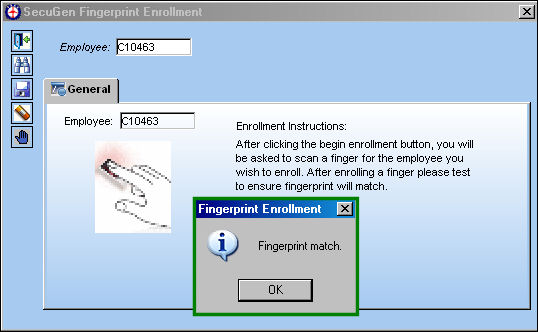
The fingerprint is a match.
Share
Print
|
©1997-2026 Trax USA Corp. All rights reserved. This manual may not be copied, photocopied, reproduced, translated, or converted to any electronic or machine-readable form, in whole or in part, without prior written approval from Trax USA Corp. |
 |