
 Share
Share
 Print
Print
|
|
|
|
|


Select the Enroll Fingerprint  button from the Employee Master to scan an employee's fingerprint into the database. Once a fingerprint is enrolled, the system can require fingerprint verification to access areas of the system. Via fingerprint verification, it is not necessary to enter the user name or password.
The fingerprint option allows TRAX to easily identify users and grant them access to certain areas of TRAX. Fingerprint verification is used for Wall security programs and can replace the Wall password. Also, users can log into TRAX via fingerprint verification.
This functionality is only possible if an appropriate fingerprint scanning device and its appropriate drivers are installed on the computer the Employee is logging on to. The biometric indicator is only activated if a biometric scanner is attached to the PC session. The login via fingerprint verification is only available when the scan-symbol (three boxes marked in the above picture) appears. (See below.)
In order configure a biometric reader, the appropriate drivers must be installed. For more information consult with a TRAX system administrator.
Select the Enroll Fingerprint button. TRAX displays the Employee Fingerprint Enrollment Window.
First an Employee must be selected. Enter the Employee's name then select the Find  button.
To enroll fingerprint scans for that Employee, select the hand and finger, then select the Begin Enrollment button.
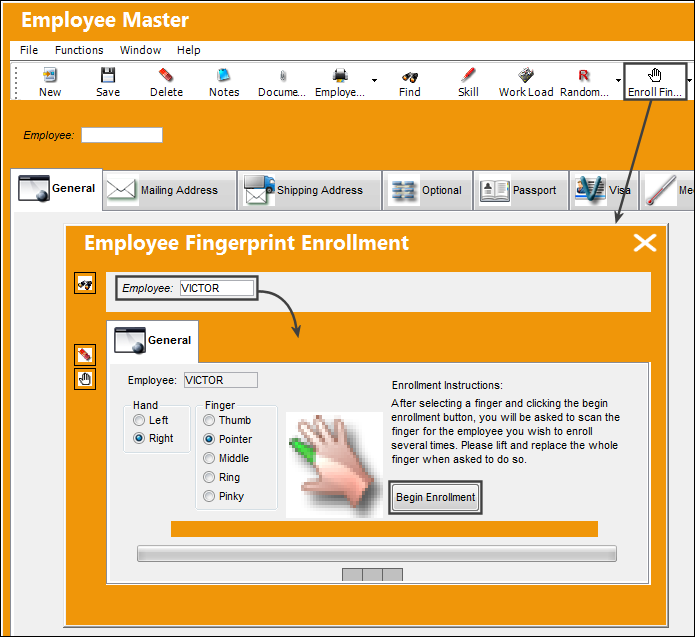
 This button is security controlled via Settings/ Update/ Employee Master/ Enroll Fingerprint Button. For more information refer to the Security Explorer via the System Administration Training Manual.
The employee will have to press the specified finger on the scanner several times (a prompt will appear indicating how the finger must be positioned).
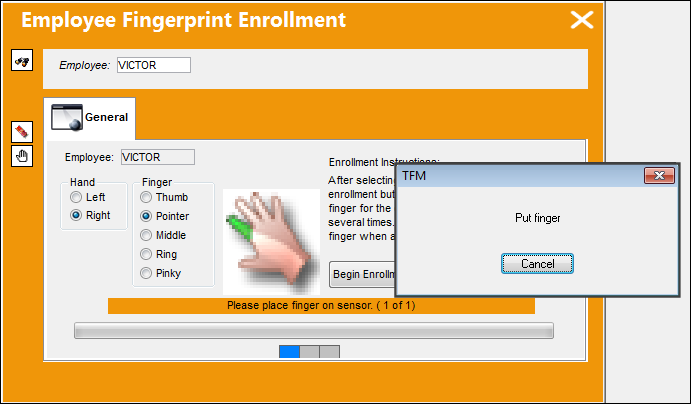
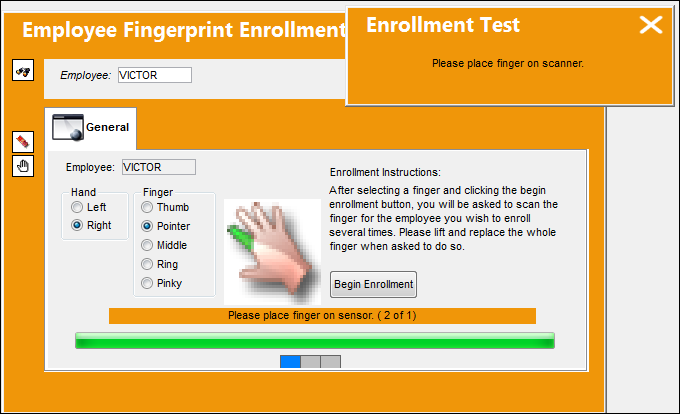
Once the fingerprint is enrolled, that fingerprint must pass an Enrollment Test. The finger must be pressed on the scanner once again.
If the fingerprint was enrolled properly, the following prompt will appear.
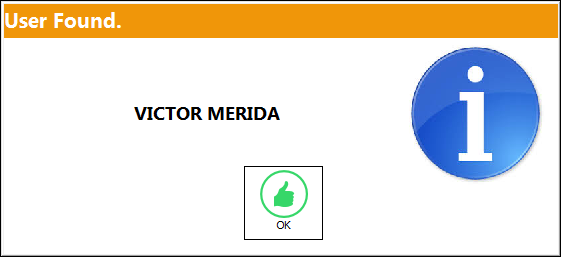
The enrollment for that fingerprint is then saved against the employee.
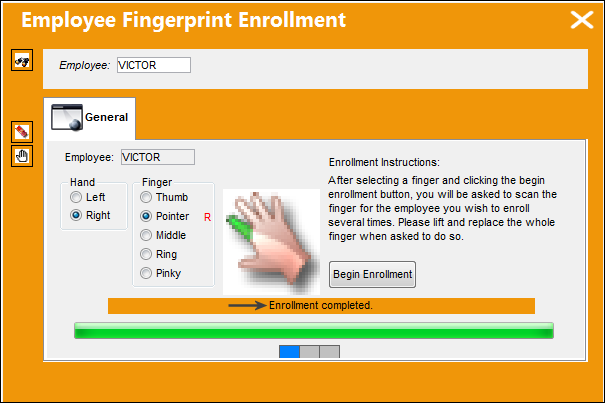
To enroll other fingerprints, select the Hand and Finger then repeat the process.
Biometric Login:
Employees can also log in to TRAX using the biometric functionality. The Login will show the status of the scanner.
- Blue light - active and waiting for scan.
- Yellow lights - scan in progress.
- Green Lights - user authenticated.
- Red Lights - user not authenticated.
Once an Employee's fingerprints are saved, they can use the biometric scanner to automatically log into TRAX. When configured properly, the enrollment status bar is displayed at the top of the login window.
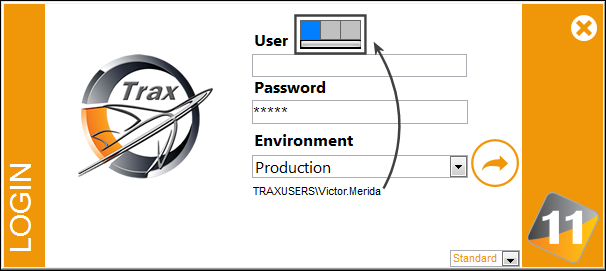
As the Employee presses their finger on the scanner, the fingerprint will be read.
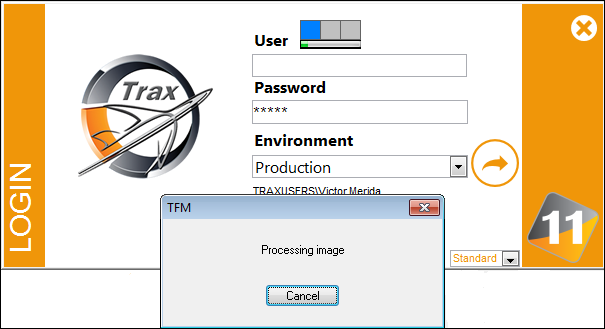
If validated, the TRAX window will open for the User.
Biometric Wall Password:
The ‘Wall Password’ feature also contains the biometric indicator as follows:
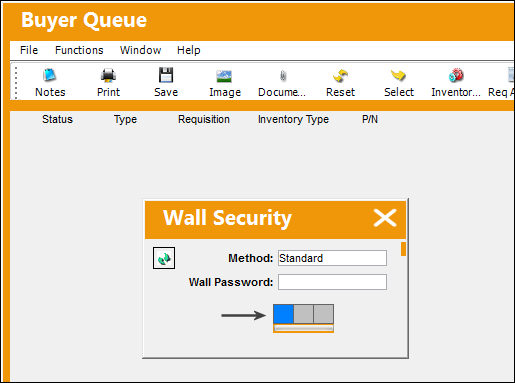
Users can press their finger against the scanner instead of entering their Wall Password.
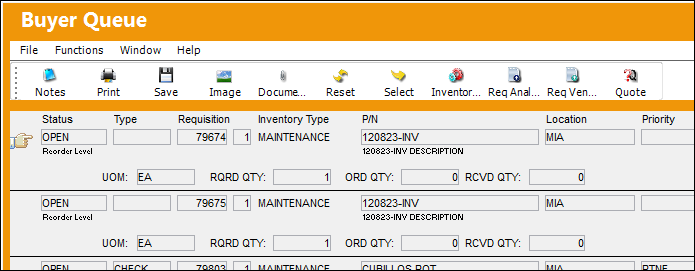
When enrolled correctly, the Wall protected window will appear for that Employee.
Share
Print
|
©1997-2026 Trax USA Corp. All rights reserved. This manual may not be copied, photocopied, reproduced, translated, or converted to any electronic or machine-readable form, in whole or in part, without prior written approval from Trax USA Corp. |
 |