
 Share
Share
 Print
Print
|
|
|
|
|


Employee Drug testing can be performed at your discretion by using the Random Drug Test  button. Options under this multi-button include Random Drug Test and the Schedule Drug Test
  button. In conjunction with the Optional Tab, you can set any particular employee to receive random, scheduled, or no drug testing.
 Note: All employee Personal Identification Information (PII) is encrypted throughout the system to ensure this sensitive information remains secure.
 This button is security controlled via Settings/ Update/ Employee Master/ Scheduled Drug Test Button.
First, when setting up a new employee, select one of the below radio buttons to select the appropriate setting:
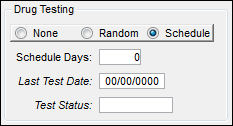
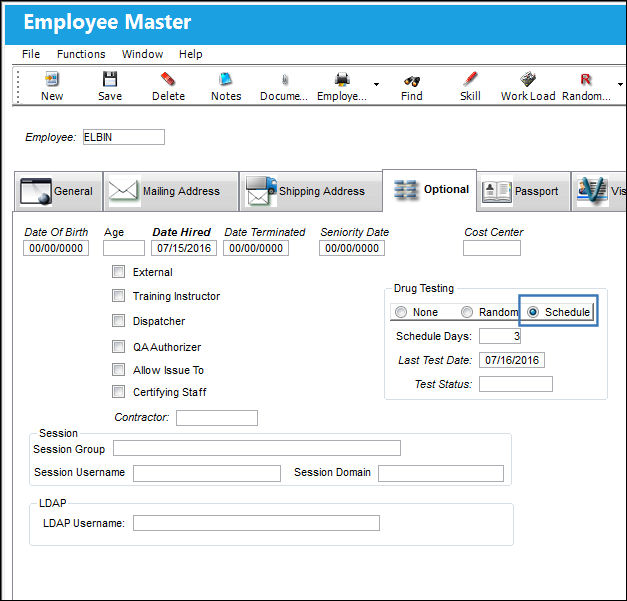
From the Employee Master, Optional tab, select the 'Schedule radio button'. Populate the fields in the Drug Testing box.
For additional information regarding these fields, refer to the Employee Master, Optional Tab.
Select the Schedule Drug Test button.
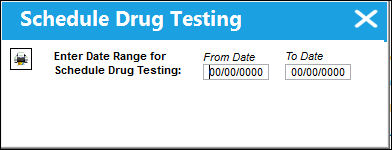
TRAX displays the Schedule Drug Testing pop-up.
If the employee holds the status of 'scheduled' in the Drug Testing field of the Optional Tab, it is required to enter a range of dates for those employees to be tested.
The system will select only from those employees who:
- hold the status of 'scheduled' in the Drug Testing field of the Optional Tab
- who have either met the date range specified here or
- exceeded the number of days in the Scheduled Days field of the Optional Tab
Share
Print
|
©1997-2026 Trax USA Corp. All rights reserved. This manual may not be copied, photocopied, reproduced, translated, or converted to any electronic or machine-readable form, in whole or in part, without prior written approval from Trax USA Corp. |
 |