
 Share
Share
 Print
Print
|
|
|
|
|


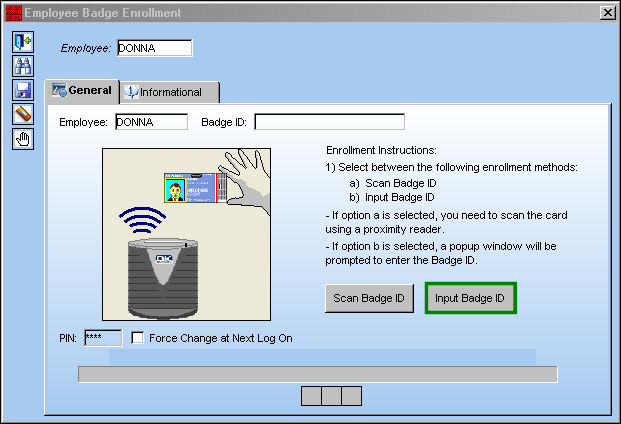
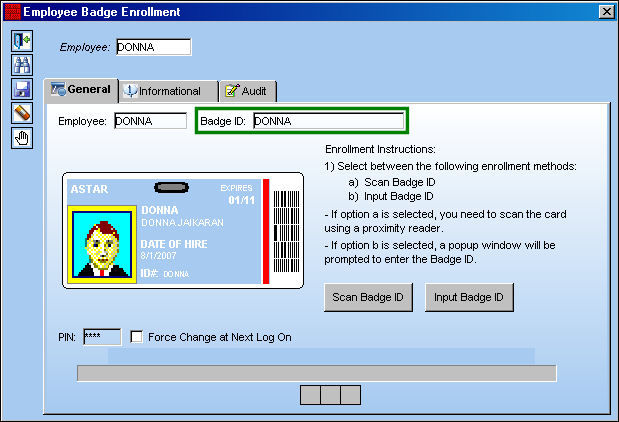
The Input Badge ID option allows the user to manually input their Badge ID.
From the Employee Badge Enrollment window, select the Input Badge ID option.
Input the Badge ID and select the Save  button.
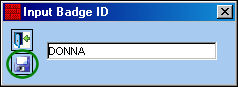
 As a security precaution, the characters typed in the Input Badge ID field will not be displayed.
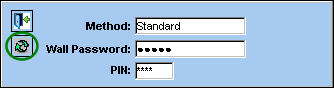
The following pop-up appears. Enter users Wall Password and PIN and select the Continue  button.
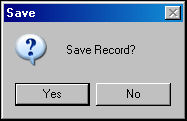
The Save prompt will appear. Select 'Yes.'
The employee' Badge ID appear in the following window. Select the Save button. Go to the TRAX log on window.
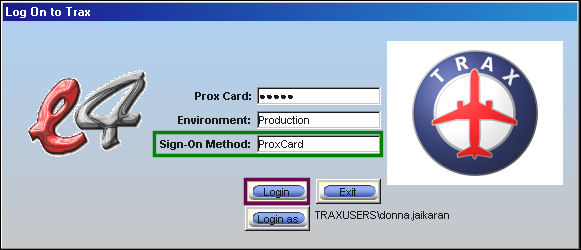
In the Sign-On Method, select the ProxCard. Enter the Prox Card sign in for the above user. Select the Login button.
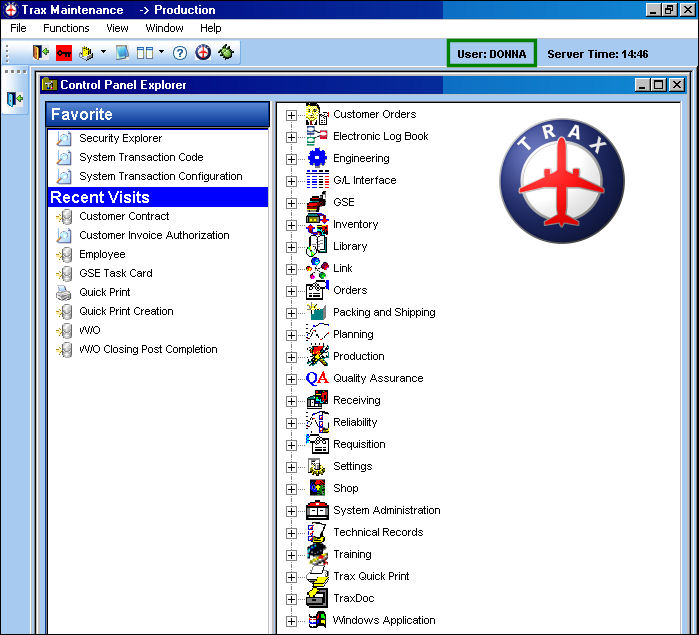
The user is signed in and the TRAX control panel is displayed below:
Share
Print
|
©1997-2026 Trax USA Corp. All rights reserved. This manual may not be copied, photocopied, reproduced, translated, or converted to any electronic or machine-readable form, in whole or in part, without prior written approval from Trax USA Corp. |
 |