
 Share
Share
 Print
Print
|
|
|
|
|


LDAP Sign-On Method
Select the LDAP sign-on method to log in using LDAP credentials. The system will map the LDAP username to a specific user in TRAX. The LDAP functionality connects the user's username with their PC's domain name and other technical specifications. When selected, the user will not enter their TRAX/eMRO username and password but their domain's login username (e.g., 'firstname.lastname') and password.
The LDAP (Lightweight Directory Access Protocol) Sign-On Method is an additional security verification that tracks users by using an interface function that calls upon an LDAP database. This database authenticates if a user is valid.
 The LDAP Configuration File
  button is an Interface related functionality. For additional information, refer to your TRAX interface department.
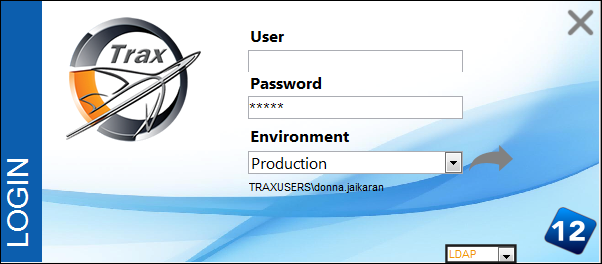
 The character limit for the Username field has been increased to 150 characters for the LDAP Sign-On Method.
Set up of LDAP:
Upload a XML configuration file with LDAP specifications.
The file will have the following format:

Edit the file so it points to your company’s LDAP host, port, domain, etc.
Go to Settings/Update/Company Profile.
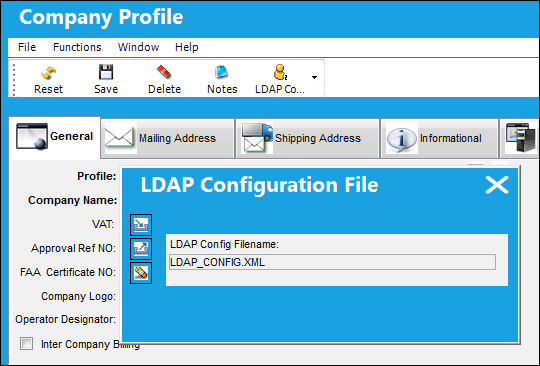
From the Company Profile window, select the LDAP button. The LDAP Configuration File pop up appears.
Select the Import File  button to upload the LDAP.CONFIG.XML file.
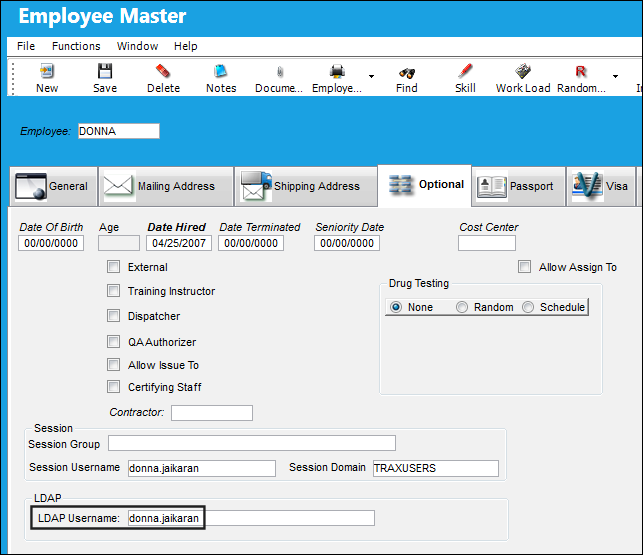
The employee must be set up with an LDAP username.
Go to the Settings/Update/Employee Master.
Select the Employee Master, Optional tab.
Enter the LDAP Username and save record.
For additional information regarding the LDAP Username field, refer to the Employee Master, Optional Tab, via Employee Master of the Settings Training Manual.
The LDAP Username must contain the correct values.
The employee must be set up in the Security Explorer, LDAP tab.
Go to the Security Explorer, LDAP tab.
Enter the name of the Employee. The LDAP Username field auto populates.
Select the Save  button.
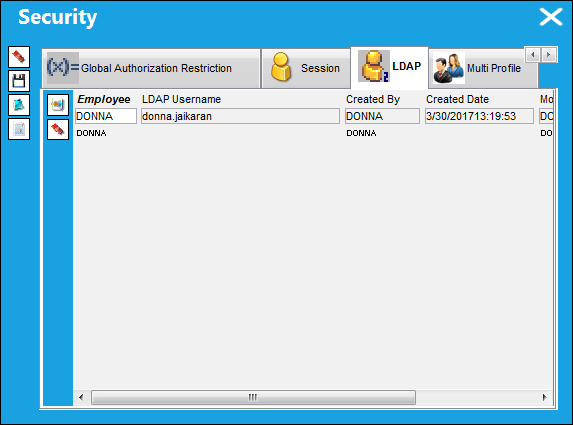
Multiple employees can be linked to the same TRAX user, however single users cannot be linked to more than one TRAX user.
For additional information, refer to the Security Explorer, LDAP tab via the Security Explorer which can be found in the System Administration Training manual.
The employee can now select the LDAP method to sign into TRAX. Enter Username and Password and select the Login button.
For additional information, refer to the Interface API manual for more technical information regarding the integration of the LDAP.
Share
Print
|
©1997-2026 Trax USA Corp. All rights reserved. This manual may not be copied, photocopied, reproduced, translated, or converted to any electronic or machine-readable form, in whole or in part, without prior written approval from Trax USA Corp. |
 |