
 Share
Share
 Print
Print
|
|
|
|
|


The Task Card (job card) displays the work instructions that must be carried out on an aircraft or components. These instructions can include additional information such as material pre-loads and documentation required to carry out the job. The Task Card  button allows for adding and updating Task Card information related to the Work Order. When the Task Card is placed on the Work Order, the information is copied from the original Task Card, then placed on a Task Card (that the system creates upon save) for this Work Order. The Task Card editor that is specified via Engineering/Update/Task Card/Optional 1 tab of the original Task Card will be the default editor for the copied one.
The Task Cards are then used as part of an E/C. The E/C can then be added to the Work Order and all effective, authorized Task Cards will follow.
An E/C is not required to add the Task Cards to the W/O. Any E/C's that may have been previously added to the Work Order will already have any relevant Task Cards associated to that Work Order on this window. The user may customize previously attached Task Cards to this Work Order using this button. Any Task Cards with the Cancel status will not be printed on a Work Order.
Users can also add just the Task Card to the Work Order by selecting the New  button. When selected, the previously created Task Card must be specified in the Task Card field.
Users can make the Task Card “un-editable” once it has been added to the Work Order by setting the appropriate security via System Administration/Explorer/Security Explorer.
 W/O Task Card Layout:
The W/O Task Card window divides the Task Card information into a header and a detail window.
When the Task Card button is selected from the Work Order window, the W/O Task Card header window displays header information for every scheduled Task Card associated to the W/O.
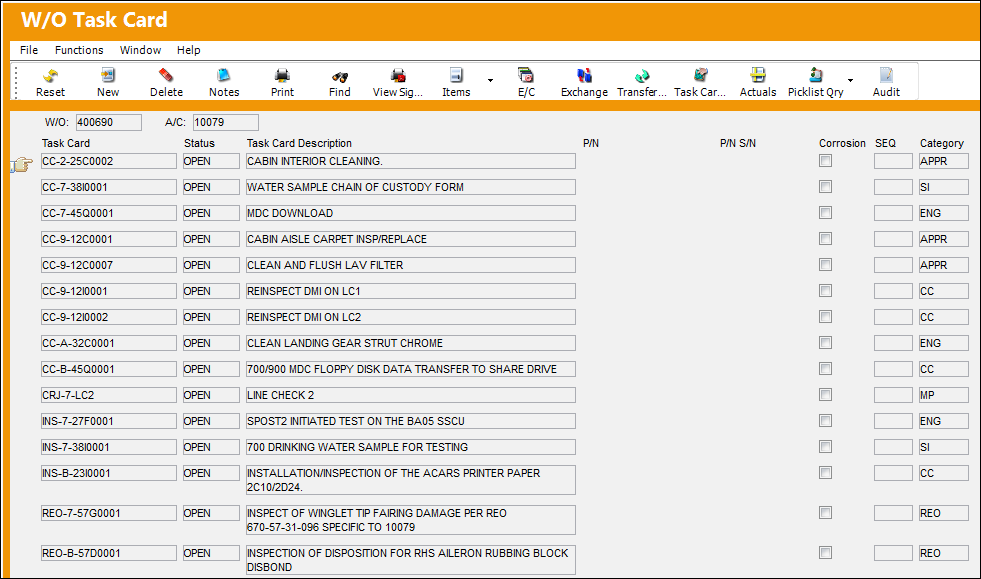
When a Task Card is selected from the header window, the detail window comes up with more Task Card information and tabs.
The following tabs and buttons are available.
W/O Task Card Tabs |
W/O Task Card Buttons |
|---|---|
Items Multi buttons
Picklist Query Multi buttons
|
 Reset button
 Save button
 Delete button

 Find button


 E/C button

 Actuals button
 Picklist Query button
 Picklist button
 Cancel Reservation button
 Requisition button
 Requisition All button
 Requisition Cancel All button

In the event that a W/O's Engineering Controls and Task Cards that were associated to the Work Order are missing from the W/O due to database issues or disconnections, the W/O E/C T/C Reconciliation Print is available to capture these associations. This print is available via Production/ Print/ W/O Print.
Share
Print
|
©1997-2026 Trax USA Corp. All rights reserved. This manual may not be copied, photocopied, reproduced, translated, or converted to any electronic or machine-readable form, in whole or in part, without prior written approval from Trax USA Corp. |
 |