
 Share
Share
 Print
Print
|
|
|
|
|


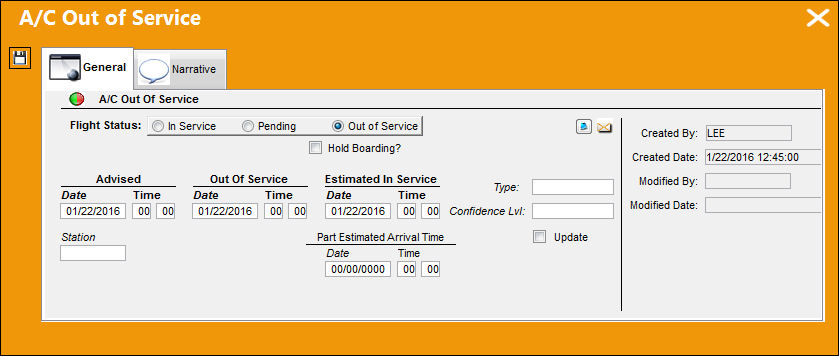
The A/C In/Out Service  button is used by the Maintenance Control department to place an A/C out of service and then return it to service as necessary. This button is typically used in the event of an incident. The aircraft can be placed in or out of service via the Work Order. If the aircraft is placed 'Out of Service', via the Work Order, it will be placed back 'In Service' automatically when the Work Order is closed. If it is a Line Work Order, the aircraft must be placed back 'In Service' manually.

 Note: This button is security-controlled via Production/ Update/ W/O/ A/C In/Out Service. For more information, refer to the Security Explorer via the System Administration Training Manual.
Note: This tab is security-controlled via Production/ Update/ W/O/ A/C In/Out Service/ General tab. For more information, refer to the Security Explorer via the System Administration Training Manual.
The following information/options are available in this window:
_____________________________________________________________________________________
Flight Status
The flight status of the aircraft (e.g., In Service, Pending, or Out of Service).
Note: This field is security-controlled via Production/ Update/ W/O/ A/C In/Out Service/ General tab/ Flight Status. For more information, refer to the Security Explorer via the System Administration Training Manual.
In Service radio button - Select this radio button to place the aircraft in service and ready to fly. The green  light will appear for this aircraft in the A/C Controller Panel. Go to Technical Records/Update.
When selected, the below fields are not available.
Pending radio button - Select this radio button if the aircraft status is pending review of any related Defect Reports. The yellow  light will appear for this aircraft in the A/C Controller Panel. Go to Technical Records/Update.
Out Of Service radio button - Select this radio button to place the aircraft out of service and unable to fly. The red  light will appear for this aircraft in the A/C Controller Panel (Technical Records/ Update). The Out Of Service, Advised, and Estimated In Service fields will appear after the Out Of Service radio button is selected.
W/O
The Work Order used to categorize, manage, and schedule work requirements for aircraft maintenance.
Control No.
A control reference number that is auto generated. This number is informational only.
Event No.
This field displays an informational number that is auto-generated for each Out Of Service event that is created. This field replaces the Control No. field. This field is only displayed once the window is saved.
 This field is a customized request and is therefore not available for all customers. For customers not using this interface, the Control No. field is still available. For more information consult a TRAX System Administrator.
Hold Boarding checkbox
Select this checked to signify to flight control to hold boarding of the A/C. This checkbox is only available when the Out of Service radio button is selected.
Note: This field is security-controlled via Production/ Update/ W/O/ A/C In/Out Service/ General tab/ Hold Boarding checkbox. For more information, refer to the Security Explorer via the System Administration Training Manual.
Update checkbox
This checkbox is selected when the time in which the A/C will be back in service in not known, therefore an Update will be given at the time displayed. This field is not available when the aircraft is In Service.
Note: This field is security-controlled via Production/ Update/ W/O/ A/C In/Out Service/ General tab/ Update checkbox. For more information, refer to the Security Explorer via the System Administration Training Manual.
Note: This field is security-controlled via Production/ Update/ W/O/ A/C In/Out Service/ General tab/ Update At - date and time fields. For more information, refer to the Security Explorer via the System Administration Training Manual.
Advised
The date and time that the discrepancy was reported. The default is the time that the Defect Report is being created and can be edited as required. These fields are not available when the aircraft is In Service.
Note: This field is security-controlled via Production/ Update/ W/O/ A/C In/Out Service/ General tab/ Advised. For more information, refer to the Security Explorer via the System Administration Training Manual.
Out Of Service
The date and time that the aircraft is available for maintenance. These fields are not available when the aircraft is In Service.
Note: This field is security-controlled via Production/ Update/ W/O/ A/C In/Out Service/ General tab/ Out of Service - date and time fields. For more information, refer to the Security Explorer via the System Administration Training Manual.
Estimated In Service (Date/Time)
The date and time that the aircraft will be back in service. These fields are not available when the aircraft is In Service.
When the Update checkbox is selected, this field becomes the Update At date and time window.
Note: This field is security-controlled via Production/ Update/ W/O/ A/C In/Out Service/ General tab/ Estimated in Service - date and time fields. For more information, refer to the Security Explorer via the System Administration Training Manual.
Type
The type of Out of Service Event. This field is not available when the aircraft is In Service.
Note: This field is security-controlled via Production/ Update/ W/O/ A/C In/Out Service/ General tab/ Type. For more information, refer to the Security Explorer via the System Administration Training Manual.
Confidence Level
This is a System Trans code used to the establish the confidence level in which the A/C will be put back into service within the time specified. This field is not available when the aircraft is In Service.
Note: This field is security-controlled via Production/ Update/ W/O/ A/C In/Out Service/ General tab/ Confidence Lvl. For more information, refer to the Security Explorer via the System Administration Training Manual.
Station
The station at which the aircraft is placed Out of Service or in Pending status. This field is not available when the aircraft is In Service.
Note: This field is security-controlled via Production/ Update/ W/O/ A/C In/Out Service/ General tab/ Station. For more information, refer to the Security Explorer via the System Administration Training Manual.
Part Estimated Arrival Time (Date/time)
The date and time that the part will arrive. These fields are not available when the aircraft is In Service. For additional information, refer to the Type of Out of Service Event Transaction Code, which can be found in the Technical Records Transaction Code manual.
This field becomes mandatory if the Part Estimated Arrival Time Field Mandatory checkbox is selected for the Transaction Code selected in the Type field.
Note: This field is security-controlled via Production/ Update/ W/O/ A/C In/Out Service/ General tab/ Part Estimated Arrival Time - date and time fields. For more information, refer to the Security Explorer via the System Administration Training Manual.
Unlock Reason Code
This field allows users to select a reason code when the aircraft is placed 'in service' manually. This field is only available when the aircraft is in service. Therefore, the In Service radio button must be selected. This is an informational-only field and is accessible through any window where the A/C Out of Service window is accessible. This field is based off of System Transaction Code Technical Records/Unlock Reason A/C CP OOS. This field is only available when Technical Records Switch  URACCPOOS is set to Yes. For more information refer to Switch URACCPOOS via the Technical Records Switches Manual.
_____________________________________________________________________________________
If the Advised time is <= the Estimated In Service time, the Out Of Service time = the Estimated In Service time. If the Advised time is > the Estimated In Service time, then the Out Of Service time = the Advised time.
The effect of the changes will be viewable via Technical Records/Update/A/C Controller Panel.
Additional information can be included in the A/C Out of Service, Narrative Tab.
Share
Print
|
©1997-2026 Trax USA Corp. All rights reserved. This manual may not be copied, photocopied, reproduced, translated, or converted to any electronic or machine-readable form, in whole or in part, without prior written approval from Trax USA Corp. |
 |