
 Share
Share
 Print
Print
|
|
|
|
|


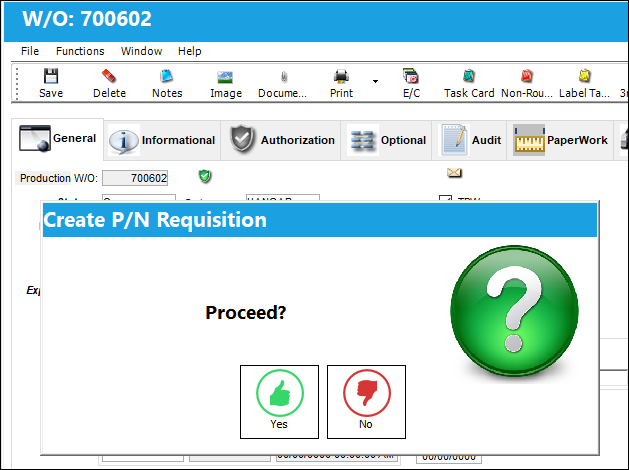
From a Work Order, click on the Requisition All  button. The Create P/N Requisition pop up appears. Select Yes to proceed.
 This button is controlled with security access. This button is controlled via Production/ Update/ W/O Requisition Create All/ Cancel All . For more information refer to the Security Explorer via the System Administration Training Manual.
When Switch  BOCRT is set to No, the Requisition All button via cannot be used to create a Requisition.
The Requisition Creation gage will appear illustrating that the requisition is being created.
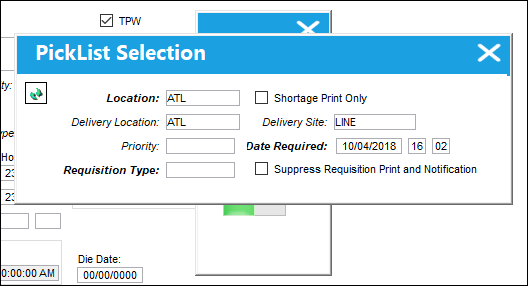
The following information/options are available in this window:
_____________________________________________________________________________________
Location
The inventory location the user wants to issue parts from.
Delivery Location
The location to which the part(s) is being delivered.
Priority
The level of importance placed on the need for a part. Notification based on the requisition priority may be defined by location. These codes are defined in the Priority System Transaction Code.
Requisition Type
The type of Requisition used to identify the purpose of the request. The requisition type is also useful for sort, filters and searches in the system. A default requisition type may be configured. These are defined in the Requisition Type System Transaction Code.
Shortage Print Only checkbox
Choose to include, or not include, whether or not there is a shortage of the part on the Requisition Print.
Delivery Site
Site to which part(s) will be delivered.
Date Required
The date that the item(s) is/are required by.
Suppress Requisition Print and Notification checkbox
Select this checkbox to prevent the system from opening the Requisition Print at the time of the Picklist Creation.The requisition will still be generated, however the print will not be displayed. This checkbox is beneficial in situations where high volume requisitions are being generated, the user will not have to manually close every print as it pops up.
Please note the setting of the following switches as they may affect the functionality of this checkbox:
- BOCRT - (Create Requisition For Parts Below Re-Order Level When P/N Reserved on Picklist)
- REOEAUTO - (Reorder Level Automatic Calculation After Issues)
- WOPURSVRQ - (Display Pop-up For Requisition Location After Location Pop-up)
Continue  button
Select this button to proceed with the requisition.
_____________________________________________________________________________________
Share
Print
|
©1997-2026 Trax USA Corp. All rights reserved. This manual may not be copied, photocopied, reproduced, translated, or converted to any electronic or machine-readable form, in whole or in part, without prior written approval from Trax USA Corp. |
 |