
 Share
Share
 Print
Print
|
|
|
|
|


If any damage or defect is discovered on the aircraft while working on the scheduled W/O Task Card, a Non-Routine Task Card can be created to address the issue. These N/R Task Cards work similarly to Engineering's scheduled Task Cards in that required materials, labor, and finances can be tracked, but N/R Task Cards are considered unplanned maintenance events.
This damage may be discovered at the beginning of a check. During the check, some routine Task Cards may find specific problems that may need some rectification action, which must be recorded on another card. These Non-Routine Task Cards are allocated a sequential number unique to each Work Order for tracking purposes. They do not have their own 'named' reference as the Task Cards do.
Non-Routine Task Cards can be added and created from other places within the System (not necessarily just from this window). An example of this is when the Non-Routine Task Cards are created in the Work In Progress Window and the Defect Report Window.
Users may add Non-Routine Task Cards to this list.
 W/O Task Card Layout:
The W/O Non-Routine Task Card window divides the Task Card information into a header and a detail window.
When the Non-Routine Task Card  button is selected from the Work Order window, the W/O Non-Routine Task Card header window displays header information for every N/R Task Card associated to the W/O.

 The Work Order Description has been added to the W/O Non-Routine Task Card window.
When a N/R Task Card is selected from the header window, the detail window comes up with more N/R Task Card information and tabs.
The following tabs and buttons are available.
W/O Non-Routine Task Card Tabs |
W/O Non-Routine Task Card Buttons |
|---|---|
|
Informational Tab Add/Historical Accomplished Tab |
Items Multi buttons
Picklist Query Multi buttons
|
 Reset button
 New button
 Save button
 Delete button
 Find button
 View Signed PDF button
 Items button
 P/N button
 Zone button
 Panel button
 Manual button
 SDR Creation button
 IR Creation button


 E/C button
 Transfer T/C button
 Actuals button
 Picklist Query button
 Picklist button
 Cancel Reservation button
 Requisition button
 Requisition All button
 Requisition Cancel All button
 Assign Labor button
Switch NRTCPRAP:
The following Production switch affects the printing of the Non-Routine Task Cards. Switches can be set via System Administration/Explorer/System Transaction Configuration.
 NRTCPRAP (Non-Routine Task Card Protect After Printing) - If set to Yes, the system will verify if the Non-Routine Task Card has been printed. If so, the buttons and fields in the window will be protected (non-editable).
The Items P/N, Zone, Panel, Manual, Image, and Document Control buttons will not be protected.
 Do Not Allow W/O Creation Warning:
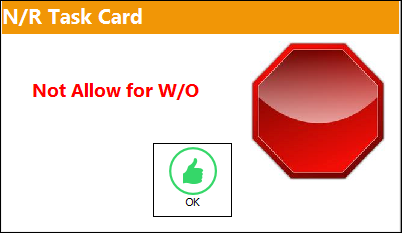
The following hard warning will appear when selecting the Non-Routine Task Card button if the 'Allow N/R Creation' checkbox is deselected via the Work Order Detail, Optional tab. For additional information, refer to the Work Order Detail, Optional tab.
Share
Print
|
©1997-2026 Trax USA Corp. All rights reserved. This manual may not be copied, photocopied, reproduced, translated, or converted to any electronic or machine-readable form, in whole or in part, without prior written approval from Trax USA Corp. |
 |