
 Share
Share
 Print
Print
|
|
|
|
|


From the Work Order Detail window, users can link a W/O's Task Card Phases to a W/O Template by selecting the W/O Template  button.
Once selected, if the W/O has already been linked to a W/O Template, then the below W/O Template window will appear (see below). If a template has not yet been applied to the W/O, then once the button is selected the W/O Template drop down window appears. Here users must select a previously created W/O Template to link to the W/O.
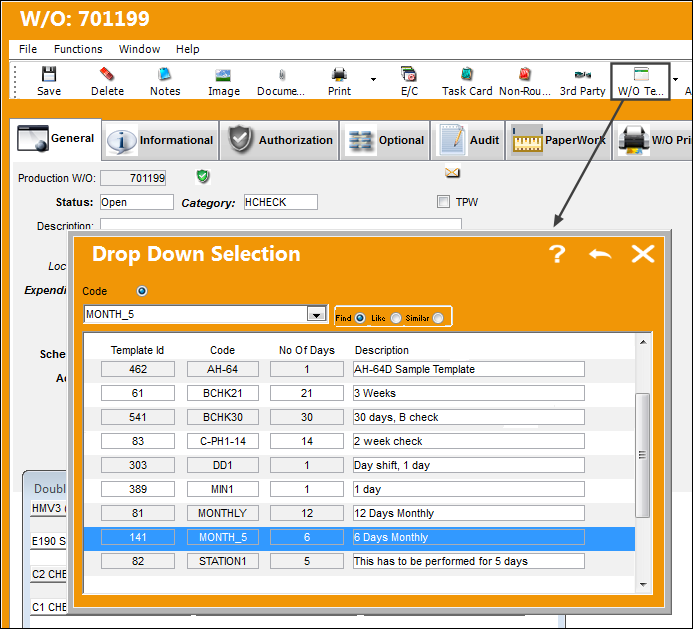
The W/O Template is only functional as part of the Production, Line, and Shop Control web-based applications. Once properly configured, the W/O tasks are organized by their W/O Template Phases in various Flow graphs in Production, Line, and/or Shop Control.
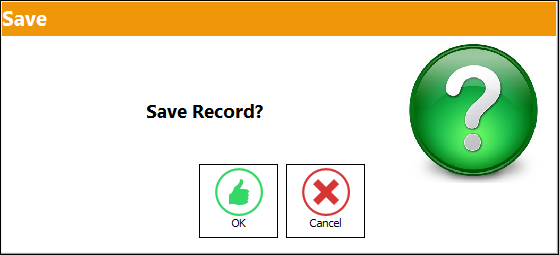
When a W/O Template is selected, the Save prompt appears. Select OK to apply the W/O Template.
Once selected, the W/O Template window appears with the W/O information. Notice that each of the W/O Template's groups/items are linked to days of the W/O Schedule. The information in this window is based on a template but the information for each item can be edited. These items can be registered as open or closed, they can be organized by shift (e.g., Day, Night, etc.), and individual phases can be flagged as task Milestones.
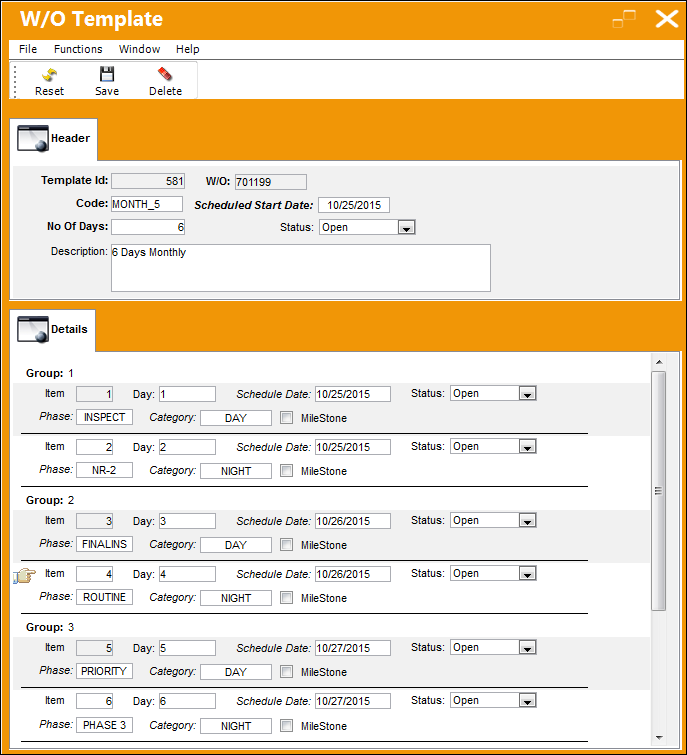
If any of the W/O's Schedule Dates are changed for Items, these days do not affect the W/O's schedule.
For more information on the W/O Template window refer to W/O Template via the Production Training Manual.
Share
Print
|
©1997-2026 Trax USA Corp. All rights reserved. This manual may not be copied, photocopied, reproduced, translated, or converted to any electronic or machine-readable form, in whole or in part, without prior written approval from Trax USA Corp. |
 |