
 Share
Share
 Print
Print
|
|
|
|
|


The Picklist  button allows users to generate a picklist for a Work Order's required parts, as long as those parts are available in the Inventory selected.
From the W/O Detail, select the Picklist button. TRAX displays the Create P/N Reservation (Picklist) pop-up window. Select 'Yes' to proceed with the Picklist creation.
 This button is controlled with security access. This button is controlled via Production/ Update/ W/O Picklist. For more information refer to the Security Explorer via the System Administration Training Manual.
Please note the setting and functionality of switch  PNLABORRESE.
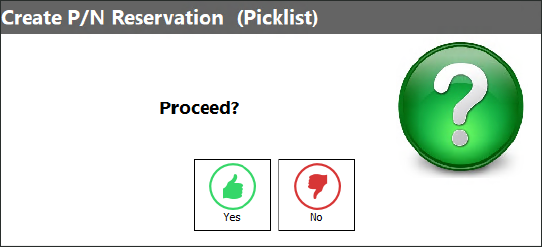
If the W/O does not have any part requirements against a Task Card or Non-Routine Task Card, then a Picklist cannot be created for the W/O through this button.
Populate all mandatory and desired information and select the Find  button. If the required parts are available in Inventory, then a Picklist will be created for that part.
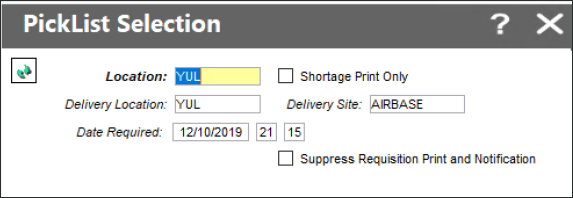
 Note: If Inventory Switch VALPNCONTROLSCHEDULE is set to Yes, the system will validate all parts' P/N Controls' Actuals against their P/N Control Schedules. If no part in the inventory passes the validation test, the system will instead create a requisition for the part(s) instead of a picklist.
The Picklist Print is generated as shown below:
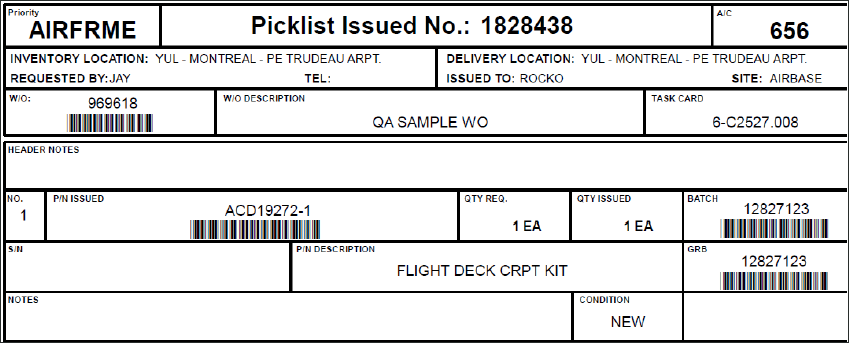
Parts that are categorized as General (Interchangeable) parts will appear on the Picklist Print, regardless of their effectivity as long as the Main P/N is effective to the specified aircraft used to create the Work Order.
ETOPS Picklist Reservation:
The following is an example of how ETOPS non authorized and ETOPS authorized parts behave when being reserved.
Switch ETOPS must be set to No. For additional information, refer to Switch ETOPS, via the Inventory Switches Manual.
P/N |
ETOPS Status |
DL-ROT-1 (Main) |
Non-Authorized |
DL-ROT-1.2 (Interchangeable) |
Authorized |
When creating a reservation for an ETOPS non authorized P/N, the main P/N is not reserved:
P/N |
Available |
Reserved |
DL-ROT-1 (Main) |
1 |
0 |
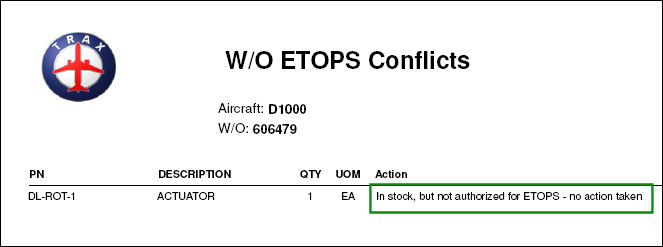
When creating a reservation for an ETOPS non authorized, non available P/N, the main P/N is not reserved:
P/N |
Available |
Reserved |
DL-ROT-1 (Main) |
0 |
0 |
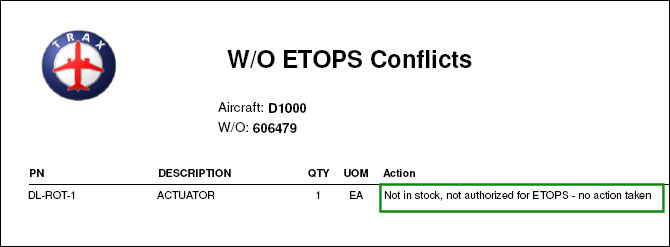
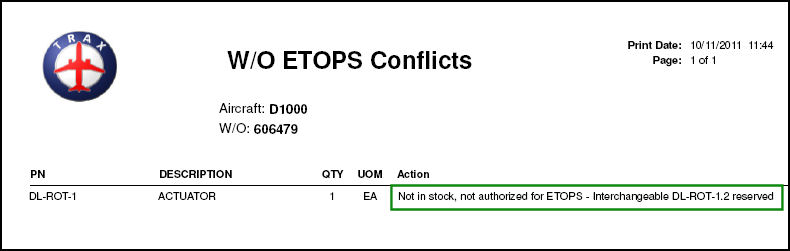
When creating a reservation for an ETOPS non authorized main P/N with an ETOPS authorized interchangeable, the main P/N is not reserved, but the interchangeable is reserved:
P/N |
Available |
Reserved |
DL-ROT-1 (Main) |
1 |
0 |
DL-ROT-1.2 (Interchangeable) |
1 |
0 |
Share
Print
|
©1997-2026 Trax USA Corp. All rights reserved. This manual may not be copied, photocopied, reproduced, translated, or converted to any electronic or machine-readable form, in whole or in part, without prior written approval from Trax USA Corp. |
 |