
 Share
Share
 Print
Print
|
|
|
|
|


The Third Party  button allows users to enter/edit Third Party information for a Work Order that is being created for a third party. While customer detailed can be specified in various fields in this Customer Orders pop-up, the specific Customer Contract is linked to the W/O through the W/O Sell tab.
Populate all mandatory and desired information in the W/O window. Select the Third Party checkbox and save the record.
 This button is controlled with security access. This button is controlled via Production/ Update/ W/O/ 3rd Party. For more information refer to the Security Explorer via the System Administration Training Manual.
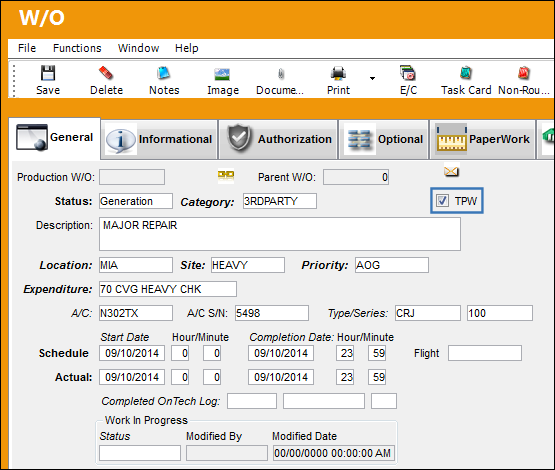
The Third Party checkbox must be selected on the General tab of the Work Order for the Third Party button to be active.
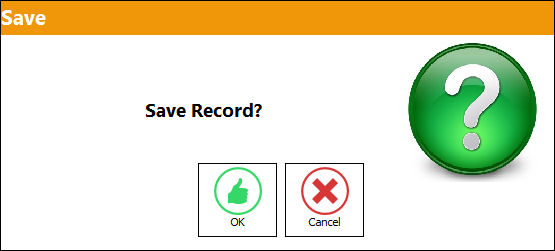
The Save prompt will appear. Select 'OK' to save the Third Party Work Order.
After saving the information in the Work Order Detail, General tab, TRAX will display the Customer Orders Window.
The user can also trigger this window by selecting the Third Party button.
Some of the fields in the Customer Orders, General tab will auto populate from the information already populated and saved in the Work Order. Populate all mandatory fields and click on the Save  button.
Once the Customer Orders, General Tab is populated, the user may choose to populate the other tabs in the window:
The user must link a contract to the Customer Order via the Customer Order, W/O Sell Tab.
Additional information can be viewed and included through the Customer Order, Informational Tab and the Notes  button.
 Third Party Work Order Process
Share
Print
|
©1997-2026 Trax USA Corp. All rights reserved. This manual may not be copied, photocopied, reproduced, translated, or converted to any electronic or machine-readable form, in whole or in part, without prior written approval from Trax USA Corp. |
 |