
 Share
Share
 Print
Print
|
|
|
|
|


The W/O Task Card, Optional 1 tab allows the user to add additional information related to the W/O Task Card. This window is accessed from the Work Order Header, via the Task Card  button.
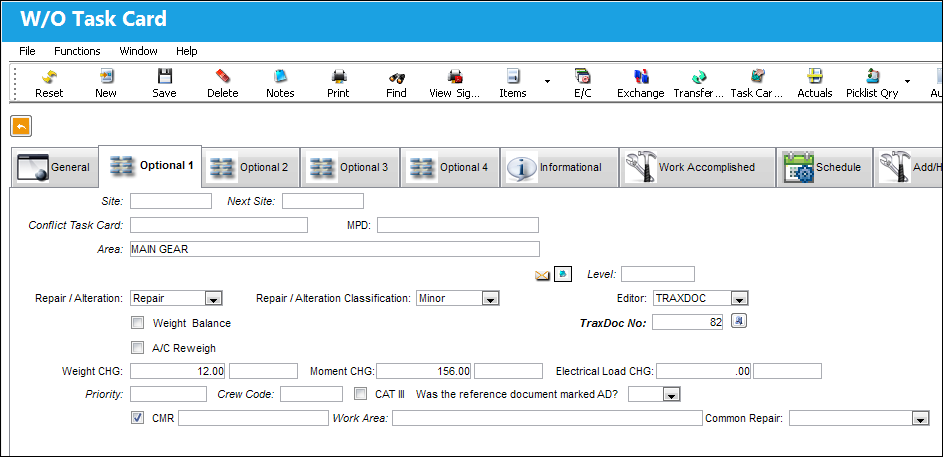
The following information/options are available in this window:
_____________________________________________________________________________________
Site
The Site where the work is to be carried out (if applicable).
Next Site
The Next Site where a component would be moved to upon completion.
Conflict Task Card
If a Task Card is specified here, it will indicate that the current Task Card should not be performed should it appear in a Work Order with the specified Task Card.
If an Engineering Control with a Conflict Task Card is removed from a W/O then added back to that W/O, or if the E/C (with the Conflict T/C) is revised and re-authorized while linked to the W/O, the original Conflict Task Card will be removed from the work package.
MPD
The Maintenance Planning Document reference for this Task Card.
Area
The Area of the aircraft which this Task Card is related to, as defined in the Trans Code.
Level
The level of corrosion noted from the inspection. This field is mandatory when the Corrosion checkbox is selected.
Editor
The application that will be used to edit the Task Card information. The application will also be used to edit Task Cards when those Task Cards are placed on Work Orders via Production/Update/Work Order. Selectable formats include: Word ®, TASKCARD, or the default Powerbuilder ® RTF (i.e. NONE). This is a customized layout for the Task Card.
Using the Editor drop-list on the Optional 1 Tab of the Task Card, the user can choose the editor that will be used to edit each Task Card Item (Step) on an individual basis. The user may set the value for all new Task Cards with the following configuration switch.
 TCEDITOR - (Task Card Item Editor) Enter the default application editor to be used in the Config Other field.
This Editor functionality is only supported when using Oracle ® version 8i and up. Also, this functionality is compatible with Microsoft ® Word 2000 and later versions.
NONE - This is the system default editor and should be entered in all capital letters. For additional information regarding how the NONE Editor functions, refer to NONE (Default TRAX Editor) via the Task Card Editor section of the Engineering - T/C Training Manual.
WORD - This should be entered in all capital letters. This application is a Rich Text Editor with embedded images. For additional information regarding how the WORD Editor functions, refer to the WORD Editor via the Task Card Editor section of the Engineering - T/C Training Manual.
TRAXDOC - The TRAXDOC Editor uses uploaded Style Sheets in TRAXDOC as a template for a print. The Task Card print layout can be defined by a TRAXDOC Style Sheet. Task Cards of each TRAXDOC can have a different layout based on the criteria of the TRAXDOC (i.e. fleet type, customer). TRAXDOC allows the user to modify Task Cards using Style Sheets. The TRAXDOC Editor is not a RTF Editor. When the TRAXDOC Editor is selected, the following field and button appears. For additional information regarding how the TRAXDOC Editor functions, refer to the TRAXDOC Editor via the Task Card Editor section of the Engineering - T/C Training Manual.
STYLESHEET - The Style Sheet Editor is a RTF (Rich Text Format) Editor which allows the user to enter the Task Card item text using the available RTF options. Please see descriptions for the various options and buttons below. For additional information regarding how the STYLESHEET Editor functions, refer to the STYLESHEET Editor via of Task Card Editor section of the Engineering - T/C Training Manual.
TASKCARD - When selected, this editor makes additional information available in the Task Card window for convenience. Users can view, add, and/or modify the Materials, Zones, Panels, and Items associated to the Task Card. For more information refer to the TASKCARD Editor via the Engineering - T/C Training Manual.
TraxDoc No.
Enter the TraxDoc number. This is a record number that is automatically generated within TraxDoc.
This field appears when the 'TRAXDOC' Editor is selected.
TraxDoc  button
Select the TraxDoc button. The TraxDoc Document window appears.
Repair/Alteration
Defines if the record requires Repair or Alteration.
Other - The component is neither altered or repaired. This is a miscellaneous option.
Alteration - This compliance of the Task Card will alter the component (i.e. the removal or addition of sub-components).
Repair - The compliance of the Task Card will repair the component (i.e. a structural component has sheet metal work completed to strengthen the integrity of the structure).
- MAJORREPAIRMAN - (Make the Major Repair mandatory in Engineering, Production, Shop, and Technical Records) When set to Yes, the Repair/Alteration and Repair Alteration Classification option fields will be mandatory on certain tabs. The appearance of these fields will change from drop-down lists to radio button selections. When set to No, the Repair/Alteration and Repair Alteration Classification option fields are not mandatory and do not require specific matching. The option fields will appear in a drop down menu.
Repair/Alteration Classification - The level of Repair/Alteration (Major, Minor) required for this Task Card.
Weight Balance checkbox
Select this checkbox if this Task Card is for a Weight and Balance Check on the aircraft. If selected, the Weight and Balance button appears.
Settings Switch OEWUPD automatically updates the Operating Empty Weight in the A/C Master, Other 2 Tab.
A/C Re-weigh checkbox
If selected, the user will be asked to re-define the Basic Empty Weight and re-calculate the A/C's Moment. When this checkbox is selected, the following two fields appear:
Weight Change
The difference between the Weight On and Weight Off. The data entered here will be stored in the weight change table and can be viewed for the aircraft in the Aircraft Weight Movement Print (from A/C Master).
This field is not available when the A/C Re-weigh checkbox is selected.
Moment Change
The weight change at a specific location on the A/C or Engine (i.e. a wing).
This field is not available when the A/C Re-weigh checkbox is selected.
Electrical Load Change
Select this checkbox if there have been changes in power on the aircraft due to electrical unit changes.
This field is not available when the A/C Re-weigh checkbox is selected.
Priority
The priority of the Task Card (e.g., Normal, Urgent).
Crew Code
Any crew code associated with the Task Card.
CAT III checkbox
Indicates that the card is a Category III.
Was the Reference Document marked AD?
Users can indicate whether or not the reference document is related to an AD (Airworthiness Directive). The options are Yes or No.
 The drop down field will automatically default to 'Yes' if the associated Scheduled Task Card Category code is 'EA-AD, EO-AD or ROUTN-AD'. This field will default to 'No' if one of the specified Category codes is not selected. A user without permissions will not be able to change the defaulted values.
The above Category Codes can be defaulted by selecting the AD Category checkbox via the Task Card Category Transaction code. For additional information, refer to the Task Card Category Transaction code via the Engineering Transaction Code Manual.
 This field is security-controlled via Production/ Update/ W/O/ W/O Non Routine Express Reference Task Card field. For more information refer to the Security Explorer via the System Administration Training Manual.
CMR checkbox
Certification Maintenance Requirement. This is required by the FAA in order to maintain certification of aircraft.
Work Area
Allows users to move Task Cards along with the progress of the check. This field is controlled via the Production System Transaction Code 'W/O Area.'
Common Repair drop down
Users can select from common repair procedures that are input via Production tran code 'Common Repair.'
_____________________________________________________________________________________
Please note the following switches:
- OEWUPD (Operating Empty Weight Auto Update) - If set to Yes, the Operation Empty Weight field (via Settings/Update/A/C/Other 2 Tab) will be automatically updated with the appropriate weight. The adjustment will occur upon Shop Work Order closing for Shop Work Orders associated with that A/C, which contain Task Cards that have Weight On and/or Weight Off information (Engineering/Update/Task Card/Optional 1 Tab).
Additional Task Cards can be added as required to the Shop Work Order.
- TCEFFECT (A/C Effectivity At Task Card Level) - If set to Yes, the system will require that Task Cards have A/C effectivity. If set to Yes, after initially setting the switch to No, the system will prompt user whether to automatically have the Task Cards assume the A/C effectivity of the E/Cs they are attached to (the system will provide a confirmation "Apply A/C Effectivity from E/Cs to their related Task Cards?" prompt upon changing the switch setting).
Share
Print
|
©1997-2026 Trax USA Corp. All rights reserved. This manual may not be copied, photocopied, reproduced, translated, or converted to any electronic or machine-readable form, in whole or in part, without prior written approval from Trax USA Corp. |
 |