Publication Date: 8/17/2026 Share Print

Previous Topic

Next Topic

Book Contents

Book Index

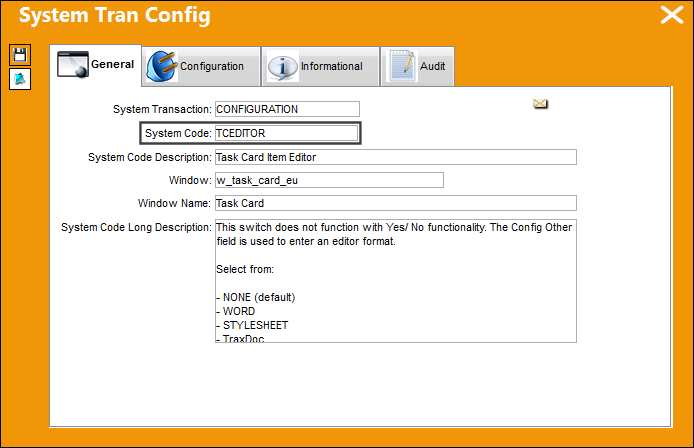
TCEDITOR - Task Card Item Editor

Task Card Item Editor

Affected window: w_task_card_eu
Please note that Microsoft® Word 2000 is only supported when using Oracle version 8i and above.

Note: The editor must be entered in all capital letters.

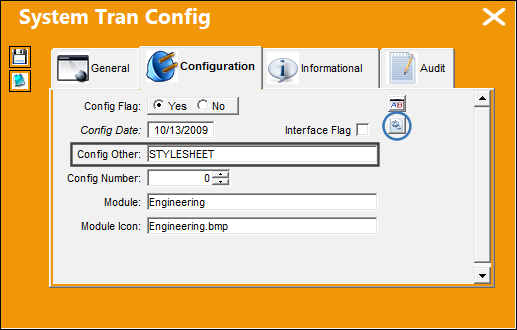
In the following example, editor WORD is entered in the Config Other field.
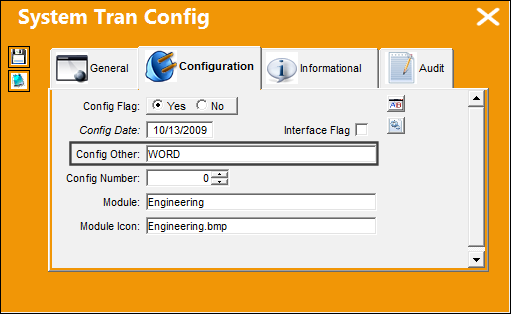
Enter/update the following information:

Release

Editor

Description


NONE

NONE is the default TRAX Editor


WORD

The WORD Editor is a RTF Editor that requires the Microsoft ® application to be installed. If users would like to use the WORD Editor, an MS Word custom template must be developed by TRAX for the specified customer/company.


STYLESHEET

The STYLESHEET Editor is a RTF (Rich Text Format) Editor which allows the user to enter the Task Card item text using the available RTF options. Please see descriptions for the various options and buttons below.


TRAXDOC

The TRAXDOC Editor uses uploaded Stylesheets in TraxDoc as a template for a print. The Task Card print layout can be defined by a TraxDoc Stylesheet. Task Cards of each TraxDoc can have a different layout based on the criteria of the TraxDoc (i.e. fleet type, customer). TraxDoc allows the user to modify Task Cards using Style Sheets. The TRAXDOC Editor is not a RTF Editor.

logo_11_small button edited

TASKCARD

When the TASKCARD Editor is selected in the Task Card, Optional 1 tab, the system uses a mix of the RTF stylesheet and TraxDoc to compose Task Card Items. This means that all Items for that Task Card, whether entered through RTF or brought in through TraxDoc loads, will be linked. RTF Items can reference TraxDoc Items, if necessary.


Task Card Word to Style Sheet Mass Convert but_convert_to_stylesheet_small button

Select this button to globally convert Task Card's from either the None or Word Editor to the Style Sheet Editor for a selected category. The conversion takes the Task Card text and item within the None or Word Editor and converts it to a Rich Text Format (RTF) type editor in a customized formatted stylesheet.

For additional information, refer to the Task Card Word to Style Sheet Mass-Convert Button, via the Task Card Buttons of the Engineering - T/C Training Manual.

logo_11_small button edited

Task Editor Style but_task_editor_style_small button

The Task Editor Style but_task_editor_style_small button allows the user to set up the default configuration for the format of the stylesheet for the Task Card Editor.


Go to Engineering/Update/Task Card.

Create a Task Card. Once saved, go to the Optional 1 tab. The WORD editor is selected by default and greyed out.
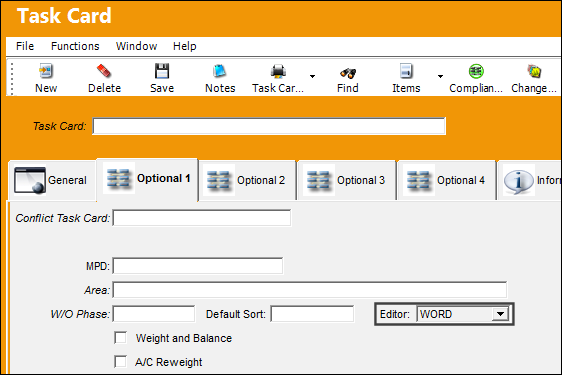
 

logo_11_small button editedTask Editor Style but_task_editor_style_small button:

The Task Editor Style but_task_editor_style_small button allows the user to set up the default configuration for the format of the stylesheet for the Task Card Editor.

The Task Card Editor will be defaulted to STYLESHEET.

Select the Task Editor Style but_task_editor_style_small button.

The TC Items Set Default Format window appears. From this window, the user can default the configuration for the format of the selected stylesheet.
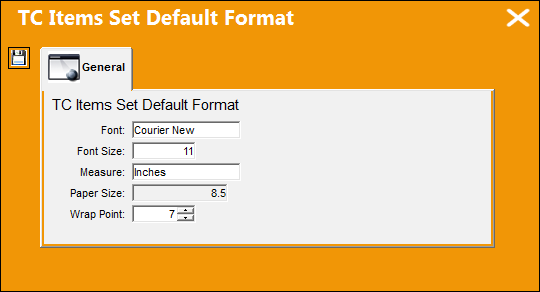
Enter/update the following information:

Field

Function

Font

The default style for the text.

Font Size

The default size of the font.

Measure

Select the unit of measure from which the Wrap Point will begin. Select from:

  • Inches
  • Centimeters

Paper Size

The size of the paper. This is defaulted to 8.5 and is greyed out. This field cannot be edited.

Wrap Point

The point at which the line of text will end and force a new line to begin.


Go to Engineering/ Update/ Task Card

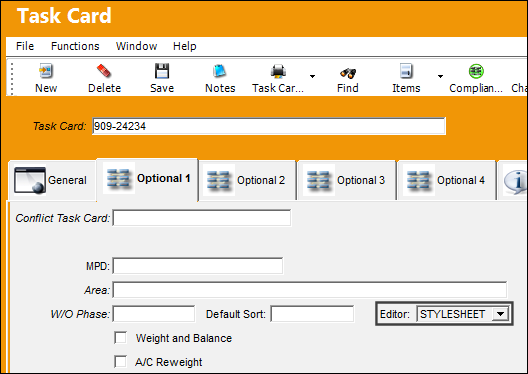
The following Task Card is created:
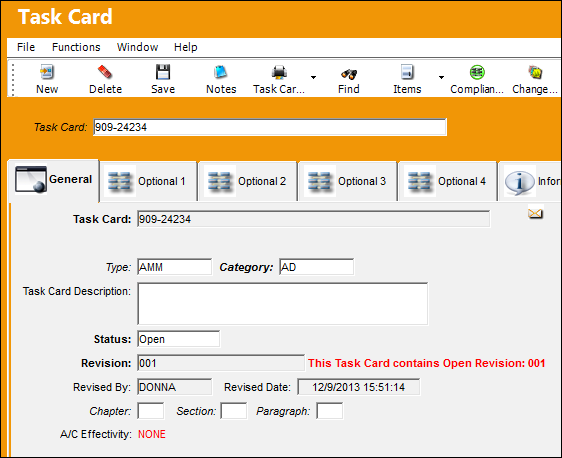
The default editor is STYLESHEET:
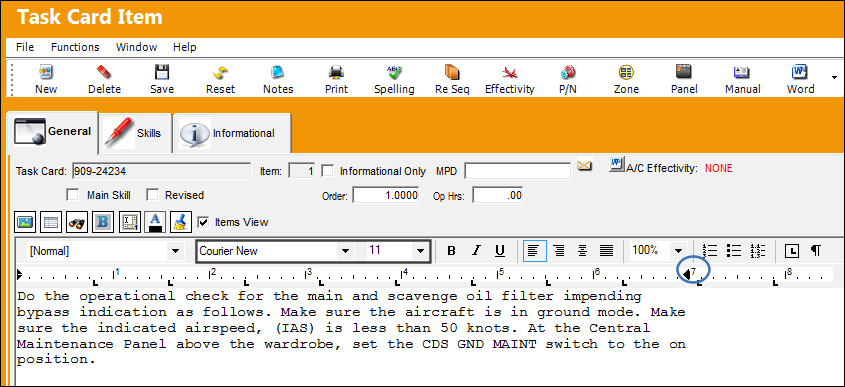
Go to the Task Card item window.

The Font style is defaulted to Courier, the size is defaulted to 11 and the margin at which point the Wrap Point begins is set to 7 inches:
 

logo_11_small switch edited

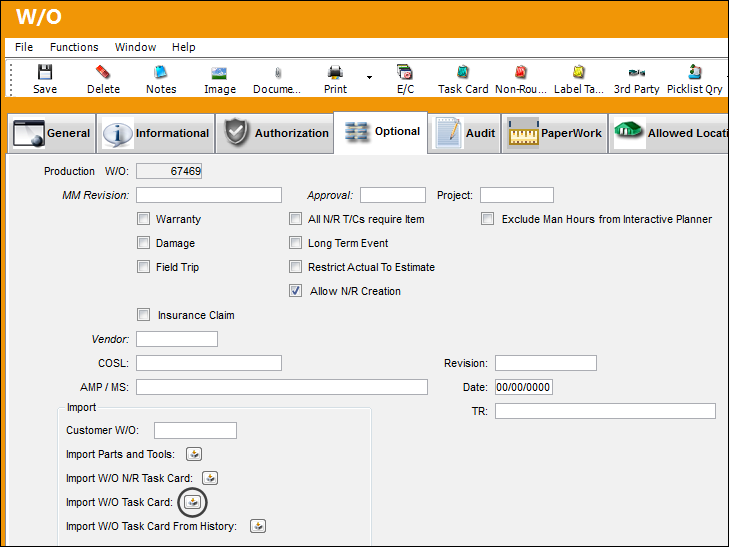
The Import W/O Task Card option now allows users to import Task Cards using the STYLESHEET Editor.

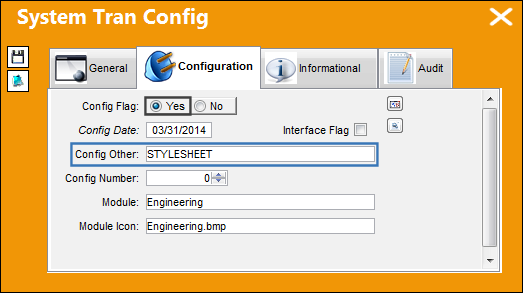
Switch TCEDITOR must be set to Yes and the Config Other is set to STYLESHEET.
Work Order 20145485 has been created.

Select the Import W/O Task Card but_import_(software_bin replacement)_small button.

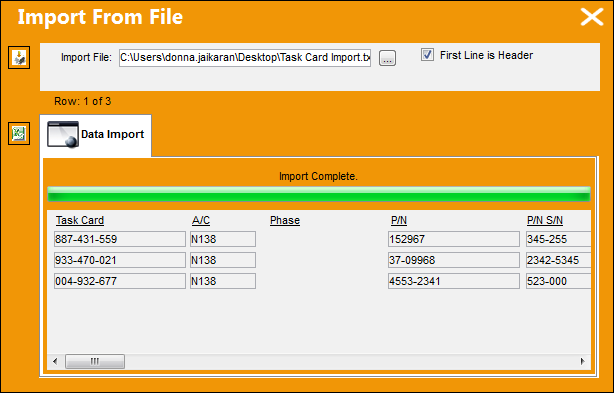
Import the file.

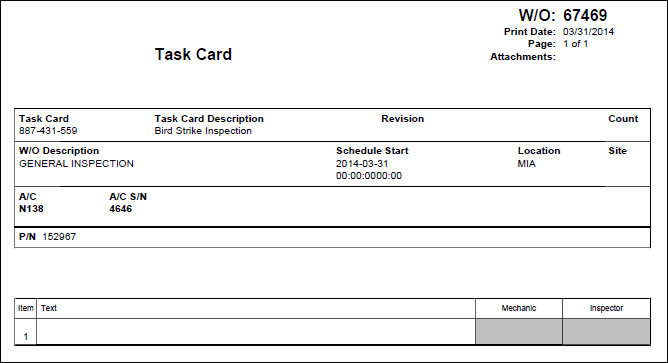
The Task Card has been imported on a STYLESHEET editor:
See Also

Engineering Switches

ADCOMPOPT - Display AD Component Text and AD Not Effective Checkboxes

ADDCONT - Add E/C Content Automatically

ADDSTENGRANGE - Status And Reason Field Added To The Engineering Control Window

ADEFFATCLDI - Avoid Removal of TC Effectivity When an Item is Deleted

AOVERRWOECTC - Auto Override Revised EC/TC In Open Work Orders That Have Not Yet Been Printed

ATACHPSCTMANDATORY - Task Card Mandatory ATA Chapter and Section

AUTOECPNACTUAL - Automatically Update Actual Hours/Cycles on P/N S/Ns Effective to P/N E/C

AVOIDRATCHOLD - Cannot Release Task Cards in Hold Status For Authorization

CHKPNMOD - Warning when NLA Modify To is not Part of the NHA

CHOMITEC - Characters to Omit in E/C

CHOMITTC - Characters to Omit in T/C

DCACEFFT - Enable A/C Effectivity at Document Control Level

DEFCUS - Default Customer Value For Task Card References

DONTPRINTTEXT - Do not print T/C Item text when the T/C has a TraxDoc Reference

ECATACHAPSECTMANDAT - Make Chapter and Section fields Mandatory

ECAUTH - E/C Authorization

ECAUTHPROT - Unauthorized Engineering Control fields Protected

ECAUTO - E/C Auto Creation

ECBLANKCLASSIF - E/C Classification field blank by default when creating a new E/C

ECCONTSORT - E/C Content Sort Order

ECEFFCONTROLPNAC - E/C Cannot Have Both P/N and A/C Effectivity

ECEFFTEXT - E/C Effectivity (APPLICABILITY) Code

ECEXPEMD - Make Expenditure field in E/C Mandatory

ECINTREV - Enter Revision and Revision Description on E/C Creation

ECMNLDUP - Disable E/C Affected Manual Duplicate Checks

ECNEWUPDATE - Update E/C To Be Activated

ECRENAME - E/C Rename

ECRESTRICTVENDOR - Restrict E/Cs to Specific Repair Order Vendors

ECSMPER - E/C Authorization Allowed By Creator

ECSUBCATEGORY - Make E/C Sub Category field Mandatory

ECTCLINK - Security Control to the New, Save, Delete, and Multi Task Card Select Buttons to Modify EC/TC Links

ECVIAREV - E/C Update Only Via Revision

EFFLOADATREC - Control Effectivity Application According To Load At Receiving Status

ENFORCERANGETYPE - Enforce Range Rules

ENGDFALL - Engineering Selection Window, Status Default to All

FOLLOWGRB - Track E/C Through GRB (Goods Received Batch)

IGNLOWLEVSTA - Ignore Lower Level Checkbox

LDPNWOPOS - A/C Readiness will Load P/Ns Without A/C Positions

LOCSITEALLOWED - Display Task Card, Allowed Locations Tab

LOCSITEHIDE - Hide Site field in the Allowed Locations and Location/Site Ban Tabs

MAJORREPAIRMAN - Make the Major Repair Mandatory in Engineering, Production, Shop, and Technical Records

MANLLOR - Disable Lower Level and Override checkboxes if E/C is Mandatory

MLTSKTC - Auto Populate Skill According to Previously Selected Skills

MPDLNROE - Override Effectivity in MPD Loader

NOSELECTEFECTIVITY - Cannot Select to Override Effectivity for P/N and A/C Engineering Controls

ONWINGTASK - Do Not Allow User To Edit Reset Date For Onwing P/N E/Cs

PENDAUTH - WO EC & TC Revision Override

PREIFECCOMPL - Prevent User From Removing Effectivity When EC Has Compliance History

RANGEHELPER - Display the Individual A/C Selection Button

REQDLSKL - Dual (Mechanic and Inspector) Skills for Task Card Items

REVAUTH - Task Card Authorization Revision

RINCONTROL - RIN Control

RMVRVBAR - Remove Revision Bar

RPTSCHDMAND - Make the E/C Repeat Schedule Mandatory

SAVEASEC - Save As Prompt Box for Old E/C Effectivity

SCHCTRLCHECK - Check the Child E/C Revisions

SSCONT- Stylesheet Content Sequence Number

STLARATE - Standard Labor Rate

SUPERECCANCEL - Auto Cancel E/Cs That Have Been Superseded By A Date

TASKCARD - Task Card Footer

TC/CTL - Task Card Control Master Edit

TCAREAMD - Make Area field in Task Card and Work Order Task Card Mandatory

TCAREAMDNR - Make Area field in W/O Non Routine Task Card Mandatory

TCASDEF - Task Card Instead of E/C as the Default E/C Type

TCAUTHPROT - Unauthorized Task Card fields Protected

TCCTLSHT - Task Card Control Sheet Footer

TCDCHDR - Task Card Doc Control Attachment Printing

TCDISCAUTH - Enable Authorization Process for Task Card Discrepancy

TCDUPINS - Duplicate Inspection Checkbox On Task Card

TCEFFECT - A/C Effectivity At Task Card Level

TCEFFRANGE - Allows Selection of a Range in Task Card Effectivity

TCEXDOC - Task Card Print Exclude Document Control Attachments and Images

TCGEDIT - Task Card GSE Item Editor

TCGRAYINSPEC - Grayed Out "Insp.By" Columns for non RII Subtasks

TCHIDERTF - Task Card Item hide RTF Editor

TCITMEFF - Task Card Item Effectivity

TCITMEFO - Task Card Item Not Effective

TCITREV - Task Card Last Revised By (field) Update at the Item Level

TCLINESSKILLGRAY - Display Straight Lines Between Each Subtask and Show Assigned Skills of Subtasks on the "Perf. By" and "Insp. By" Columns

TCMANSHP - Optional Man Hours on Shop Task Card

TCMSMAN - Make Main Skill Mandatory for Task Card Items

TCNECAUTHPROT - Protect Task Card/ Engineering Control Fields From Being Modified

TCOPTMAN - Make Man Hours and Men Required fields Mandatory

TCPNNOTREV - Allow User to Update Task Card P/N Window

TCPREDRW - Task Card Pre-Draw Print After Each Task Card

TCPREPRT - Store Task Card as PDF/Word

TCQUICKRES - Task Card Quick Resolution Available

TCREFEX - Task Card Reference Exclusions

TCRVMAIL - Send Task Card Revision Notification to W/O Creator

TCSEDIT - Task Card Shop Item Editor

TCSKILLHEADER - Task Card Skill Header 10 Boxes

TCSMPER - Task Card Allow Authorization By Same Person Who Issued It

TCSTRHDR - Task Card Image Attachment Printing On A Structure Header

TCTMAND - Task Card Type Mandatory

TCVIAREV- Task Card Update Only Via Revision

TCWEIBAL - Show the Weight and Balance Button

TCXMLENCODING - Use UTF-8 Encoding for Task Card XML

UPDATESWCOMPLEC - Disable Auto Upload of P/N Software Configuration at E/C Compliance

WARNECOVER - Engineering Authorization Information Box

Top of Page Publication Date: 8/17/2026 Share Print