
 Share
Share
 Print
Print
|
|
|
|
|


TCSEDIT - Task Card Shop Item Editor
Task Card Shop Item Editor
Affected window: w_task_card_ue_shop
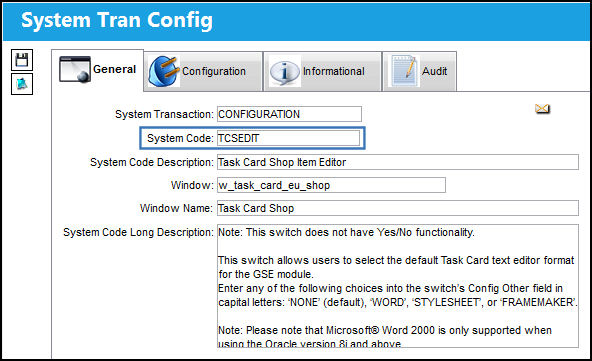
This switch is similar to the Task Card Item Editor (TCEDITOR) but only pertains to the Shop Task Cards.
The Config Other field is used. This switch is not used with Yes and No functionality.
In the Config Other field, enter an editor format. The choices are: NONE (default), WORD, FRAMEMAKER, TRAXDOC and STYLESHEET. Please note that Microsoft® Word 2000 is only supported when using Oracle version 8i and above.
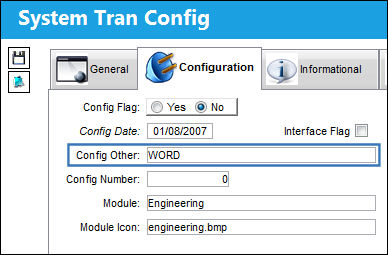
The editor must be entered in all capital letters.
View/verify the following information:
Editor Type |
Description |
NONE |
NONE is the default TRAX Editor |
WORD |
The WORD Editor is a RTF Editor that requires the Microsoft ® application to be installed. If users would like to use the WORD Editor, an MS Word custom template must be developed by TRAX for the specified customer/company. |
FRAMEMAKER |
The Adobe FrameMaker ® Editor is a RTF editor. This is an application that uses SGML tags to build Task Cards. Similar to the Word Editor, FRAMEMAKER requires a customized template created by TRAX for the specified operator in order for the operator to create a customized Task Card in the FRAMEMAKER Editor. Framemaker must be installed on the computer that is being used to create the Task Card in order to verify and print it. |
TRAXDOC |
The TRAXDOC Editor uses uploaded Stylesheets in TraxDoc as a template for a print. The Task Card print layout can be defined by a TraxDoc Stylesheet. Task Cards of each TraxDoc can have a different layout based on the criteria of the TraxDoc (i.e. fleet type, customer). TraxDoc allows the user to modify Task Cards using Style Sheets. The TRAXDOC Editor is not a RTF Editor. |
STYLESHEET |
The STYLESHEET Editor is a RTF (Rich Text Format) Editor which allows the user to enter the Task Card item text using the available RTF options. Please see descriptions for the various options and buttons below. |
Go to Engineering/Update/Task Card Shop.
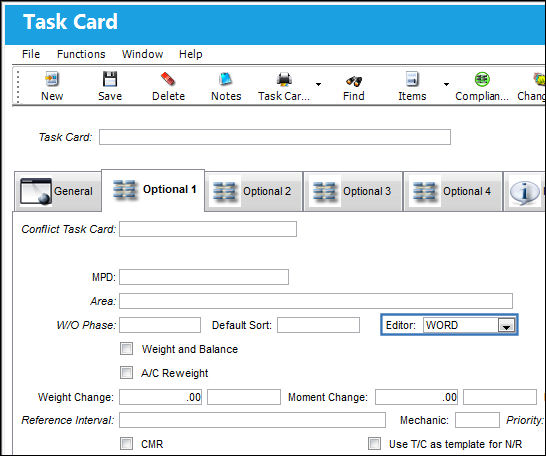
Create a Task Card. Once saved, go to the Optional 1 tab. The WORD editor is selected and greyed out.
Select the Word  button to launch the Word application with the custom template for the users company.
For additional information, refer to the WORD Editor via the Task Card section of the Engineering Training manual.
Share
Print
|
©1997-2026 Trax USA Corp. All rights reserved. This manual may not be copied, photocopied, reproduced, translated, or converted to any electronic or machine-readable form, in whole or in part, without prior written approval from Trax USA Corp. |
 |