
 Share
Share
 Print
Print
|
|
|
|
|


The WORD Editor is a RTF Editor that requires the Microsoft ® application to be installed. If users would like to use the WORD Editor, an MS Word custom template must be developed by TRAX for the specified customer/company.
Go to Engineering/Update/Task Card.
Click on the New  button. Populate all mandatory Task Card information in the General Tab. Select the Optional 1 Tab. Confirm that the desired Editor is selected (i.e. WORD) before saving the Task Card. Once the Task Card is saved, the Editor field will be grayed out, therefore locking the Editor selection.
Go to Engineering/Update/Task Card/Task Card Item.
For more information on above instructions, please see the NONE Editor.
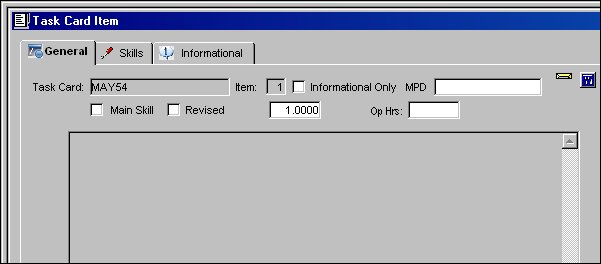
When the WORD Editor is selected, the Task Card Item Window will appear as shown below. The text area in which the instructions could be specified is grayed out because the default Editor (None) is no longer active. The Task Card item instructions must be entered using the MS Word custom template .
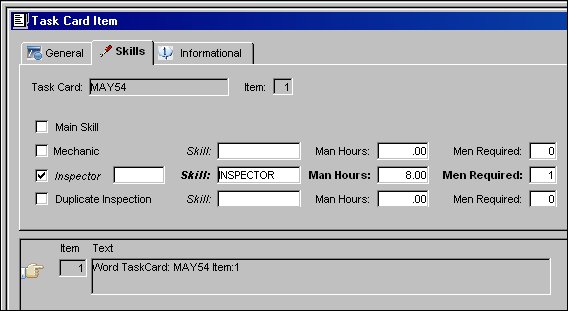
Go to the Skills Tab and populate all mandatory information. Select the Save  button. The Save prompt will appear. Select OK. The items appear in the lower half of the Task Card Item Window. The items are only a place holder. The actual instructions will be entered in a separate Word template document for each individual Task Card item.
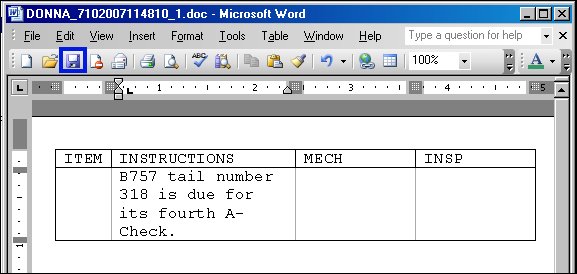
Go to the General Tab of the Task Card item and click on the Word  button. This launches the Word application with the custom template for the users company. This template contains all of the MS Word editing options. Enter the instruction content for the T/C here. Do not enter data in the ITEM, MECH or INSP columns. This information will default from the Skills Tab of the Task Card Items window. Select the Save button, then exit WORD completely. Return to the Task Card item and Save again. This links the instruction item to the number in TRAX. The Save prompt will appear. Select OK. Select the Print
  button. The Task Card Print will load and merge the item content to the Word template.
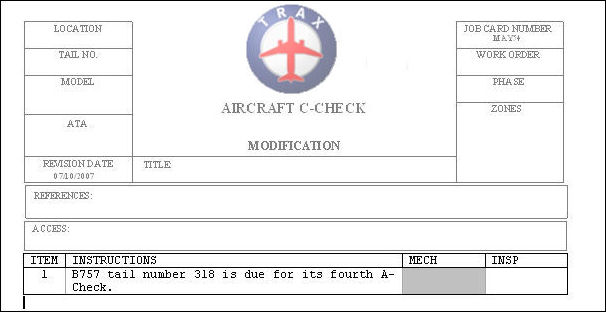
TRAX displays the WORD template. There is only one item associated to this Task Card.
The MECH field is grayed out because only the Inspector was selected in the Skills Tab of the Task Card Item Window.
When the Switch  TCEDITOR switch is configured to WORD, the Convert To Word button appears in the main Task Card Window.
Share
Print
|
©1997-2026 Trax USA Corp. All rights reserved. This manual may not be copied, photocopied, reproduced, translated, or converted to any electronic or machine-readable form, in whole or in part, without prior written approval from Trax USA Corp. |
 |