Publication Date: 8/17/2026 Share Print

Previous Topic

Next Topic

Book Contents

Book Index

FOLLOWGRB - Track E/C Through GRB (Goods Received Batch)

but_11.5 big switch

Track E/C Through GRB (Goods Received Batch)

Affected Window: w_engineering_eu
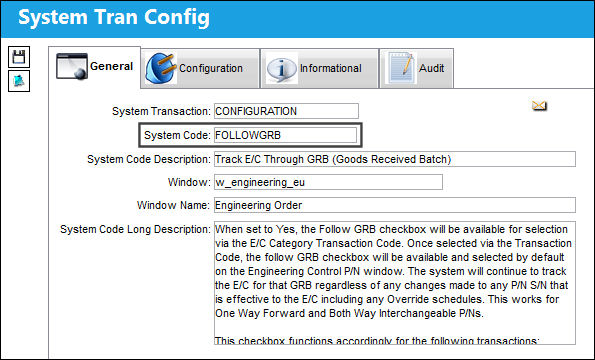
125_FOLLOWGRB(1)

Note: The following three configuration work in conjunction: Inventory switch FOLLOWGRB, the Follow GRB checkbox in the Engineering Control P/N window, and Engineering switch PNSNCHG/EFFECTIVITY. For more detailed information on how these various configurations affect P/N E/C Effectivity, refer to P/N Change Transactions.


Switch Set to Yes:

When set to Yes, the Follow GRB checkbox will be available for selection via the E/C Category Transaction Code. Once selected via the Transaction Code, the Follow GRB checkbox will be available and selected by default on the Engineering Control P/N window. The system will continue to track the E/C for that GRB regardless of any changes made to any P/N S/N that is effective to the E/C including any Override schedules. This works for One Way Forward and Both Way Interchangeable P/Ns.

This checkbox functions accordingly for the following transactions:

  • P/N S/N Change (Inventory Transaction)
  • P/N S/N Change (Inventory Supervisor)
  • P/N Receiving (Repair Orders only)
  • Receiving Inspection
  • P/N Modify To (via Engineering Control P/N window)
  • P/N N/L/A Creation

Also, when set to Yes, the Load At Receiving checkbox will be available for selection via the E/C Category Transaction Code.
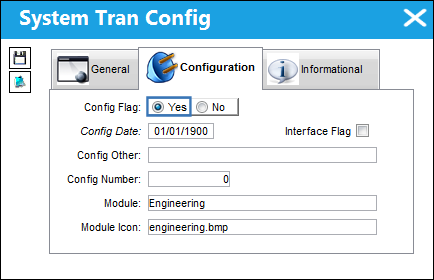
12_Engineering_Yes

Note: The functionality of the Load At Receiving checkbox (via the Engineering Control P/N window) is not new in TRAX Version 11.5. Only the option to have the checkbox selected by default is new. For additional information, refer to the P/N CTL (Control) Button, via the Engineering - E/C Training manual.


Example 1: P/N S/N Change transaction (Inventory Transaction)

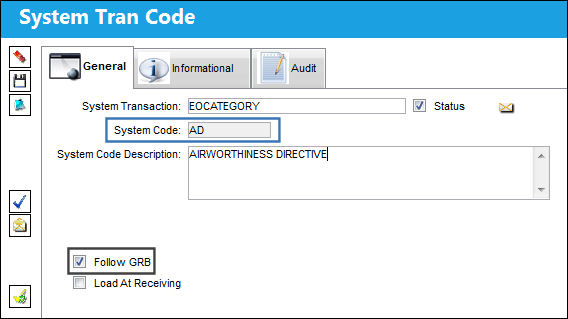
The Follow GRB checkbox has been selected for the AD Category Code.

Notice that the Load At Receiving checkbox is also available.
125_FOLLOWGRB_YES(1)

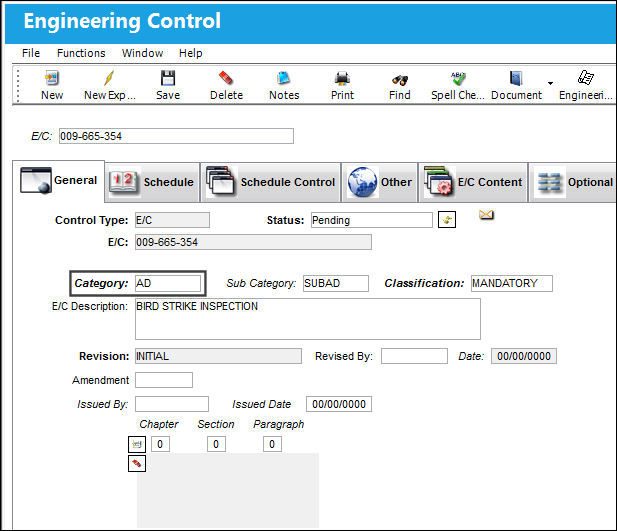
The following E/C was created with E/C Category Code AD:
125_FOLLOWGRB_YES(2)

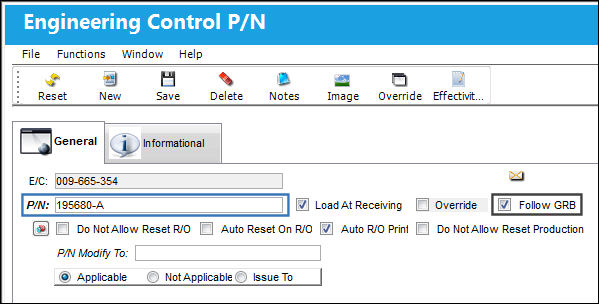
From the Engineering Control P/N window, the Follow GRB checkbox is selected by default.
125_FOLLOWGRB_YES(3)

Note the schedule for the E/C:

125_FOLLOWGRB_YES(4)

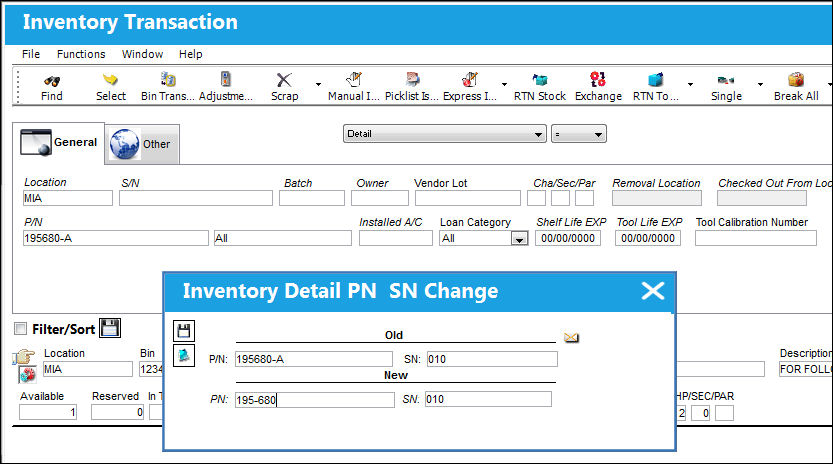
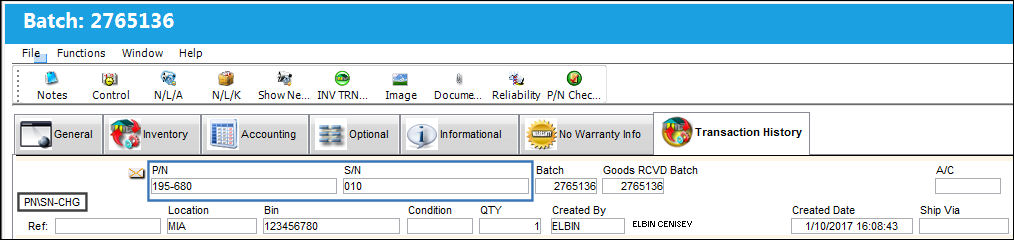
A P/N S/N Change transaction is done for P/N 195680-A. This is the P/N effective to the above E/C.
125_FOLLOWGRB_YES(5)

The PN\SN-CHG transaction is reflected from the Transaction History tab.
125_FOLLOWGRB_YES(6)

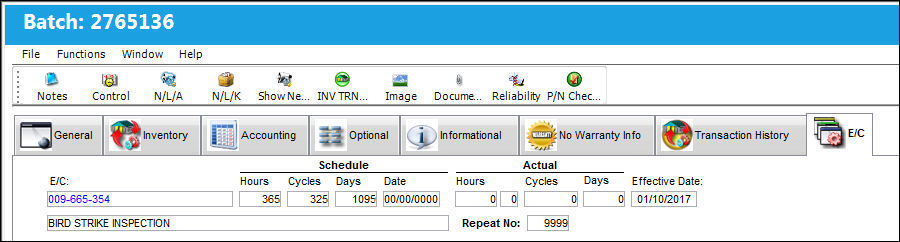
The new P/N has been made effective to the E/C and the schedule of the E/C.
125_FOLLOWGRB_YES(7)

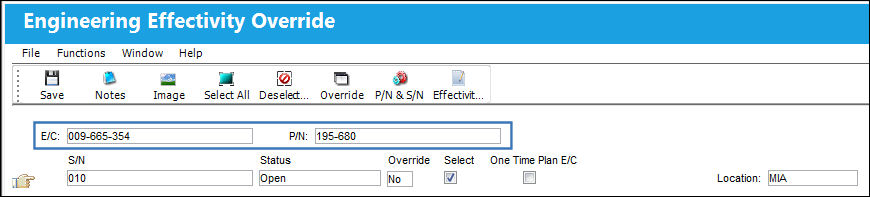
The new P/N is also added to the list of effective P/Ns in the Engineering Effectivity Override window.
125_FOLLOWGRB_YES(8)


Example 2: Transfer Override Schedule

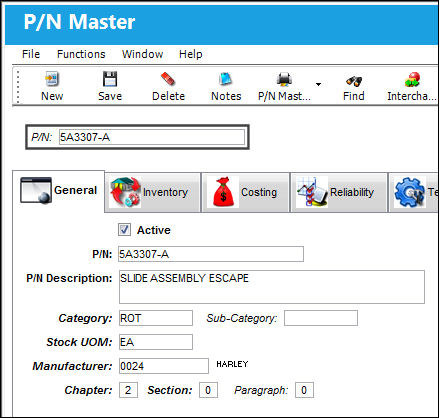
The following P/N is a Main P/N.
125_FOLLOWGRB_YES(9)

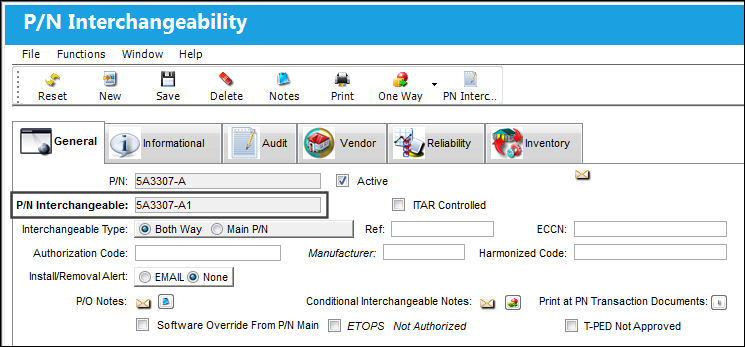
P/N 5A3307-A1 is a Both Way Interchangeable to the Main P/N.
125_FOLLOWGRB_YES(10)

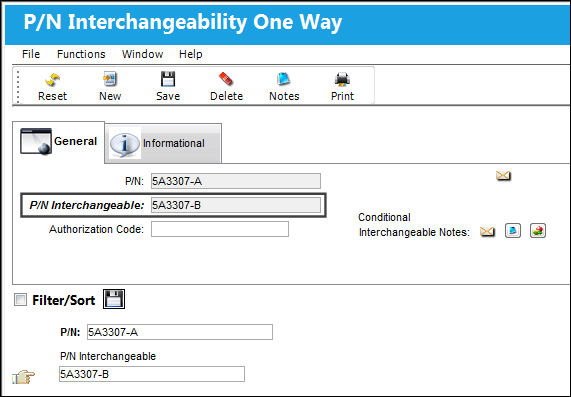
The Main P/N is a One Way Interchangeable to P/N 5A3307-B.
125_FOLLOWGRB_YES(11)

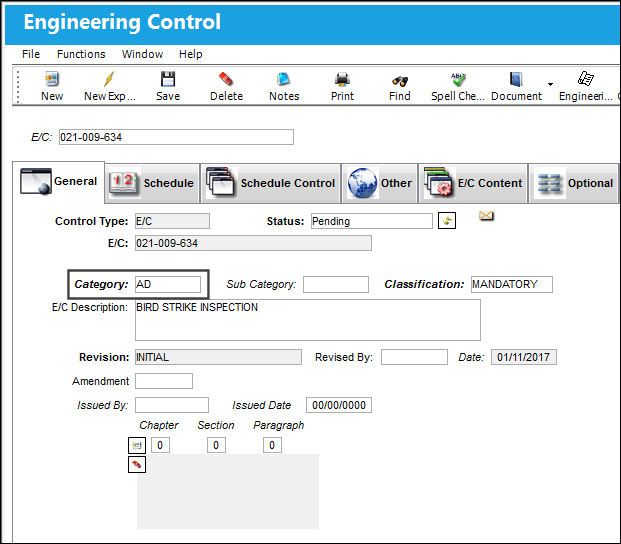
The following E/C was created with E/C Category Code AD:
125_FOLLOWGRB_YES(12)

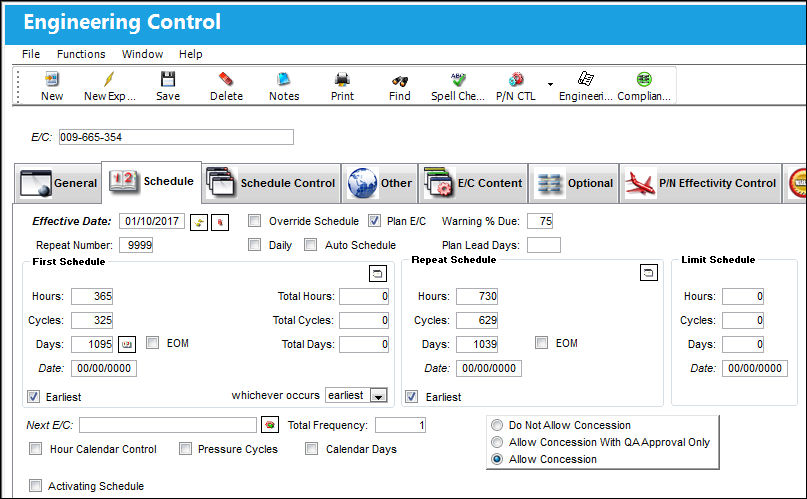
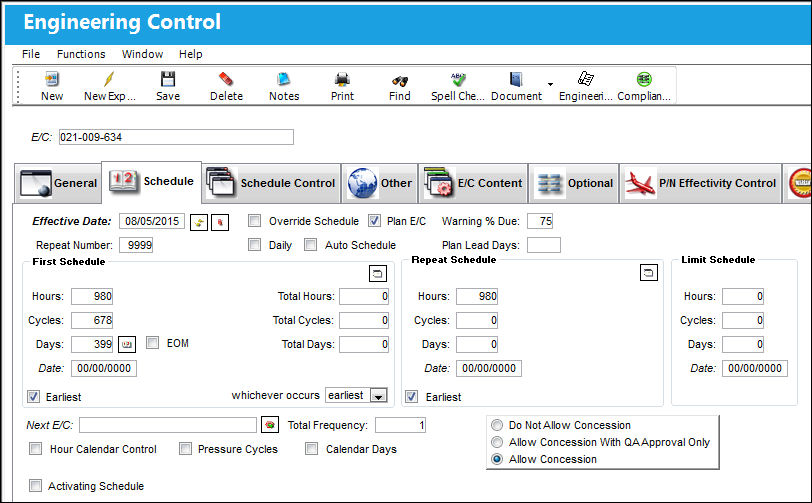
Note the schedule for the E/C:

125_FOLLOWGRB_YES(13)

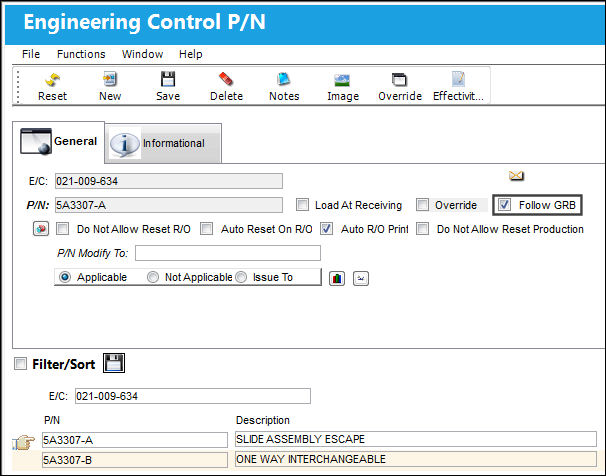
From the Engineering Control P/N window, the Follow GRB checkbox is selected by default.
125_FOLLOWGRB_YES(14)

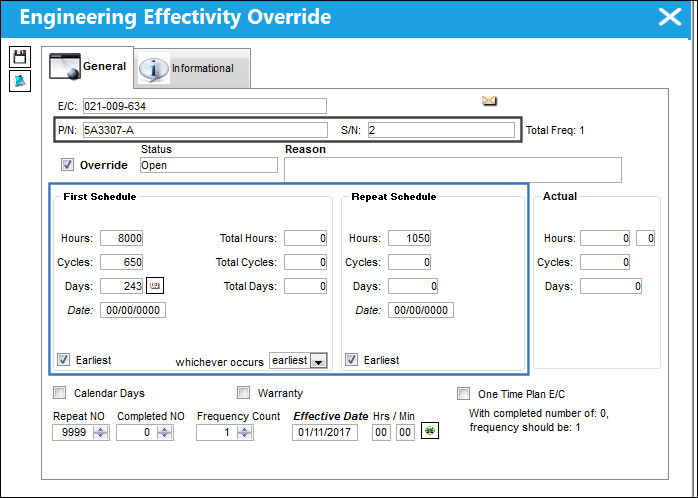
The following Override schedule is applied to the Main P/N S/N.
125_FOLLOWGRB(24)

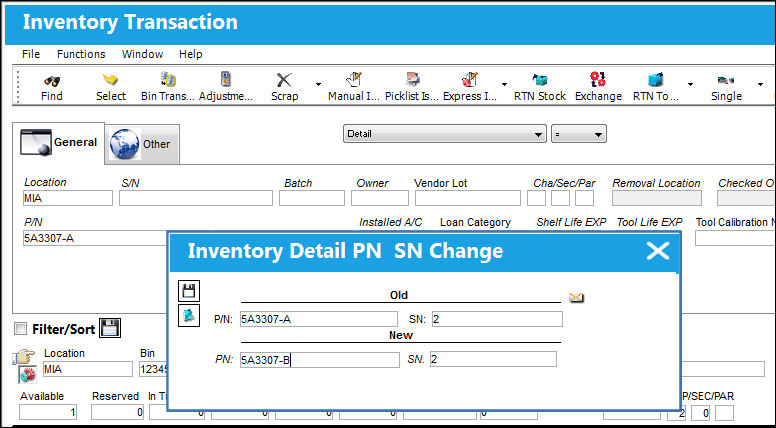
A P/N S/N Change transaction is done for the Main P/N 5A3307-A. This is the P/N effective to E/C 021-009-634.
125_FOLLOWGRB(25)

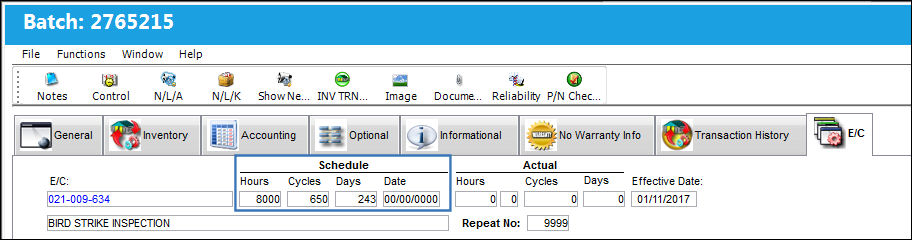
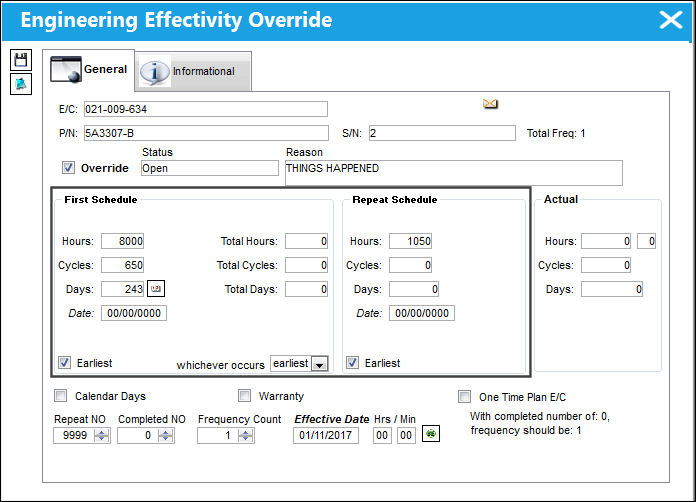
The One Way Forward P/N S/N has acquired the Override schedule from the Main P/N S/N.
125_FOLLOWGRB(26)

The Override Schedule is reflected correctly for the One Way Forward.
125_FOLLOWGRB(27)

Note: This functionality also works for Both Way Interchangeable parts.


Switch Set to No:

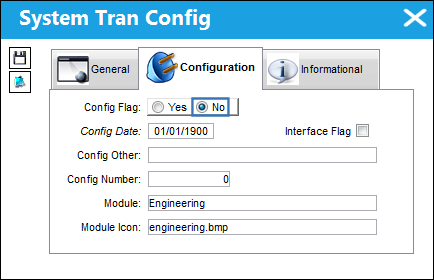
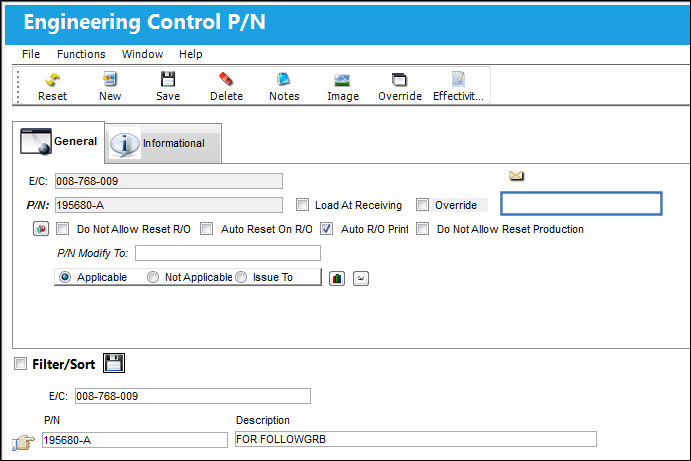
When set to No, the Follow GRB checkbox and the Load At Receiving checkbox will not be available on the Engineering Control P/N window. The system will not track the E/C for that GRB regardless of any changes made to any P/N S/N effective to that E/C.
12_Engineering_No

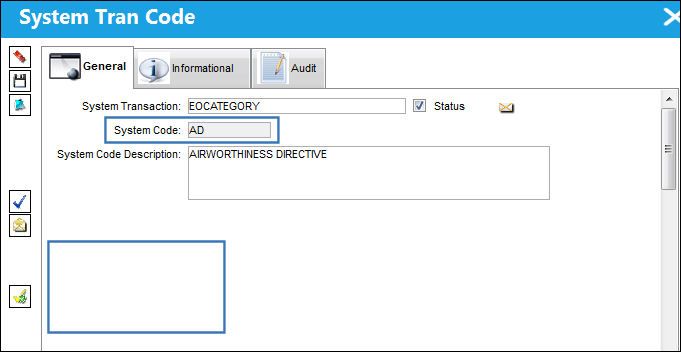
The Follow GRB checkbox and the Load At Receiving checkbox are not available for selection via the E/C Category Transaction Code.
125_FOLLOWGRB_YES(15)

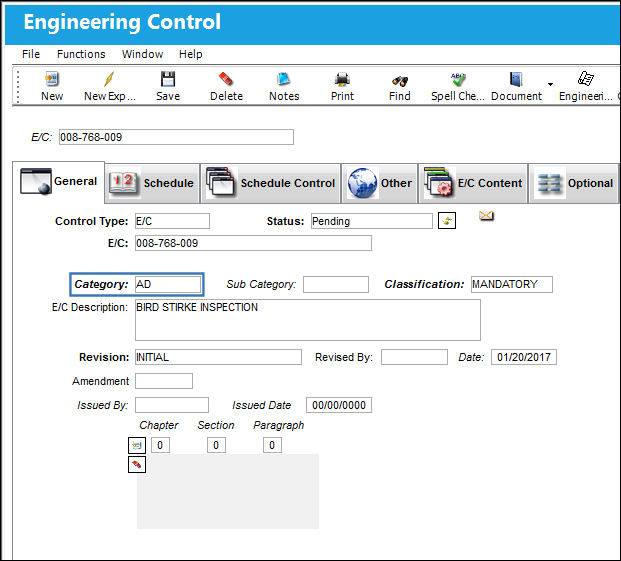
The following E/C was created with E/C Category Code AD:
125_FOLLOWGRB(12)

The Follow GRB checkbox is not available via the Engineering Control P/N window for the following P/N E/C.
125_FOLLOWGRB(13)

A P/N S/N Change transaction is done for P/N 195680-A. This is the P/N E/C effective to E/C 008-768-009.
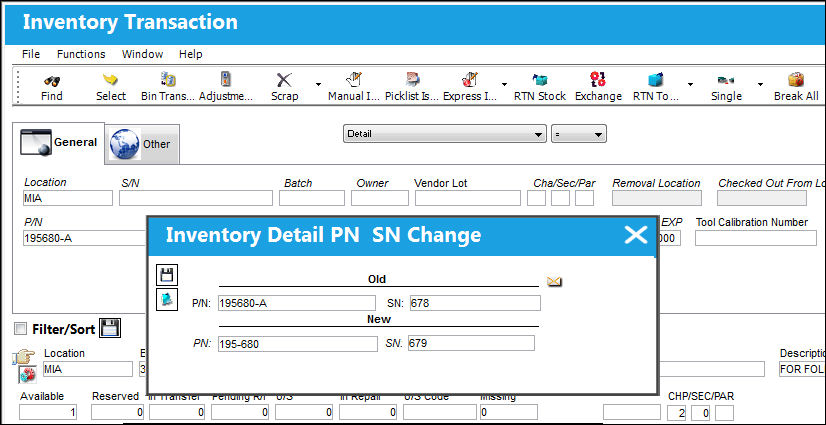
125_FOLLOWGRB(14)

The new P/N is not made effective to the E/C.
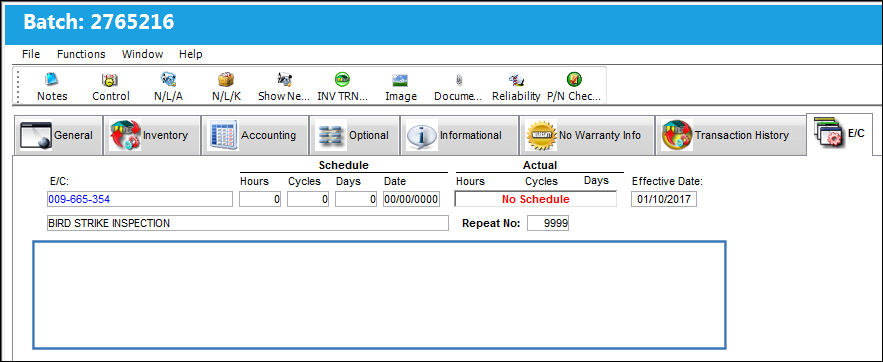
125_FOLLOWGRB(15)

The P/N was not added to the list of effective P/N E/Cs.
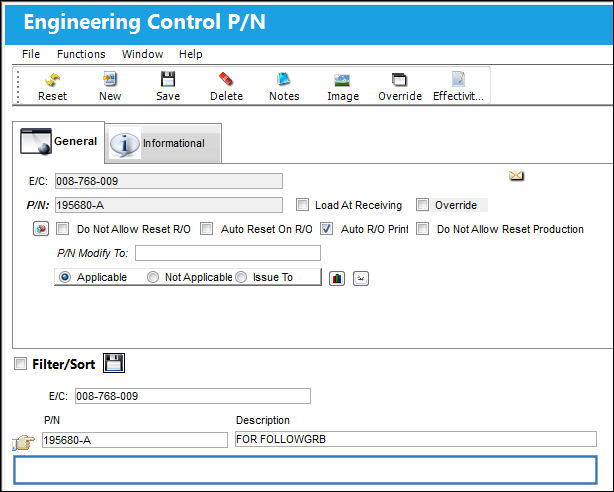
125_FOLLOWGRB(16)

See Also

Engineering Switches

ADCOMPOPT - Display AD Component Text and AD Not Effective Checkboxes

ADDCONT - Add E/C Content Automatically

ADDSTENGRANGE - Status And Reason Field Added To The Engineering Control Window

ADEFFATCLDI - Avoid Removal of TC Effectivity When an Item is Deleted

AOVERRWOECTC - Auto Override Revised EC/TC In Open Work Orders That Have Not Yet Been Printed

ATACHPSCTMANDATORY - Task Card Mandatory ATA Chapter and Section

AUTOECPNACTUAL - Automatically Update Actual Hours/Cycles on P/N S/Ns Effective to P/N E/C

AVOIDRATCHOLD - Cannot Release Task Cards in Hold Status For Authorization

CHKPNMOD - Warning when NLA Modify To is not Part of the NHA

CHOMITEC - Characters to Omit in E/C

CHOMITTC - Characters to Omit in T/C

DCACEFFT - Enable A/C Effectivity at Document Control Level

DEFCUS - Default Customer Value For Task Card References

DONTPRINTTEXT - Do not print T/C Item text when the T/C has a TraxDoc Reference

ECATACHAPSECTMANDAT - Make Chapter and Section fields Mandatory

ECAUTH - E/C Authorization

ECAUTHPROT - Unauthorized Engineering Control fields Protected

ECAUTO - E/C Auto Creation

ECBLANKCLASSIF - E/C Classification field blank by default when creating a new E/C

ECCONTSORT - E/C Content Sort Order

ECEFFCONTROLPNAC - E/C Cannot Have Both P/N and A/C Effectivity

ECEFFTEXT - E/C Effectivity (APPLICABILITY) Code

ECEXPEMD - Make Expenditure field in E/C Mandatory

ECINTREV - Enter Revision and Revision Description on E/C Creation

ECMNLDUP - Disable E/C Affected Manual Duplicate Checks

ECNEWUPDATE - Update E/C To Be Activated

ECRENAME - E/C Rename

ECRESTRICTVENDOR - Restrict E/Cs to Specific Repair Order Vendors

ECSMPER - E/C Authorization Allowed By Creator

ECSUBCATEGORY - Make E/C Sub Category field Mandatory

ECTCLINK - Security Control to the New, Save, Delete, and Multi Task Card Select Buttons to Modify EC/TC Links

ECVIAREV - E/C Update Only Via Revision

EFFLOADATREC - Control Effectivity Application According To Load At Receiving Status

ENFORCERANGETYPE - Enforce Range Rules

ENGDFALL - Engineering Selection Window, Status Default to All

IGNLOWLEVSTA - Ignore Lower Level Checkbox

LDPNWOPOS - A/C Readiness will Load P/Ns Without A/C Positions

LOCSITEALLOWED - Display Task Card, Allowed Locations Tab

LOCSITEHIDE - Hide Site field in the Allowed Locations and Location/Site Ban Tabs

MAJORREPAIRMAN - Make the Major Repair Mandatory in Engineering, Production, Shop, and Technical Records

MANLLOR - Disable Lower Level and Override checkboxes if E/C is Mandatory

MLTSKTC - Auto Populate Skill According to Previously Selected Skills

MPDLNROE - Override Effectivity in MPD Loader

NOSELECTEFECTIVITY - Cannot Select to Override Effectivity for P/N and A/C Engineering Controls

ONWINGTASK - Do Not Allow User To Edit Reset Date For Onwing P/N E/Cs

PENDAUTH - WO EC & TC Revision Override

PREIFECCOMPL - Prevent User From Removing Effectivity When EC Has Compliance History

RANGEHELPER - Display the Individual A/C Selection Button

REQDLSKL - Dual (Mechanic and Inspector) Skills for Task Card Items

REVAUTH - Task Card Authorization Revision

RINCONTROL - RIN Control

RMVRVBAR - Remove Revision Bar

RPTSCHDMAND - Make the E/C Repeat Schedule Mandatory

SAVEASEC - Save As Prompt Box for Old E/C Effectivity

SCHCTRLCHECK - Check the Child E/C Revisions

SSCONT- Stylesheet Content Sequence Number

STLARATE - Standard Labor Rate

SUPERECCANCEL - Auto Cancel E/Cs That Have Been Superseded By A Date

TASKCARD - Task Card Footer

TC/CTL - Task Card Control Master Edit

TCAREAMD - Make Area field in Task Card and Work Order Task Card Mandatory

TCAREAMDNR - Make Area field in W/O Non Routine Task Card Mandatory

TCASDEF - Task Card Instead of E/C as the Default E/C Type

TCAUTHPROT - Unauthorized Task Card fields Protected

TCCTLSHT - Task Card Control Sheet Footer

TCDCHDR - Task Card Doc Control Attachment Printing

TCDISCAUTH - Enable Authorization Process for Task Card Discrepancy

TCDUPINS - Duplicate Inspection Checkbox On Task Card

TCEDITOR - Task Card Item Editor

TCEFFECT - A/C Effectivity At Task Card Level

TCEFFRANGE - Allows Selection of a Range in Task Card Effectivity

TCEXDOC - Task Card Print Exclude Document Control Attachments and Images

TCGEDIT - Task Card GSE Item Editor

TCGRAYINSPEC - Grayed Out "Insp.By" Columns for non RII Subtasks

TCHIDERTF - Task Card Item hide RTF Editor

TCITMEFF - Task Card Item Effectivity

TCITMEFO - Task Card Item Not Effective

TCITREV - Task Card Last Revised By (field) Update at the Item Level

TCLINESSKILLGRAY - Display Straight Lines Between Each Subtask and Show Assigned Skills of Subtasks on the "Perf. By" and "Insp. By" Columns

TCMANSHP - Optional Man Hours on Shop Task Card

TCMSMAN - Make Main Skill Mandatory for Task Card Items

TCNECAUTHPROT - Protect Task Card/ Engineering Control Fields From Being Modified

TCOPTMAN - Make Man Hours and Men Required fields Mandatory

TCPNNOTREV - Allow User to Update Task Card P/N Window

TCPREDRW - Task Card Pre-Draw Print After Each Task Card

TCPREPRT - Store Task Card as PDF/Word

TCQUICKRES - Task Card Quick Resolution Available

TCREFEX - Task Card Reference Exclusions

TCRVMAIL - Send Task Card Revision Notification to W/O Creator

TCSEDIT - Task Card Shop Item Editor

TCSKILLHEADER - Task Card Skill Header 10 Boxes

TCSMPER - Task Card Allow Authorization By Same Person Who Issued It

TCSTRHDR - Task Card Image Attachment Printing On A Structure Header

TCTMAND - Task Card Type Mandatory

TCVIAREV- Task Card Update Only Via Revision

TCWEIBAL - Show the Weight and Balance Button

TCXMLENCODING - Use UTF-8 Encoding for Task Card XML

UPDATESWCOMPLEC - Disable Auto Upload of P/N Software Configuration at E/C Compliance

WARNECOVER - Engineering Authorization Information Box

Top of Page Publication Date: 8/17/2026 Share Print