
 Share
Share
 Print
Print
|
|
|
|
|


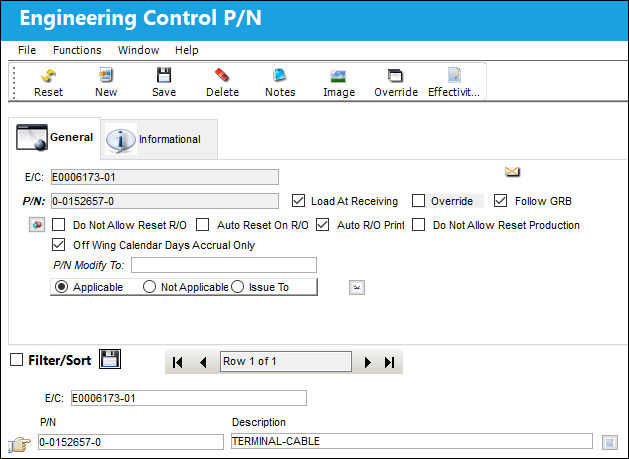
In the Engineering Control P/N window, P/Ns that are effective to the Engineering Control are recorded. Effectivity can be added or removed for each P/N using the New  and Delete
  buttons.
Parameters can be apply to each P/N with checkboxes, such as attaching the E/C to a P/N S/N when received, allowing the E/C to be reset on an R/O, or preventing the E/C from being reset on a Production W/O.
Several buttons are also available that enable the user to set up specific requirements, such as S/N range, override schedule, and position control.
For the P/N E/C to be called onto a work package via a P/N Control, the P/N S/N must have effectivity set up at the P/N E/C level. For more information, refer to the P/N Control  button, via the P/N Master, Settings Training Manual.
For more information on how P/N E/C Effectivity can be affected throughout the system, refer to the P/N E/C Effectivity Tracking Guide.
The following information/options are available in this window:
_____________________________________________________________________________________
E/C
The Engineering Control that specifies aircraft or component scheduled maintenance intervals.
P/N
The Part Number reference for the aircraft part. This is the Part Number associated to the E/C.
P/N E/Cs need to be set up for main parts as well as their interchangeable parts. Newly created P/Ns that are interchangeable with a main P/N will not be associated to the same E/Cs as the main part. Each E/C must be manually associated to the interchangeable part through this window.
Load At Receiving checkbox
Select this checkbox if new Part Numbers (Inventory) initially entered into the system should have Effectivity linked to this E/C. Whenever a part linked to this P/N E/C is initially entered into the database (be it through P/O, L/O, P/N Initial Load, etc.), the Load at Receiving checkbox comes into effect. This checkbox applies to on-wing receiving as well. This checkbox can be auto selected for a specified E/C Category if the Load At Receiving checkbox is selected via the E/C Category Transaction Code.
This checkbox is strictly for the Purchase Order, Loan Order, and Engineering Control receiving and the P/N Initial Load feature. Repair Order for already existing Goods Received Batch Numbers (GRN) where the P/N was changed will apply the effectivity, but the E/C can be deselected as required.
For more information refer to the P/N E/C Effectivity Tracking Guide.
Override checkbox
Select this checkbox if this Part Number has been overridden in the past via the Override  button. Select the Override button to view specific P/N S/N history.
Follow GRB checkbox 
When the Follow GRB checkbox is selected the system will continue to track the E/C for that GRB (Goods Received Batch) regardless of any changes made to any P/N S/N that is effective to the E/C including any Override schedules.
This checkbox only appears when Switch  FOLLOWGRB is set to Yes.
The following three configuration work in conjunction: Inventory switch FOLLOWGRB, the Follow GRB checkbox in the Engineering Control P/N window, and Engineering switch PNSNCHG/EFFECTIVITY. For more detailed information on how these various configurations affect P/N E/C Effectivity, refer to P/N Change Transactions.
Engineering Schedule Override  button
This Override button allows an alternate schedule to be activated for the selected P/N E/C once a specific set of criteria is met. Once the scheduling parameters that are defined in the Engineering Control, Schedule tab are met, the information appearing in the Schedule Override button will be enacted and override the default schedule that appears in the Schedule Tab. For more information regarding this P/N E/C Schedule Override, refer to the Override Standard Schedule (P/N E/C) Button.
 This P/N E/C Override button is also accessed through the P/N Control button.
Do Not Allow Reset R/O checkbox
Select this checkbox to indicate that this record should not be reset (i.e. not selected for compliance) when associated with a Repair Order. When this Part Number is on a Repair Order, the default setting for this is that there will be no checkbox available in the control window to be selected or de-selected, it is not visible.
Auto Reset On R/O checkbox
Select this checkbox to indicate that this E/C should be reset (selected for compliance) when this E/C is associated with a Repair Order. This will be the default setting when this Part Number is on a Repair Order. This option can be overridden at the Repair Order level and de-selected.
All P/N E/Cs of Mandatory Classification will receive automatic E/C Compliance upon receipt of Vendor Repair Order.
Auto R/O Print
If this checkbox is selected, the E/C will automatically be printed on Repair Orders that are issued for the part indicated. This will be the default setting when this Part Number is on a Repair Order. This option can be overridden at the Repair Order level and deselected.
Do Not Allow Reset Production
Select this checkbox to indicate that this E/C should not be reset (i.e. not selected for compliance) when this E/C is associated with a Production Work Order.
Off Wing Calendar Days Accrual Only checkbox 
When this checkbox is selected, the E/C will only accrue time when the selected P/N is off wing. While the P/N is still installed on the aircraft, the E/C will be in 'Terminated' status with the Effective Date specified in the Engineering Control, Schedule Tab. Once the removal of the part is performed, the E/C will switch to 'Open' status and have its Effective Date changed to the part's removal date. When a Receiving Inspection is performed on the part after the repair process, the E/C's Effective Date will change to the selected RI date and remain in 'Open' status. Once the part is installed on an aircraft again, the E/C's status will revert back to 'Terminated'.
Note: This checkbox only applies to P/N E/Cs that have the Calendar Days checkbox selected in the Engineering Control, Schedule Tab and will appear once a P/N is specified in the P/N field of this window.
P/N Modify To
When a P/N is entered in this field, (when an existing P/N has this E/C associated and the E/C is complied with, upon receiving the P/N), the P/N will convert to the P/N Modified To Number. When populated, the Modify To in Production/Shop Checkbox appears. This is a user defined option.
The new P/N must be set up in the P/N Master via the Settings module.
Modify To in Production/Shop checkbox - Select this checkbox allows the user to modify the part number via a Production/Shop Work Order.
Note: There is an audit table in Trax Quick Print called 'pn_sn_change_control_audit' that shows the before and after of the data that is updated via a P/N Change transactions. This information pertains to serialized parts. The data captured includes:
- Previous E/Cs linked to P/N S/N & Actuals
- Previous P/N Controls and Actuals
- New E/Cs being linked
- New P/N Controls being linked
- Transfer of Actuals
Applicable radio button
Select if this P/N is applicable to this particular record.
No Applicable radio button
Select if this P/N is not applicable to this particular record.
This can be used when a P/N was at one time applicable. Instead of deleting the P/N from the window, change the selection to Not Applicable. This will maintain history of the E/C and P/N.
Issue To radio button
Select if the record has been issued to this P/N, but does not need to be put into effect.
Engineering Control Range  button
Select this button to access the Engineering Control Range window. This option allows the user to apply effectivity to a serial number range with applicable status and reason information for in range and out of range serial numbers. For additional information, refer to the E/C P/N Range Button, via P/N CTL Button in the Engineering - E/C Training Manual.
Positioning Control  button
Select this button to define P/N Positions by Engineering Control. For additional information, refer to the Positioning Control Button, via the P/N Control Button of the Engineering - E/C Training Manual.
P/N Software to Upload at Compliance  button
The P/N Software to Upload at Compliance button allows the user to view the Software parts from the P/N Software Configuration that are associated with the part number. The user also has the option to enable the software part to be uploaded once the E/C has been complied with.
This button is only visible if the P/N that the E/C is associated to is linked to a P/N Software Configuration. For more information refer to the P/N Software Configuration functionality via the Settings Training Manual.
Switch UPDATESWCOMPLEC must be set to No for this button to appear in this window.
For additional information refer to the P/N Software to Upload at Compliance Button, via the Engineering Controls Button of the Engineering - E/C Training Manual.
_____________________________________________________________________________________
Share
Print
|
©1997-2026 Trax USA Corp. All rights reserved. This manual may not be copied, photocopied, reproduced, translated, or converted to any electronic or machine-readable form, in whole or in part, without prior written approval from Trax USA Corp. |
 |