
 Share
Share
 Print
Print
|
|
|
|
|


The Range  button allows users to specify the P/N E/C effectivity status for ranges of Serial Numbers. All other S/Ns that don't fall in within the specified S/N ranges (if any) will be set to a default status. The S/N ranges and statuses set up through this button will come into effect for the various S/Ns as those S/Ns are initially loaded into the system (via P/Os, L/Os, P/N Initial Loads, etc.).
From the Engineering Control Range pop-up window, select the New  button to create a serial number range with applicable status and reason information for in range and out of range serial numbers.
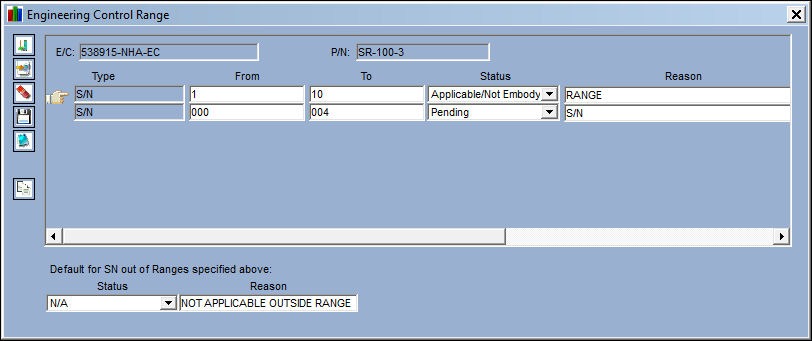
The Source, Status, Reason, and Default for S/N Out of Ranges section are only available when Engineering switch  ADDSTENGRANGE is set to Yes.
For more information on how P/N E/C Effectivity can be affected throughout the system, refer to the P/N E/C Effectivity Tracking Guide.
The following information/options are available in this window:
_____________________________________________________________________________________
Type
Serial Number. This field is hard coded and may not be changed.
From - To Range
Enter the From - To range for effectivity to be applied.
Source 
The way that the range was imported/created. This field is updated automatically. The available options are E/C, IPC, and MAN (Manual). The Source is 'MAN' when any part of the range was entered or altered manually.
This field is not available when Switch ADDSTENGRANGE is set to Yes.
Status
Enter the appropriate status for the specified part serial number.
this field is not visible when Switch ADDSTENGRANGE is set to No.
Reason
Enter the reason for the change to the range of Serial Numbers.
This field is not visible when Switch ADDSTENGRANGE is set to No.
Created By
The user who created the record.
Created Date
The date the record was created.
Modified By
The user who last modified the record.
Modified Date
The date the record was last modified.
Default SN Status and Range
Enter the default Status and Reason for all serial numbers that are out of the specified range.
_____________________________________________________________________________________
The following buttons are also available for additional functionality:
- Import button

Populate the From-To range, Status and Reason fields and select the Save  button.
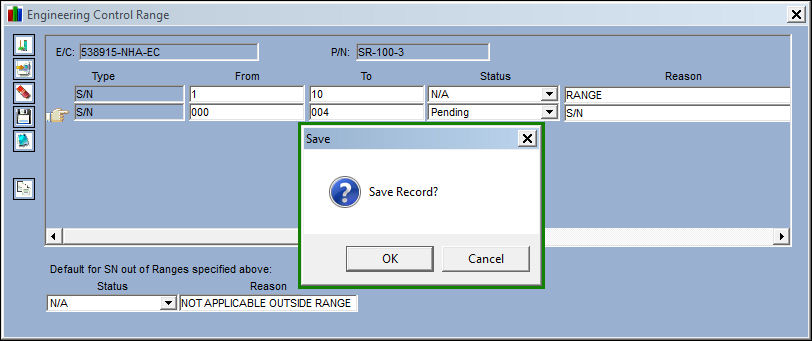
The Save prompt appears. Select 'OK'.
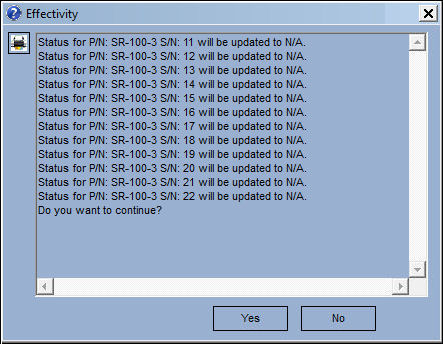
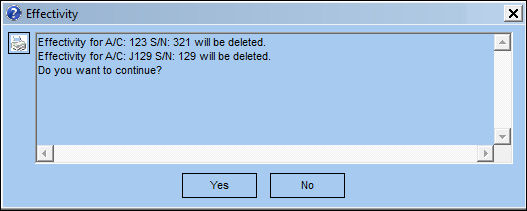
The following Effectivity pop-up window will appear informing the user that the status for the part, with the serial numbers within range and out of range, will be updated with the specified status.
Select 'Yes' to continue.
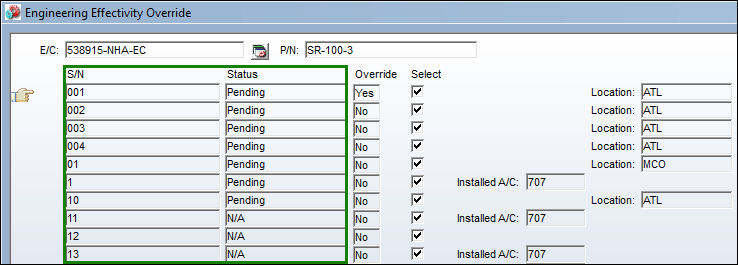
Select the Override  button and the system displays the Engineering Effectivity Override window. The Status field currently displays the status change specified in the Engineering Control Range window by serial number:
Status/Reason Functionality:
Once the user selects into the part, the Engineering Effectivity Override window will display the selected part's information including the new status and reason information. To modify the Status and Reason fields, the Override checkbox must be selected.
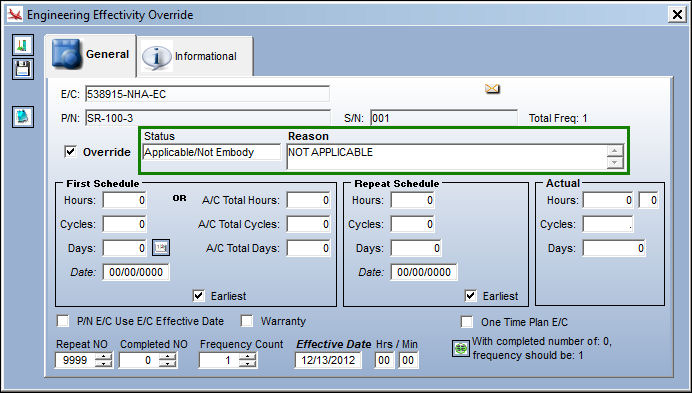
Save the record. The change made to the Status field will now display in the Engineering Effectivity Override window:
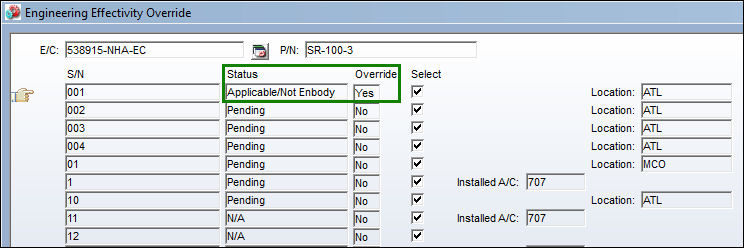
In the Engineering Effectivity Override window, the new status is displayed and the Override field now states 'Yes':
Share
Print
|
©1997-2026 Trax USA Corp. All rights reserved. This manual may not be copied, photocopied, reproduced, translated, or converted to any electronic or machine-readable form, in whole or in part, without prior written approval from Trax USA Corp. |
 |