
 Share
Share
 Print
Print
|
|
|
|
|


E/C Category
The System Transaction Codes are displayed with both the Code Names and Descriptions. The Code Descriptions directly illustrate their functionality and role in the system, as fields are populated and tasks are performed.
Transaction Code: |
E/C CATEGORY |
General Description: |
E/C Category that will be associated with each EC. |
Are Authorization Steps Available? |
Y |
Is System Notification Available? |
Y |
Trax Control Panel Path(s): |
Engineering/ Update/ Engineering Control |
Windows(s): |
w_engineering_eu |
Related Switch(s): |
|
Functions: |
Categorizing the EC by SB, AD and etc. for sorting print and searching purposes. |
Reports: |
|
Available Functionality:
- Allowing for authorization processes to be established as required by each category.
- Providing system notification as to newly created, modified, deleted, revised and complied with E/Cs. For more information, refer to E/C Category Notification
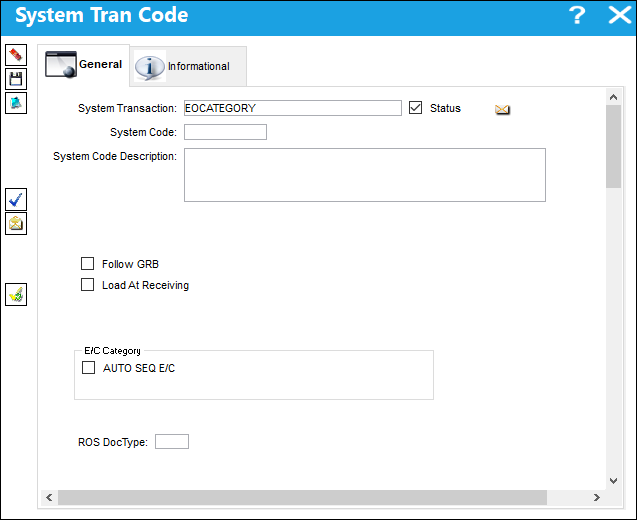
The following information/options are available in this window:
_____________________________________________________________________________________
Authorization Steps  button
Select this button to pre-define authorization processes for both Aircraft E/Cs as well as Part Number E/Cs. For information on how to set up and authorize authorization steps, refer to Authorization Steps Button.
System Notification  button
This button is used to set up system generated notifications to be sent to users when an E/C with the specified E/C Category is modified. The following notification triggers can be set-up:
New radio button - Notifies when a new E/C is created.
Save radio button - Notifies when an E/C record is saved.
Delete radio button - Notifies when an E/C is deleted.
Terminated radio button - Notifies when an E/C schedule has been reached and complied with.
Revision radio button - Notifies when an E/C has been revised.
Release radio button - Notifies when an E/C has been released for Authorization.
Issued radio button - Notifies when an E/C has been Issued.
When an Engineering Control with multiple attached Task Cards is issued to a Work Order, only one notification will be sent to the user(s) specified in the System Notification, not one different notification for each Task Card.
P/N E/C Authorization Steps  button
Select this button to set up authorization steps for a P/N E/C. For additional information, refer to the P/N E/C Authorization Steps Button, via E/C Category.
ROS Doc Type
Enter the AeroXchange document type. This is to be used to map the E/C Category to the AeroXchange Document Type.
 This field is only available for customers who have an Interface set up. For additional information, contact your TRAX Interface Administrator.
Auto Seq E/C checkbox
Select this checkbox to gray out the E/C field and make the Subcategory and Chapter fields mandatory in the Engineering Control window. Additionally, selecting this checkbox will auto-generate an E/C name comprised of the E/C Category, ATA Chapter, Sub-Category, and Sequential number. For additional information, refer to the Engineering Control, General Tab, via the Engineering Control - E/C Training Manual.
E/C Name Override checkbox 
Select this checkbox to have the E/C field populate with the information from the Sub E/C field. If the checkbox is deselected, the E/C field will populate with the information from the Control, Sub E/C and Company fields. For additional information, refer to the Engineering Control, General Tab, via the Engineering Control - E/C Training Manual.
This checkbox and its functionality is only available with Switch  COMPANYMULTI set to Yes.
Follow GRB checkbox 
When this checkbox is selected, the Follow GRB checkbox will appear in the Engineering Control P/N window and will be selected by default for any E/Cs created with the specified E/C Category Code via the Engineering Control P/N window. For additional information, refer to the P/N CTL (Control) Button via the Engineering - E/C Training manual.
This checkbox only appears when Switch FOLLOWGRB is set to Yes.
Load At Receiving checkbox
When this checkbox is selected, the Load At Receiving checkbox will be automatically selected for any E/Cs created with the specified E/C Category Code via the Engineering Control P/N window. The user no longer has to manually select the Load at Receiving checkbox via the Engineering Control P/N window. For additional information, refer to the P/N CTL (Control) Button via the Engineering - E/C Training manual.
This checkbox only appears when Switch FOLLOWGRB is set to Yes.
_____________________________________________________________________________________
Share
Print
|
©1997-2026 Trax USA Corp. All rights reserved. This manual may not be copied, photocopied, reproduced, translated, or converted to any electronic or machine-readable form, in whole or in part, without prior written approval from Trax USA Corp. |
 |