
 Share
Share
 Print
Print
|
|
|
|
|


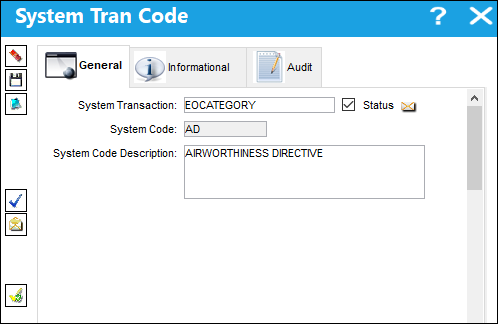
Via Settings/ Explorer/ System Transaction Code, open the Engineering heading, open the E/C Category folder, select on the the E/C Category System Transaction Code, and select Update Record.
The system displays the EOCATEGORY System Tran Code window:
Select the Notification  button and the system displays the System Notification window:
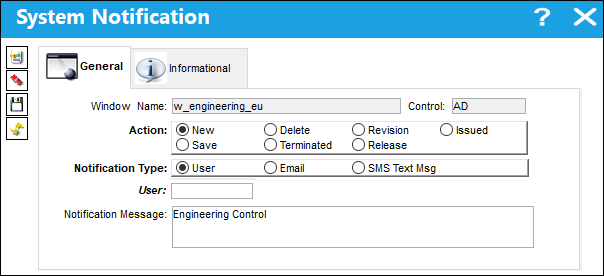
The notification process involves selecting the action which will call for notification, the type of notification to be selected, and the actual notification message.
The following information/options are available in this window:
_____________________________________________________________________________________
Window Name
The window/screen that triggers the system notifications functionality.
Control
The control identifies what triggers the system to generate the notification.
Action
The action that triggers the notification. (i.e. Select 'New' if a notification is to be sent whenever a new transaction takes places regarding the specified transaction code).
New - Notifies when a new E/C is created.
Save - Notifies when an E/C record is saved.
Delete - Notifies when an E/C is deleted.
Terminated - Notifies when an E/C schedule has been reached and complied with.
Revision - Notifies when a revision is made to an E/C.
Release - Notifies when an E/C is released for authorization.
Issued - Notifies when an E/C is issued.
Notification Type
The method by which notification will reach the necessary individuals.
User radio button - Select this radio button to have the notification sent as an internal system message to a user.
The User field only appears when the User radio button is selected.
Email radio button - Select this radio button to have the notification sent through email.
The Email field only appears when the Email radio button is selected.
SMS Text Msg radio button - Select this radio button to have the notification sent through an SMS Text Message.
The Country Code/Phone fields only appears when the SMS Text Msg radio button is selected.
Notification Message
The text that will appear in the notification message. This may be edited by user.
_____________________________________________________________________________________
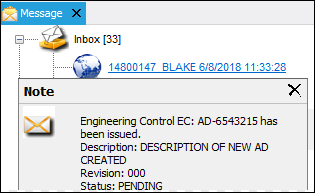
An example of a notification sent to a User for the creation of an E/C with a specified category:
Share
Print
|
©1997-2026 Trax USA Corp. All rights reserved. This manual may not be copied, photocopied, reproduced, translated, or converted to any electronic or machine-readable form, in whole or in part, without prior written approval from Trax USA Corp. |
 |