
 Share
Share
 Print
Print
|
|
|
|
|


At the Engineering Module option, select Task Card and TRAX displays a screen where Task Card may be selected.
The following screen shows a selected Task Card:
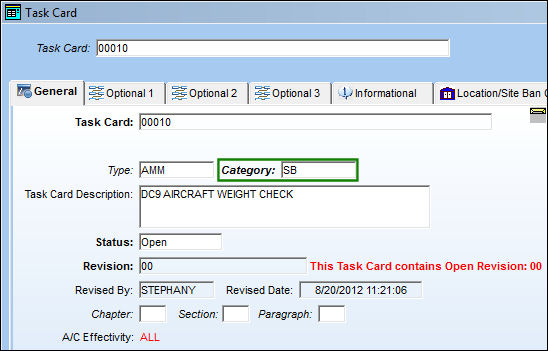
Right click on the Category field and also right-click on the pop-up window that is displayed.
TRAX displays the TASKCARDTYPE System Transaction Code screen as follows:
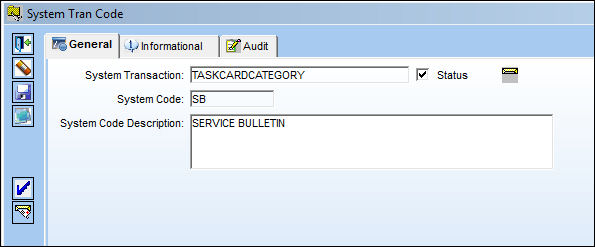
Select the Notification  button and TRAX displays the following:
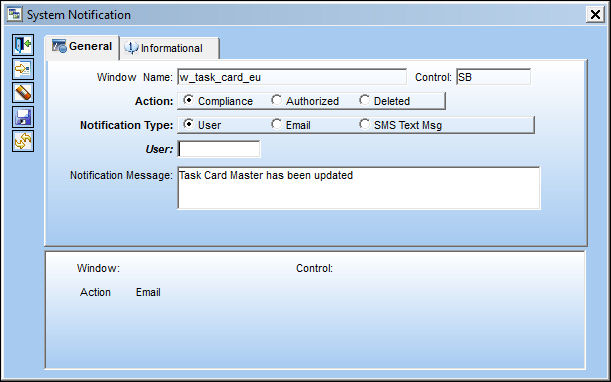
Within the System Notification window the user may set up a notification (type, content of message, etc.) and also the reason for the notification (Compliance Task Card, Authorize the Task Card, or Delete the Task Card).
Share
Print
|
©1997-2026 Trax USA Corp. All rights reserved. This manual may not be copied, photocopied, reproduced, translated, or converted to any electronic or machine-readable form, in whole or in part, without prior written approval from Trax USA Corp. |
 |