
 Share
Share
 Print
Print
|
|
|
|
|


Notifications can be set up in two different areas of the Requisition Type (REQTYPE) transaction code.
- Via the Authorization Steps
 button.
 - Used to send system notifications to users when a specific Requisition Type authorization step is opened, closed, or rejected.
 Via the System Transaction Code window Notification
  button.
- Used to send system notifications to users when a requisition of a specific Requisition Type has been created or modified.
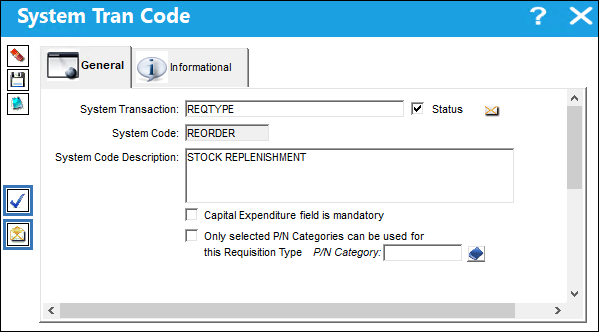
Notifications via Authorization Steps
From the System Tran Code window, select the Authorization Steps button and the Requisition Authorization window appears.
Enter and save the authorization step details and then select the Notification button.
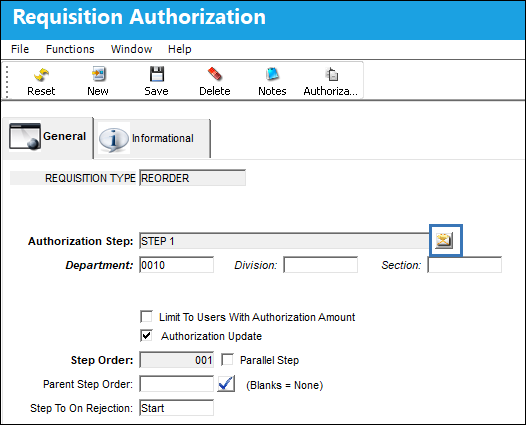
For more information on authorization step details, refer to the Requisition Type transcode via the Requisition Transaction Code Training Manual.
Use the available radio buttons and fields to configure the notification.
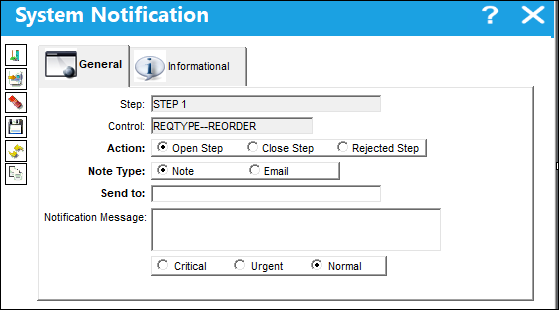
The following information/options are available in this window:
_____________________________________________________________________________________
Actions
Open Step - Notifies when an authorization step has been created.
Close Step - Notifies when an authorization step has been accepted.
Rejected Step - Notifies when an authorization step has been rejected.
Note Type
Note - Select this radio button to have the notification sent as an internal system message to a user.
Email - Select this radio button to have the notification sent through email.
Send to
The recipient of the notification.
Notification Message
The text that will appear in the notification message. This may be edited by user.
Message Category
The priority of the notification (i.e. Critical, Urgent, Normal).
_____________________________________________________________________________________
Notification via the System Transaction Code window Notification button
From the System Transaction Code window, select the Notification button and the following System Notification window appears. This notification is similar to the authorization step notification, however, this notification is used to send notifications when a requisition with the Requisition Type has been created or modified.
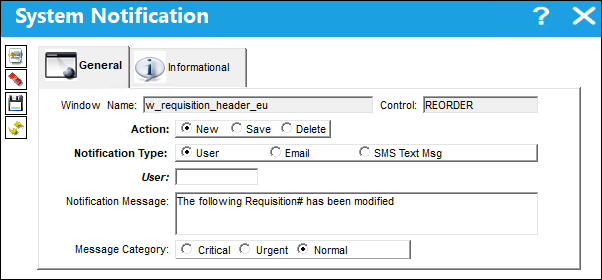
The following information/options are available in this window:
_____________________________________________________________________________________
Actions
New - Notifies when a requisition is created.
Save - Notifies when a requisition is modified.
Notification Type
User - Select this radio button to have the notification sent as an internal system message to a user.
Note: The User field only appears when the User radio button is selected.
Email - Select this radio button to have the notification sent through email.
Note: The Email field only appears when the Email radio button is selected.
SMS Text Msg - Select this radio button to have the notification sent through an SMS Text Message.
Note: The Country Code/Phone fields only appears when the SMS Text Msg radio button is selected.
Notification Message
The text that will appear in the notification message. This may be edited by user.
Message Category
The priority of the notification (i.e. Critical, Urgent, Normal).
_____________________________________________________________________________________
Share
Print
|
©1997-2026 Trax USA Corp. All rights reserved. This manual may not be copied, photocopied, reproduced, translated, or converted to any electronic or machine-readable form, in whole or in part, without prior written approval from Trax USA Corp. |
 |