
 Share
Share
 Print
Print
|
|
|
|
|


At the TraxDoc Master Header screen, click on the New  button.
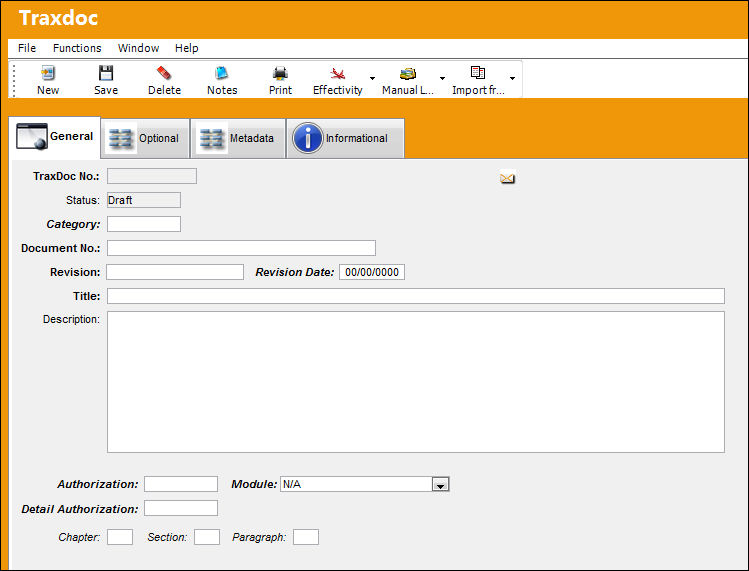
Enter/verify the fields in this screen as necessary.
Right-click the Category field. Trax displays a pop-up window with category codes.
Right-click over the category code to be selected and Trax displays the following Transaction Code Window:
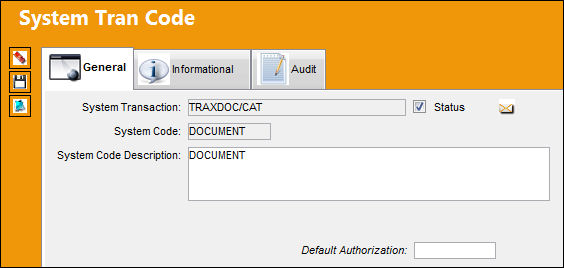
To assign a default authorization for the category code, right-click over the Default Authorization field. Trax then displays the following:
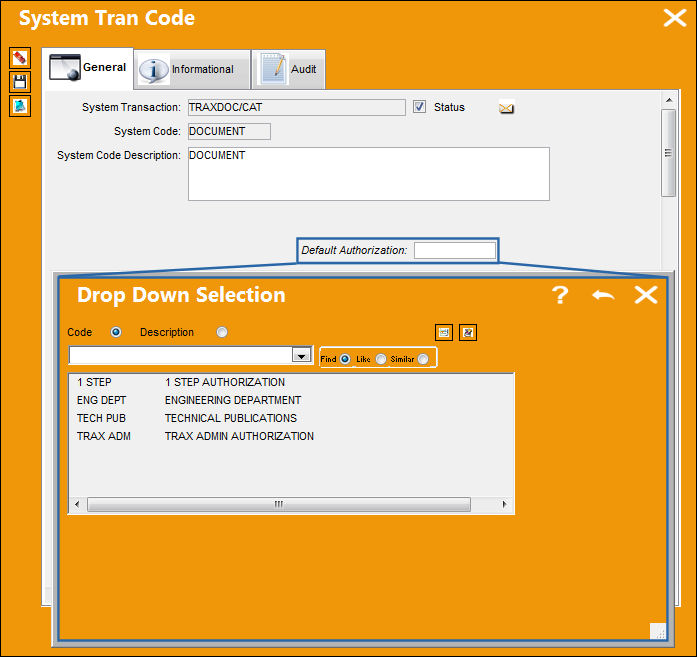
Double-click over the authorization code/description to be selected and Trax inserts this information into the Transaction Code window.
Select the Save  button to save all information. Trax closes the Transaction Code Window and re-displays the TraxDoc Document screen still with the Category Code window open. Select the appropriate code and Trax populates both the category code and authorization fields:
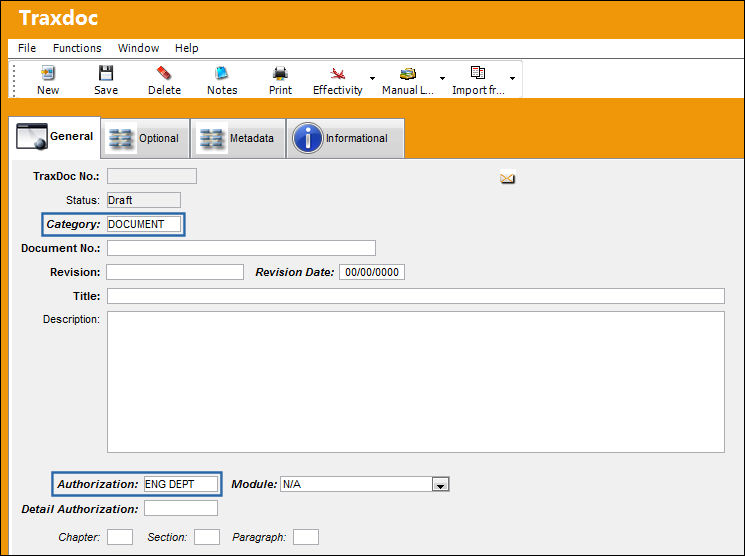
The TraxDoc Category field looks to the Authorization field for information regarding employees that should be notified, based upon their setup in the Employee Master as described above.
To populate only the Authorization field, right-click on the Authorization field. Trax displays a pop-up window with authorization codes and descriptions. Right-click over the code/description to be selected and Trax displays the TRAXDOC/AUTH Transaction Code Window:
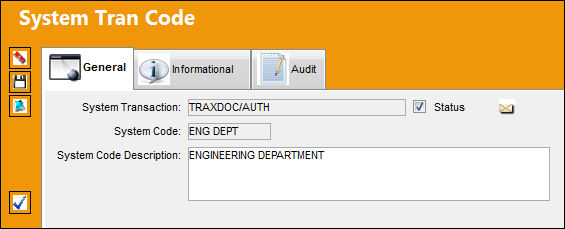
Select the Authorization Steps  button, and Trax displays the following screen:
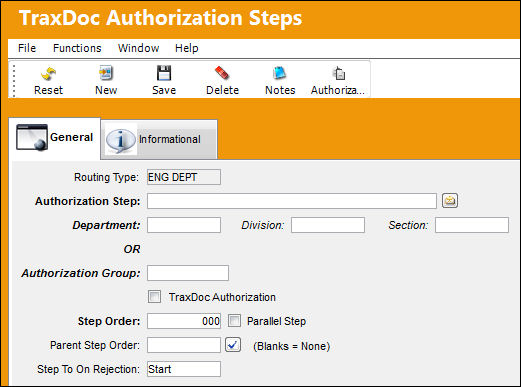
Notifications are sent out to those employees who are set up in the Employee Master according to their affiliation with department, division, and section, or authorization group. Therefore, if something happens with TraxDoc within a specific department, division, section or authorization group, these employees will receive appropriate notification.
The TraxDoc Category field looks to the Authorization field for information regarding employees that should be notified, based upon their setup in the Employee Master as described above. However, after the Category and Authorization fields are populated via the Category field alone, the user may still select another authorization source(e.g. override) by deleting the current information and re-selecting information from the pop-up window that contains authorization codes/descriptions.
Finally, notifications regarding the process by which segments of a TraxDoc document are rejoined to the overall document may be set up.
By right-clicking over the Detail Authorization field, Trax displays a pop-up window where detail authorization codes/descriptions are listed.
Right-click over the appropriate code/description and Trax display the TRAXDOCDET/AUTH Transaction Code window:
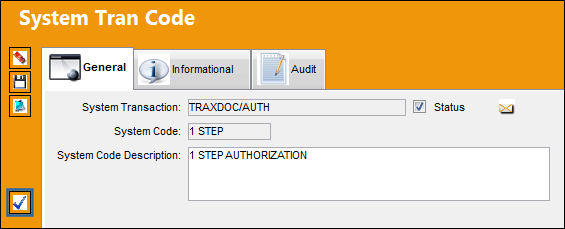
Select the Authorization button to establish the authorization process, by department, division, section, or authorization group. Employees set up within these groups will receive appropriate notification when a segment of a TraxDoc document has been released to once again rejoin the main body of the TraxDoc document.
Share
Print
|
©1997-2026 Trax USA Corp. All rights reserved. This manual may not be copied, photocopied, reproduced, translated, or converted to any electronic or machine-readable form, in whole or in part, without prior written approval from Trax USA Corp. |
 |