
 Share
Share
 Print
Print
|
|
|
|
|


Once the Task Card  button is selected, the W/O Task Card, General tab appears as follows. If this tab is empty, this means that there are no Task Cards associated to the Work Order. In that case, the user may select the New
  button to add one or multiple Task Cards to the Work Order. If creating a new Task Card, populate all mandatory and desired information in the W/O Task Card, General tab.
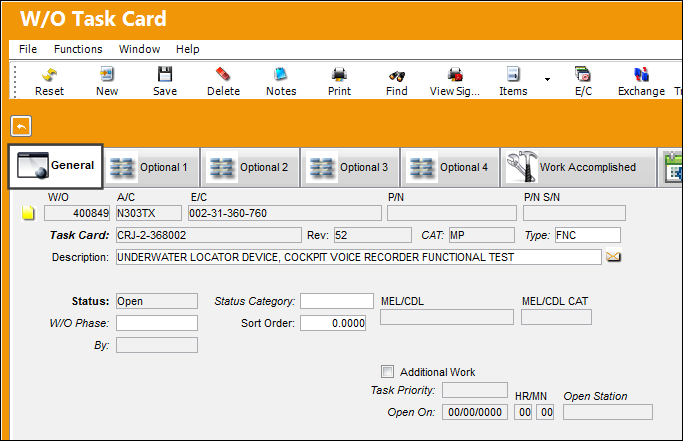
New scheduled Task Cards can be added to the W/O by selecting the New button. When selected, the previously created Task Card must be specified in the Task Card field.
 : The Print
  button button is security controlled via Production/ Print/ W/O Pack Print/ W/O Pack Print Button. For more information refer to the Security Explorer via the System Administration Training Manual.
The following information/options are available in this window:
_____________________________________________________________________________________
Paper Copy Required  button
This button indicates that information related to this Work Order Task Card / Non-Routine Task Card has been printed and must be processed. For additional information, refer to the Task Card, Optional 2 Tab via the Task Card section of the Engineering - T/C Training Manual.
W/O
The Work Order used to categorize, manage, and schedule work requirements for aircraft maintenance.
A/C
The individual aircraft tail number.
E/C
The Engineering Control that specifies aircraft or component scheduled maintenance intervals.
P/N
The Part Number reference for the aircraft part. This part is effective to the E/C that the scheduled Task Card is associated to, and is currently installed on the W/O's Aircraft.
P/N S/N
The Serial Number for the specific serialized part. This part is effective to the E/C that the scheduled Task Card is associated to, and is currently installed on the W/O's Aircraft.
Parent E/C
The Parent Engineering Control associated with the E/C. This parent E/C is specified in the E/C which contains the schedule. When the Parent is selected, it will bring in all dependent E/Cs (Child E/Cs) on to the Work Order as required. For more information, please refer to the Engineering Control, Schedule Tab via the Engineering - E/C Training manual.
Task Card
The Task Card / Job Card that details the scheduled maintenance work.
If the Switch  TCEFFECT is set to Yes, only task cards that are effective for the aircraft type you are building the Work Order for will be displayed in the help window available. If the switch is set to No, all task cards will be displayed, but only those effective for the aircraft can be attached.
Revision
The Task Card's most recent authorized revision number.
CAT
The Task Card's Category, as defined in Task Card Category transaction code via the Engineering Transaction Codes. Task Card Authorization Steps are defined in System Transaction Codes by Task Card Category.
Type
The Task Card Type, as defined in the Transaction Code. This code can be used to sort and locate Task Cards.
Description
The description of the Task Card.
Status
The Status of the Task Card. Any Task Cards with Cancel status will not be printed on a Work Order.
Task Cards cannot be re-Opened once the associated W/O Engineering Control has been reset. However, Non-Routine Task Cards can be re-opened if the W/O E/C has been reset.
Status Category
The sub-status of the card (hold/defer reason). (Linked from the T/C Optional tab.)
Work Order Phase
The particular phase of the work flow that this particular card pertains to.
Sort Order
The sort order (printing sequence) of this Task Card / Non-Routine.
By
The employee who worked on the Task Card and therefore triggered one of the following statuses:
- Open
- Cancel
- Closed
- Defer
- Delayed
- Hold
- On Condition
Even if the By field is greyed out, even if the Task Card has been printed, the user can update the By field by adjusting the status of the Task Card in the W/O Task Card window. The employee who last worked on the Task Card, or modified it will be reflected/updated in the W/O Task Card, General tab. For additional information, refer to the Task Card Work Button, via the Work Order Buttons of the Production Training Manual. This also applies to Shop Task Cards.
MEL/CDL
The MEL/CDL field allows the user to enter the MEL or CDL reference related to the deferral. MEL/CDL may be defined, entered or digitally imported in the MEL Master. For additional information, refer to the MEL Master via the Settings Training Manual.
MEL/CDL CAT
Minimum Equipment List Category that is defined in the associated Defect Report. The MEL number and the MEL category can be associated to one another via the MEL Master. This field is only informational.
Additional Work checkbox
This informational checkbox is selected when the invoiced Task Card (Routine or Non-Routine) was designated as additional work. For this to appear, the Task Card must have the Additional Work checkbox selected. For more information refer to the W/O Task Card, Optional 2 Tab via the Task Card Button of the Production Training Manual.
Open On
The date the Task Card was opened for the W/O.
Open Station
The Station associated with the W/O Task Card opening. Only stations marked as maintenance locations are accepted.
_____________________________________________________________________________________
On the previous window, a user may have selected an E/C that has Task Cards already attached. Those Task Cards may have already been automatically copied to this list.
Any Task Cards that were previously attached will be copied over, so they can be changed without affecting the original (i.e. The user may wish to write a specific note on the card for the Mechanics/Technicians that does not normally appear).
Share
Print
|
©1997-2026 Trax USA Corp. All rights reserved. This manual may not be copied, photocopied, reproduced, translated, or converted to any electronic or machine-readable form, in whole or in part, without prior written approval from Trax USA Corp. |
 |