
 Share
Share
 Print
Print
|
|
|
|
|


The Task Card Work  button opens the W/O Task Card window and allows users to view and action (close, defer, cancel) the Task Cards associated to the Work Order.
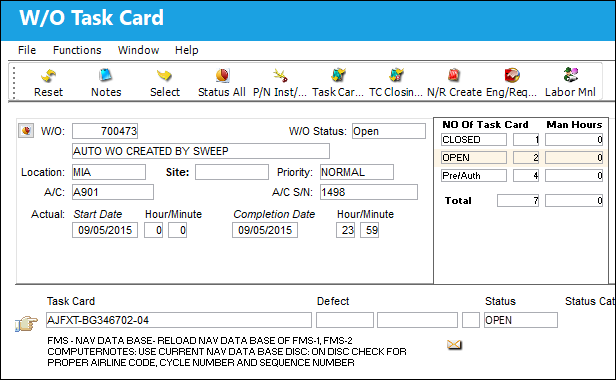
When Switch  WOTCITEMCL is set to Yes, when the user selects into a Task Card the WO Task Card Item Close window appears which allows the user to close individual items on the Task Card prior to completing the entire Task Card. When set to No, when the user selects into a Task Card the W/O Task Card detail window appears which allows the user to close the Task Card without closing individual Task Card items. For more information refer to Switch WOTCITEMCL via the Production Switches Manual.
The following information/options are available in this window:
_____________________________________________________________________________________
W/O
The Work Order used to categorize, manage, and schedule work requirements for aircraft maintenance.
W/O Status
The current status of the W/O.
Location
The Location for maintenance events, inventory stores, orders, transactions, or training events.
Site
The Site where the work is to be carried out (if applicable).
Priority
The priority of the Work Order (e.g., Urgent).
A/C
The individual aircraft tail number.
A/C S/N
The Aircraft's Serial Number which is provided by the manufacturer. This serial number is like a registration number, but it is not dependent on a country code and therefore never changes.
Actual Start Date HR/MN
The date and time work on the W/O started.
Completion Date HR/MN
The Date and time the work order is being set to a Post Completed or Closed status.
_____________________________________________________________________________________
To action a Task Card, use the Select  button to select into it. A W/O Task Card detail window opens for the user to enter the resolution or action taken against the Task Card.
Once all tasks have been actioned (closed, deferred, canceled), the W/O status changes from Open to Completed and the Close W/O button is available.
When Production Switch WOPOSTCM is set to Yes, when a user closes a W/O using the W/O Task Card, Close W/O button or the W/O Closing window, the W/O status changes from Completed to Post Completed. Compliance records are written for controls attached to the W/O and repeat schedules are reset. Users can return to stock (RTS) unused material that was issued to the W/O to credit the W/O Actuals.
When WOPOSTCM is set to No, when the user closes a W/O the W/O status changes from Completed to Closed. Compliance records are written and schedules reset; unused material cannot be RTS to credit the W/O Actuals because the W/O and its financials are closed.
For more information on Closing a W/O, refer to Close W/O Button, via W/O Task Card via the Production Switches Manual.
 When Switch COMPTECHLOGWOTC is set to Yes, once all the Task Cards have been closed, a Completed OnTech Log field appears to enter a defect number related to the closing of the W/O. For more information, refer to Switch COMPTECHLOGWOTC via the Production Switches Manual.
The W/O Task Card window offers additional functionality via the following buttons:
- Notes Button
- Status All button
- P/N Installation/Removal button
- Task Card Closing button
- TC Closing Detailed button
- Non-Routine Create button
- Engineering Request button
- Labor Manual button
- Close W/O button
Pre/Auth Status:
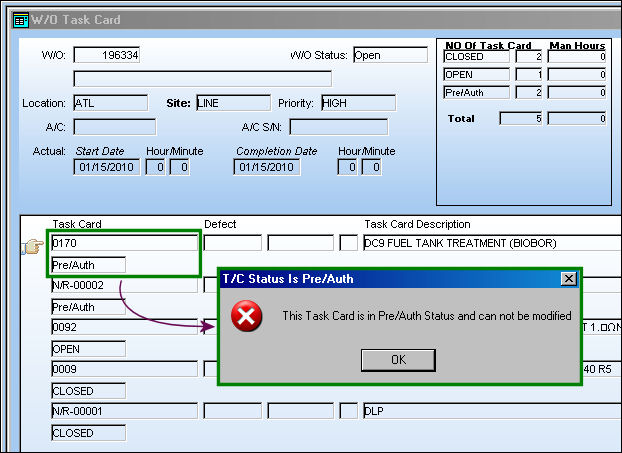
If a Task Card is in a 'Pre/Auth' status (has been added to the Work Order but has not been authorized) users will not be able to select into the Task Card to modify it. TRAX will display the following error:
W/O Task Card Status:
When a W/O Task Card with an associated Engineering Control is reset, its W/O Task Card Status cannot be changed.
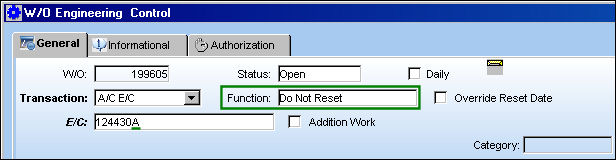
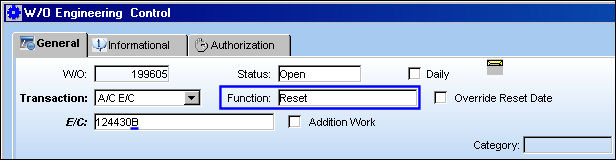
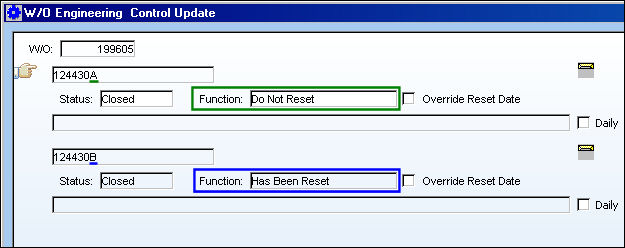
For example, the following two E/C Task Cards are attached to a Work Order. Notice the two different Functions for each.
E/C 'A' is set to 'Do Not Reset.'
E/C 'B' is set to 'Reset.'
From the W/O Task Card window (via the T/C Work button), notice that both E/C Task Cards have been associated to the Work Order.
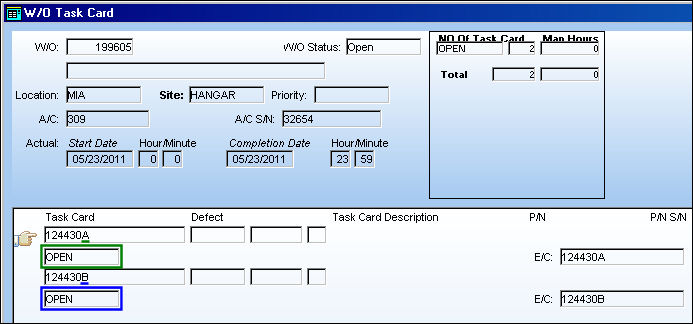
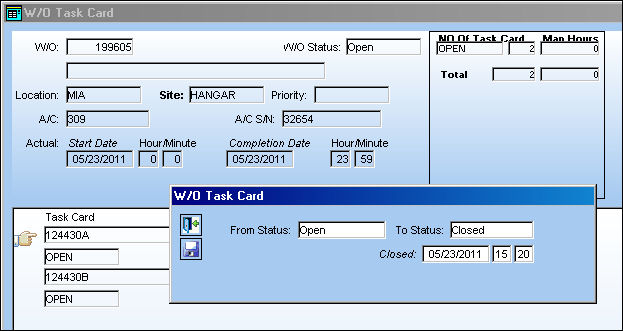
The statuses of the Task Cards are changed from 'Open' to 'Closed' through the Status All  button.
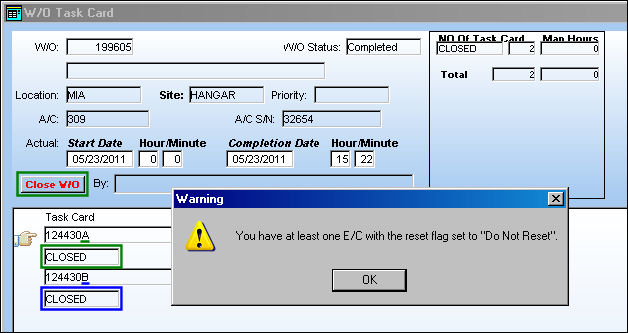
Once the W/O Task Cards are closed, the Work Order is closed by selecting the Close W/O  button. Closing the Work Order will cause the E/Cs to be reset. However, the following warning flag appears indicating that one of the E/Cs will not reset because it is set up not to be reset.
From the W/O Engineering Control Update window (via the Control button of the W/O window), after the W/O Task Cards are been closed, notice that the first E/C has not been reset while the second E/C has been reset.
The W/O is then re-opened.
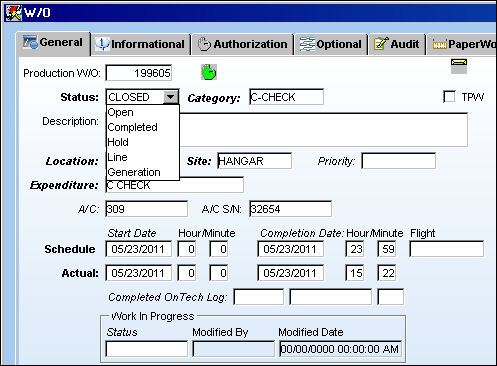
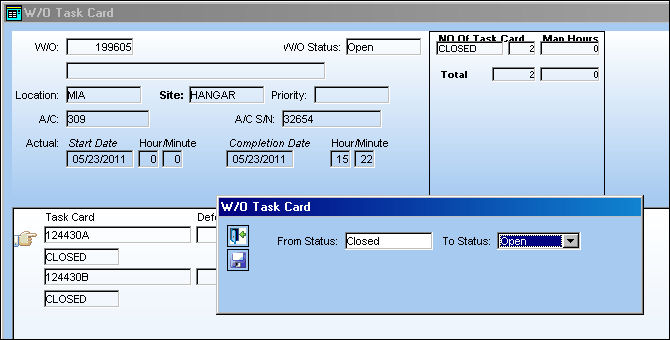
From the W/O Task Card window, the Status All button is used to change the W/O Task Cards from 'Closed' to 'Open.'
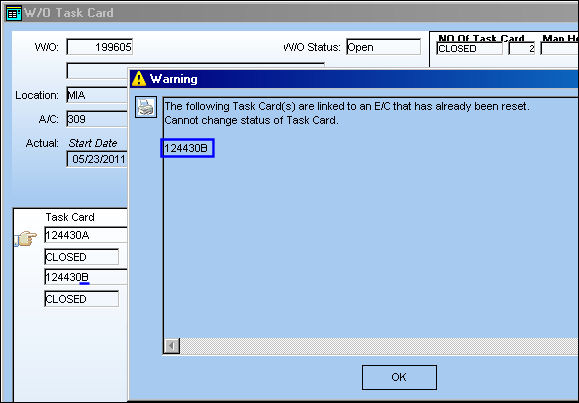
Once the statuses are updated, the following warning message appears indicating that the E/C that has already been reset cannot have its Status changed.
Notice that the E/C that has not been reset has been changed to 'Open,' while the E/C that has been reset remains 'Closed.'
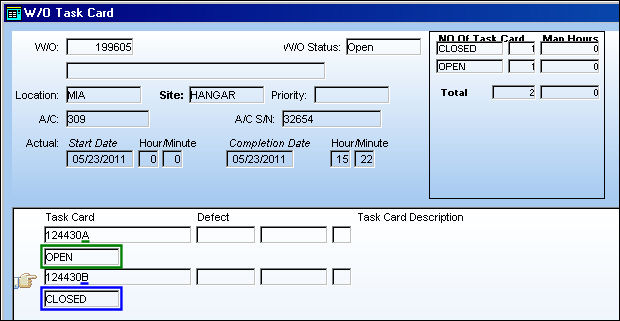
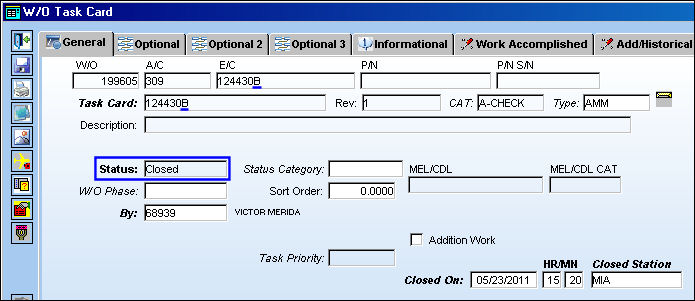
Even when the E/C that has been reset is selected, the Status field is blocked and cannot be edited.
Share
Print
|
©1997-2026 Trax USA Corp. All rights reserved. This manual may not be copied, photocopied, reproduced, translated, or converted to any electronic or machine-readable form, in whole or in part, without prior written approval from Trax USA Corp. |
 |