
 Share
Share
 Print
Print
|
|
|
|
|


W/O Closing
Only W/Os in a Completed status will appear in the W/O Closing window. The behavior of the W/O Closing window depends on the configuration of Production Switch  WOPOSTCM.
When Production Switch WOPOSTCM is set to Yes, when a user closes a W/O using the W/O Task Card, Close W/O button or the W/O Closing window, the W/O status changes from Completed to Post Completed. Compliance records are written for controls attached to the W/O and repeat schedules are reset. Users can return to stock (RTS) unused material that was issued to the W/O to credit the W/O Actuals.
When WOPOSTCM is set to No, when the user closes a W/O the W/O status changes from Completed to Closed. Compliance records are written and schedules reset; unused material cannot be RTS to credit the W/O Actuals because the W/O and its financials are closed. Also, a Close Material checkbox will be available and automatically selected. Uncheck the Close Material checkbox to write compliances for controls, reset repeat schedules, and allow unused materials to be RTS crediting the W/O; in this scenario, once saved, the W/O remains in a Completed status. After all unused material has been RTS, save the W/O again with the Close Material checkbox checked and the W/O status goes from Completed to Closed.
 Note: In Version 15, switch WOPOSTCM must be set to Yes because the No setting is no longer supported. Work Order Statuses will only go from 'Completed' to 'Post Completed', and not from 'Completed' directly to 'Closed'.
It is critical that the Actual Completion Date and Time is correct in the Work Order, General tab before proceeding to change the W/O status in the W/O Closing window as that is the date/time the compliance records will be written for.
If Sub-Work Orders are closed, the system checks if the completion date is within the actual opening and closing date of the parent Work Order. A warning will pop up if the date is not within that range.
For more information how to close Task Cards attached to a W/O, refer to W/O Closing - Preliminary Steps.
For the example below, WOPOSTCM is configured to Yes.
In the W/O Closing window, enter search criteria to find specific W/Os or select the Find  button and the system will retrieve all W/Os in a Completed status.
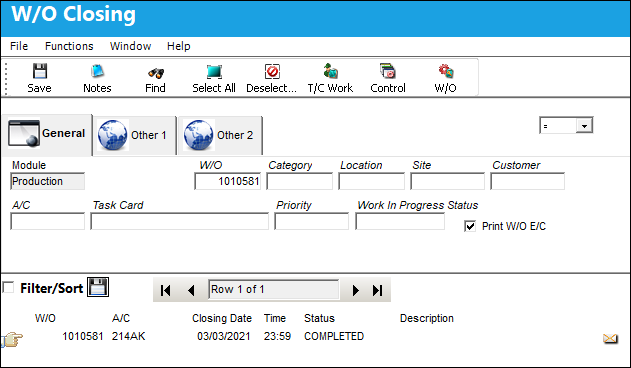
Select the W/Os that need to be Post Completed and select the Save  button.
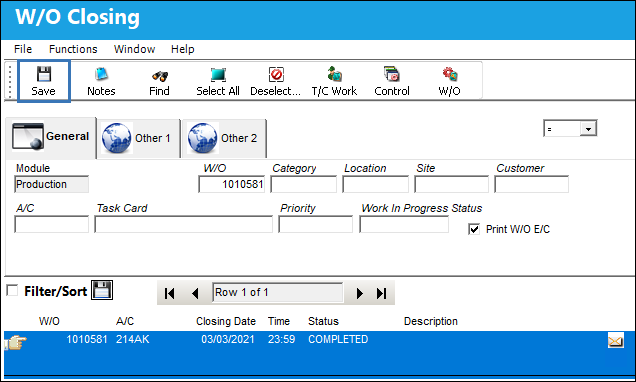
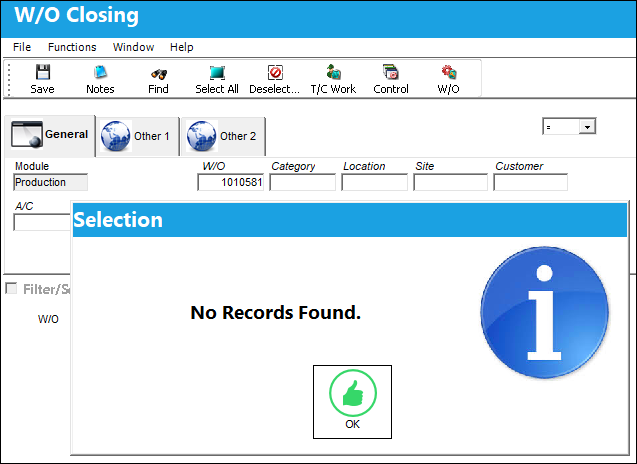
The W/O status in now Post Completed and no longer available in the W/O Closing window.
Query the W/O from the Production W/O window and the W/O status is Post Completed.
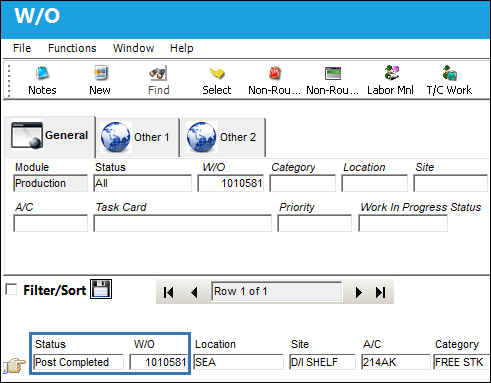
Once unused materials have been returned to stock to credit the W/O and all other W/O Actuals have been reviewed, the W/O status can be changed from Post Completed to Closed via the W/O Closing Post Completion window, at which time all W/O Actuals are finalized and closed.
Refer to the following steps for detailed information on the W/O Closing process:
 Share
Print
Share
Print
|
©1997-2026 Trax USA Corp. All rights reserved. This manual may not be copied, photocopied, reproduced, translated, or converted to any electronic or machine-readable form, in whole or in part, without prior written approval from Trax USA Corp. |
 |