
 Share
Share
 Print
Print
|
|
|
|
|


W/O Closing - Preliminary Steps
W/Os must be in a Completed status before they appear in the W/O Closing window. A W/O's status automatically changes from Open to Completed once all its associated Task Cards have been actioned (closed, deferred, canceled). There are multiple ways W/O Task Cards can be actioned, below is one example.
Go to Production/ Update/ Work Order and find the W/O.
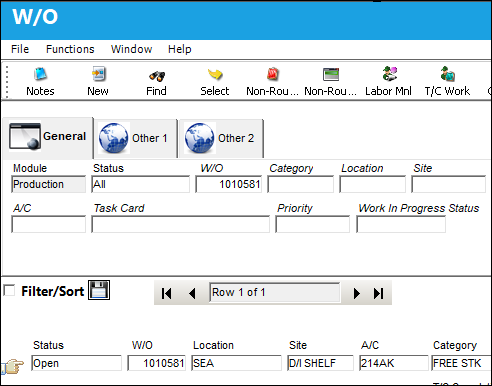
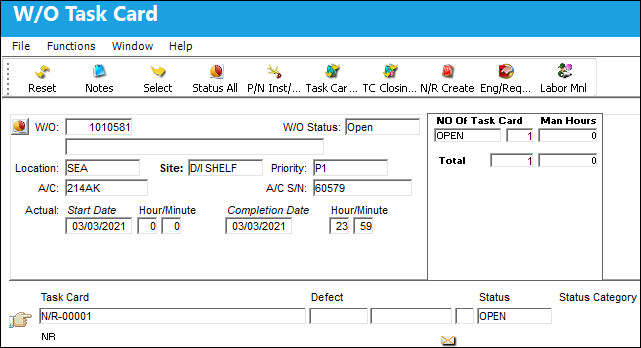
Select the Task Card Work  button and the W/O Task Card window appears and displays the Task Cards attached to the W/O.
Select into each Task Card that needs to be actioned and the W/O Task Card detail window appears. Select the applicable status from the drop down and enter other required information and select the Save  button.
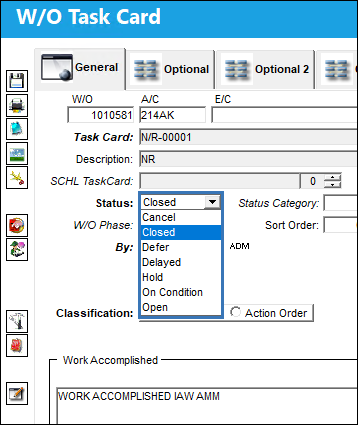
For more information on the available options in this window, refer to the W/O Task Card detail.
 This available Status' that appear in the drop down are security controlled via Production/ Update/ W/O. For additional information, refer to the Security Explorer, via the System Administration Training Manual
Once all Task Cards associated to the W/O have been actioned, the W/O status changes to Completed.
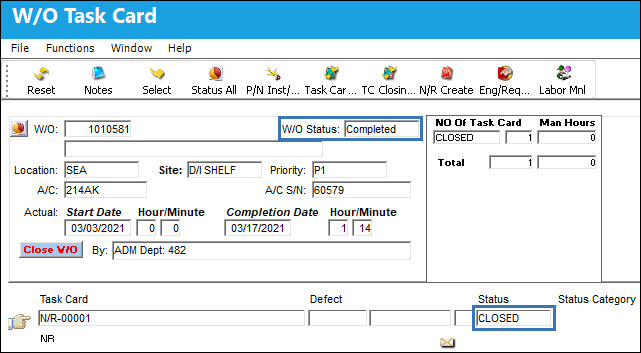
Alternatively, users can select the Status All  button and change the status of all Task Cards in a Work Order without having to change the status of each Task Card separately.
The W/O can now be Post Completed using either the W/O Task Card, Close W/O button or via the W/O Closing window.
Share
Print
|
©1997-2026 Trax USA Corp. All rights reserved. This manual may not be copied, photocopied, reproduced, translated, or converted to any electronic or machine-readable form, in whole or in part, without prior written approval from Trax USA Corp. |
 |