
 Share
Share
 Print
Print
|
|
|
|
|


Closing a Work Order - LINE Category
For Line category Work Orders (i.e. where it is necessary for material to be issued to a Work Order and avoid the need to create a Work Order for every aircraft turn round) a slight change in procedure is necessary. The Line status allows rotable parts to be issued to Work Orders and later returned unserviceable (if removed at a later time).
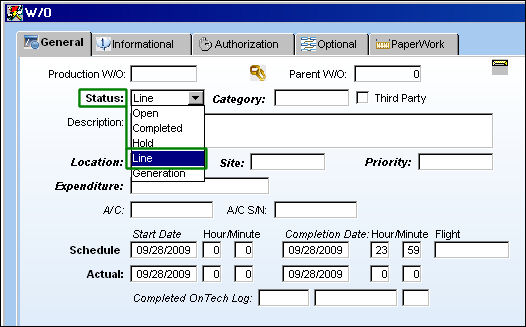
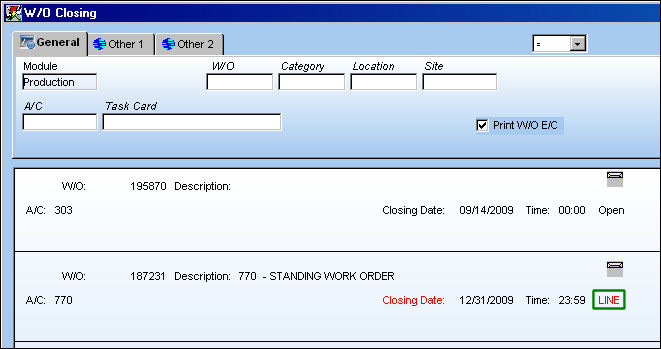
Line status Work Orders show in red and always appear in the Work Order Closing window as 'Open', even after closing. This allows continuous issuance of parts against the Line Work Order. Users can choose to close Line Work Orders at any frequency they find appropriate (ex. 1 time per month).
In the case of a Work Order with no Task Cards and/or E/Cs attached, users need to manually close the Work Order (unlike Work Orders with Task Cards and/or E/Cs attached, which go to 'Complete' status upon closing the Task Cards or E/Cs). To close a Work Order with no Task Card attached, go to Production/Update/Work Order, select the Work Order to close, manually change the status to Completed, and select the Save  button.
 In Order for 'Closing Date' and 'Line' to appear in red, the Completion Date of the Line Work Order entered in the Schedule Completion and Actual Completion fields must be a future date. If a future date is not entered, the Work Order Closing program will close all Line Work Orders prematurely when selecting the Select All
  button in Work Order Closing.
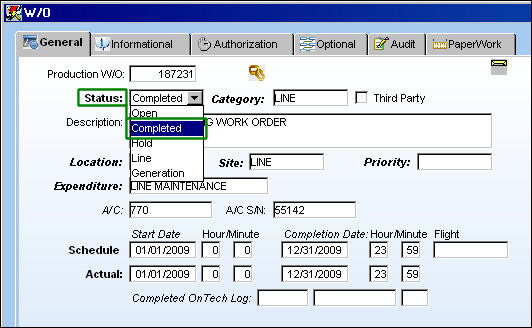
Then follow the procedure of the Work Order closing (go to Production/Update/Work Order Closing, select the Work Order, and select the Save button).
Share
Print
|
©1997-2026 Trax USA Corp. All rights reserved. This manual may not be copied, photocopied, reproduced, translated, or converted to any electronic or machine-readable form, in whole or in part, without prior written approval from Trax USA Corp. |
 |