
 Share
Share
 Print
Print
|
|
|
|
|


W/O Task Card Assignment
The Work Order Task Card Assignment window allows planners to assign work to available employees who are stationed at the appropriate location with the required skill. The employees can then sign-in and manage their workload through the Work Order Task Card Assignment Workshop window.
The functionality found in this window is not compatible with the Man Hours Schedule by Head Count functionality.
Throughout the following explanation this window is split up between the Available Work section (left) and the Employee by Location/Site section (right).
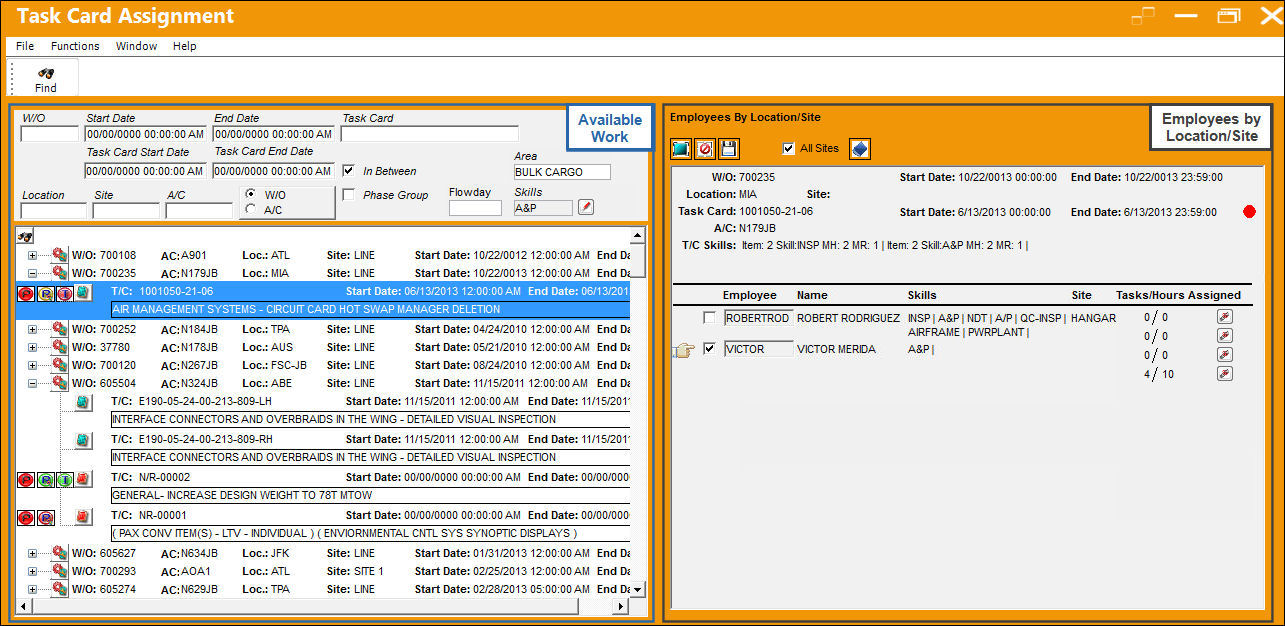
Available Work Section:
The following are the available search/informational fields and buttons of the Available Work section:
_____________________________________________________________________________________
W/O
The Work Order used to categorize, manage, and schedule work requirements for aircraft maintenance.
Start Date
The Scheduled Start Date/Time of the Work Order and/or Task Card. Select into the field to access the calendar pop-up.
End Date
The Scheduled End Date/Time of the Work Order and/or Task Card. Select into the field to access the calendar pop-up.
Task Card Start Date 
The Start Date/Time of the required Task Card(s).
This date/time is calculated differently for scheduled Task Cards and Non-Routine Task Cards. Scheduled T/Cs start date/time is the same as the W/Os start date/time, while N/R T/Cs start date/time varies depending on the creation time of the N/R T/C. For detailed information refer to the Task Card Button, Schedule Tab and the Non-Routine Task Card Button, Schedule Tab via the Production Training Manual.
Task Card End Date
The End Date/Time of the required Task Card(s).
This date/time is calculated differently for scheduled Task Cards and Non-Routine Task Cards. Scheduled T/Cs end date/time is based on the elapsed Man Hours for each Item on the T/C, while N/R T/Cs end date/time is the same as the W/Os end date/time. For more detailed information refer to the Task Card Button, Schedule Tab and the Non-Routine Task Card Button, Schedule Tab via the Production Training Manual.
Task Card
The Task Card / Job Card that details the scheduled maintenance work.
Location
The Location for maintenance events, inventory stores, orders, transactions, or training events.
Site
The Site where the work is to be carried out (if applicable).
A/C
The individual aircraft tail number.
W/O radio button
This button sorts all Task Cards by the Work Orders they belong to.
A/C radio button
This button sorts all Task Cards by the Aircraft they are associated to. When selected, the Task Cards will be displayed.
Phase checkbox
Select this checkbox to access the Phase field. This checkbox is only available when the W/O radio button is selected.
Phase
The phase of the Work Order on which the Task Card work is carried out on. These Phases are listed for each T/C in bold. This field is only available when the Phase checkbox is selected.
Area 
The Area of the aircraft which this Task Card is related to, as defined in the Trans Code.
Flow Day
Enter the Flow Day to filter the search results of W/O Task Cards scheduled only for the specified day.
Skills
Select a skill from the list of skills available in the drop down to filter the search results of W/O Task Cards by skill required.
Skills  button
Select multiple skills from the multi-selection drop down button to filter the search results of W/O Task Cards by skill required.
Find  button
This particular Find button filters within the results area for the specific information entered in the above fields. Using the basic Find button to the left will filter out all information that does not correspond to the information entered above.
Expand  / Collapse
  buttons
Select to access or hide a Work Orders' Task Cards.
Aircraft  icon
icon
Depicts the Aircraft that the Task Cards are associated to with the specific Aircraft number to its right.
This icon only appears when the A/C radio button is selected.
Work Order  button
Select this button to access the Work Order window.
Task Card  button
Select this button to access the W/O Task Card window.
Part Location Indicator  button
The display of the Part Location Indicator button allows planners to see when a part(s) that is needed to complete the W/O is available (all/partial/none) at the W/O's location.
Yellow Reservation Status Indicator  - Indicates that only some of the parts required to complete the W/O are available at the W/O's location.
Green Reservation Status Indicator  - Indicates that all parts required to complete the W/O are available at the W/O's location.
Red Part Location Indicator - Indicates that the part(s) required to complete the W/O is not available at the W/O's location.
Reservation Status Indicator button
The display of the Reservation Status Indicator  button allows planners to see when a part(s) has been reserved (all/partial/none).
Reservation Status Indicator button  - Indicates that the part requirements for the W/O have only partially been reserved.
Reservation Status Indicator button  - Indicates that all part requirements for the W/O have been reserved.
Reservation Status Indicator button - Indicates that a part that is required to complete the W/O has not yet been reserved.
Blue Reservation Status Indicator  - Indicates that more material was added to the W/O after the previous requirements had been reserved.
Task Card Description
The description of the Task Card.
Employees Assigned  button
Select this button to display the employee assigned to complete work against the Task Card.
The Employee Assigned button will only display if employees are assigned to the Task Card.
_____________________________________________________________________________________
Once the required Task Card is found, select it by clicking on it. The informational fields in the Employee by Location/Site section are populated. All of the available employees are listed.
Employees by Location/Site Section:
The following are the available informational fields and functional buttons of the Employee by Location/Site section:
_____________________________________________________________________________________
Select All  button
Selects all of the listed Employees.
Deselect All  button
Deselects all of the listed Employees.
Save  button
Assigns the selected work to the selected Employee(s).
All Sites checkbox
Displays all of the available Employees with the required Skills within the Location while overlooking their Site.
Man Hour Schedule Group Selection  button
This button allows users to filter the Employees available for T/C assignment by Man Hour Schedule Group. When selected, users can choose from all available groups to be displayed below. Only those employees of the chosen Groups that meet all of the correct criteria will be displayed. All Groups are selected by default.
W/O
The Work Order used to categorize, manage, and schedule work requirements for aircraft maintenance.
W/O Start/End Date
The start and end date/time of the Work Order.
Red  icon
icon
The Red icon indicates that the Work Order schedule has been applied.
Location
The Location for maintenance events, inventory stores, orders, transactions, or training events.
Site
The Site where the work is to be carried out (if applicable).
Task Card
The Task Card / Job Card that details the scheduled maintenance work.
Task Card Start/End Date
The start and end date/time of the Task Card. This date can be entered via the Schedule tab of the W/O Task Card window.
A/C
The individual aircraft tail number.
T/C Skills
The specific Skills needed by an Employee to complete the Task Card.
In order for a Task Card to appear in the Employee by Location/Site section, the Task Card must contain an Item with a required Skill. Employees are not allowed to be assigned to Task Cards that do not have Skills associated. For more information refer to the Items Button, Skill Tab of the Engineering - T/C Training manual.
MH (Man Hours) - Signifies the total Man Hours required to complete the work for each Skill on the selected W/O T/C. Each number in this field represents a Skill in the T/C Items which will indicate the amount of hours required to complete the particular Skill. For each Item Skill, the Man Hours required for each Skill are multiplied by the amount of Men Required to complete the Item's task. So if 5 Man Hours are required by 3 workers, the total Man Hours required for that Item Skill is 15 hours (5 Man Hours x 3 Men Required = 15 total MH).
If a Task Card's Items all contain the same Skill, all Man Hours required are added together. If two different Items require the same Skill, the Man Hours required are added together for the same Skill.
If a Task Card's Items contain different skills, the Man Hours required for each skill are listed individually.
MR (Men Required) - Signifies the amount of Men Required to complete the work on the selected W/O T/C. Each number in this field represents a Skill in the T/C Items which will indicate the amount of workers required to complete the particular Skill. If a Task Card's Items all contain the same Skill, all Man Hours required are added together. If a Task Card's Items contain different skills, the Man Hours required for each skill are listed individually.
Employee
The Employee user name or ID number. It is important to note that only those employees with the required Skill(s) for a Task Card will appear when the T/C is selected. This can be assigned through the Employee Master, Skill button. For more information refer to the Skill Button, Via the Employee Master in the Settings Training Manual.
Only Employees with an Active Status in the Employee Master can appear in this window. Inactive Employees will not appear. For more information refer to the Employee Master, General Tab via the Settings Training Manual.
Name
The Employee's name.
Skills
The Employee's Skill(s).
Site
The Site where the work is to be carried out (if applicable).
Task/ Hours
Displays list of assigned Task Cards and Hours for employee.
View Assigned Tasks  button
Select this button to view a list of assigned Task Cards. Additional information is available such as; Task Card description, Task Card status, Man/Hour requirements, and if the employee has signed-on to begin work on the task.
_____________________________________________________________________________________
In order for the available employees to populate the Employee by Location/Site section, the Man Hour Schedule must be set up and generated prior for all employees. In order for a specific employee to appear they must have a schedule that corresponds to the location(s) where the Work Orders are registered. For more detailed information on the Man Hour Scheduling process refer to the Man Hours Schedule and Man Hours Schedule Generation portions of the Planning Training Manual.
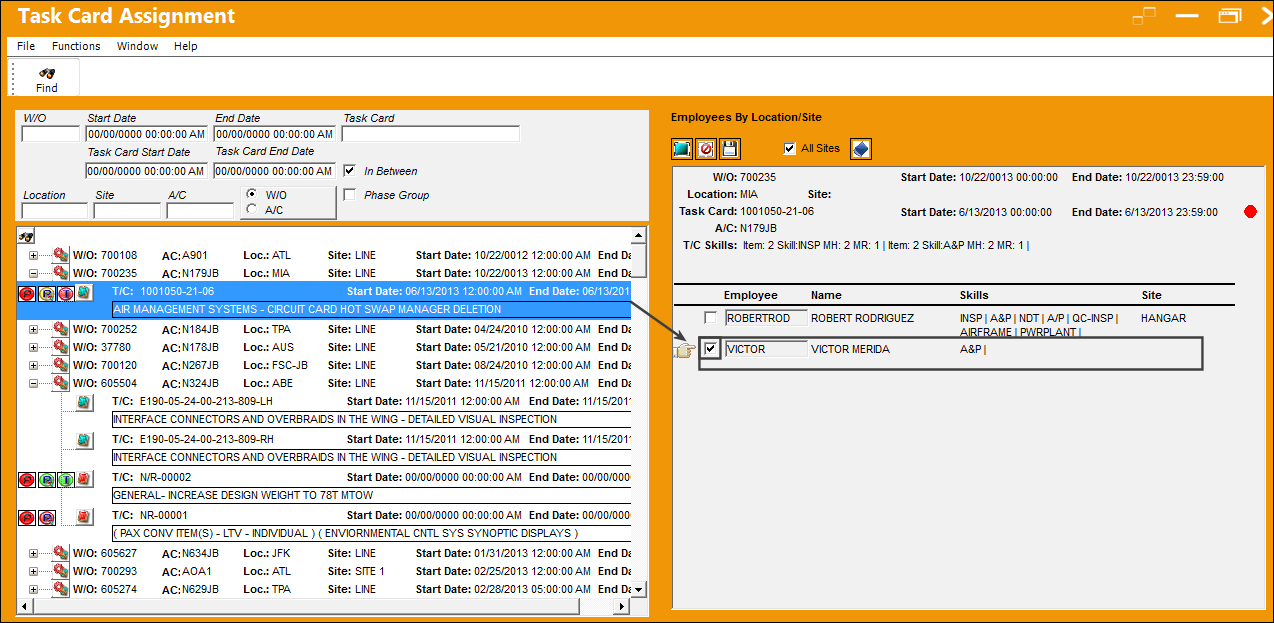
To assign work, planners must search for the W/O Task Cards in the Available Work section. Enter any relevant criteria then select the Find button. Select the Task Card then select one or more employees to work on the T/C in the Employees by Location/Site section. When all selections have been made, click the Save button.
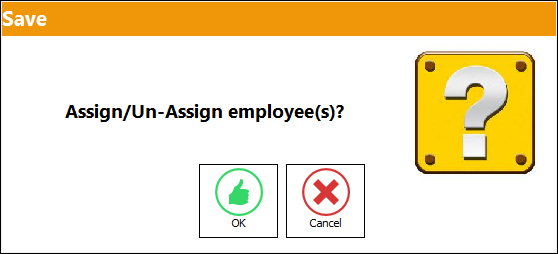
The following prompt appears confirming the assignment.
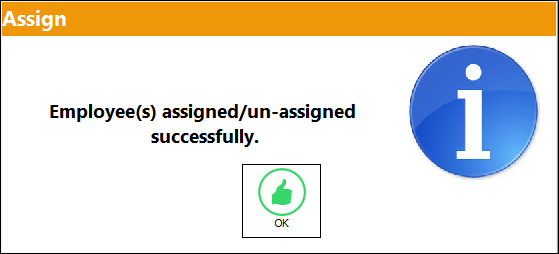
When assigned, the following prompt appears.
Once the planners have assigned work to the employees, the employees can sign-in/out and manage their assigned work via the Work Order Task Card Assignment Workshop window. Once completed through the W/O T/C Assignment Workshop window, the electronic signature functionality can be utilized depending on the configuration of Production Switch  WOTCESIGN. For more information refer to the Production Switches Manual.
Share
Print
|
©1997-2026 Trax USA Corp. All rights reserved. This manual may not be copied, photocopied, reproduced, translated, or converted to any electronic or machine-readable form, in whole or in part, without prior written approval from Trax USA Corp. |
 |