
 Share
Share
 Print
Print
|
|
|
|
|


Engineering Pending Release
This program is a very helpful tool to administer and manage new revisions of Task Cards and E/Cs that are already on an 'Open' or Generation' status Work Order. The decision whether a revision should be replaced or not can be made on two levels: either in Engineering or in Production. In order to determine who should make this decision, Switch  PENDAUTH needs to be set correctly.
Set to No:
When Switch PENDAUTH is set to No, the decision whether to update a revision on an 'Open' or 'Generation' status Work Order or not will be made during the authorization of a Task Card or E/C. A pop-up window will open up, showing all open Work Orders that have a Task Card or E/C attached with the previous revision.
The engineering department can then decide whether the work should be performed using the old version of the Task Card or E/C or if the newer revision should be attached by selecting the "Override W/O" checkbox for the Work Orders that are to be updated.
Please note that the work order needs to be reprinted with the revised Task Card/E/C should the decision be made to override the older version.
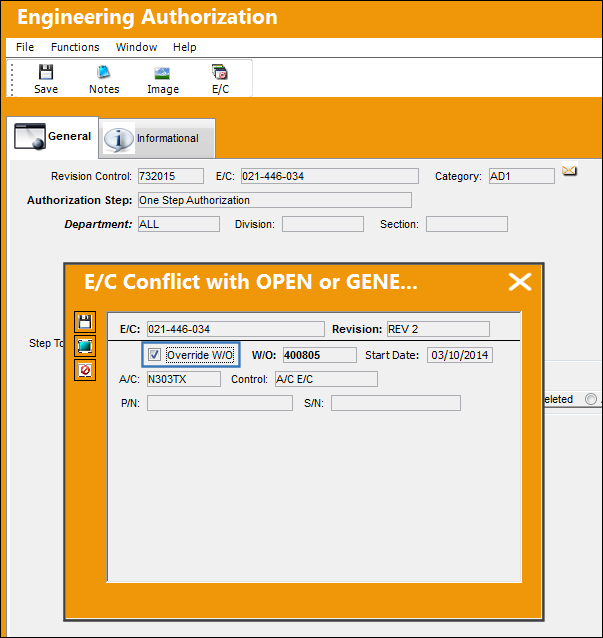
For additional information, refer to the documentation for Switch PENDAUTH via the Engineering Switches manual.
Set to Yes:
When Switch PENDAUTH is set to Yes, the decision whether to update a revision or not will be made on the production level. The 'E/C/ T/C Conflict with OPEN or GENERATION status' pop-up window will not appear in the authorization process.
Users may specify their search by filtering for any one or more of the below fields. As in any other filter controlled search, the more filters that are set, the less data will be shown. Therefore it is recommend to set as many filters as possible for the search in order to keep the results as clear as possible. All documents (Task Cards and E/Cs, depending on your filter settings) that are currently on an 'Open' or 'Generation' status Work Order and have been revised to a newer version can be queried.
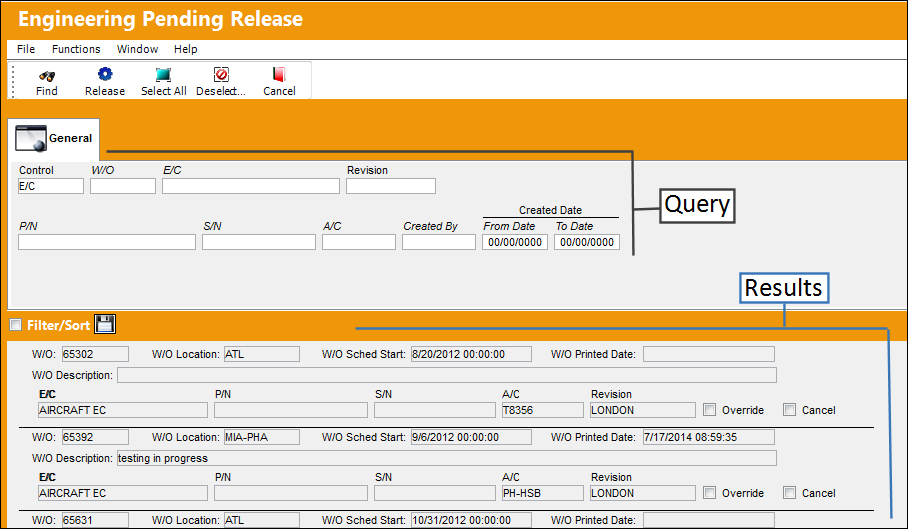
Query:
_____________________________________________________________________________________
Control
E/C or Task Card. Select what type of revision controlled documents you would like to see.
W/O
The Work Order used to categorize, manage, and schedule work requirements for aircraft maintenance.
E/C
The Engineering Control that specifies aircraft or component scheduled maintenance intervals.
Revision
Enter the revision number you would like to work with.
Task Card
The Task Card / Job Card that details the scheduled maintenance work.
P/N
The Part Number reference for the aircraft part.
S/N
The Serial Number for the specific serialized part.
A/C
The individual aircraft tail number.
Created By
The user who created the record.
Created Date
The date the record was created.
_____________________________________________________________________________________
Results:
_____________________________________________________________________________________
W/O
The Work Order used to categorize, manage, and schedule work requirements for aircraft maintenance.
Task Card
The Task Card / Job Card that details the scheduled maintenance work.
E/C
The Engineering Control that specifies aircraft or component scheduled maintenance intervals.
P/N
The Part Number reference for the aircraft part.
S/N
The Serial Number for the specific serialized part.
A/C
The individual aircraft tail number.
Revision
The new revision available. (The older revision currently on the work order can always be viewed using the W/O program).
Override W/O checkbox
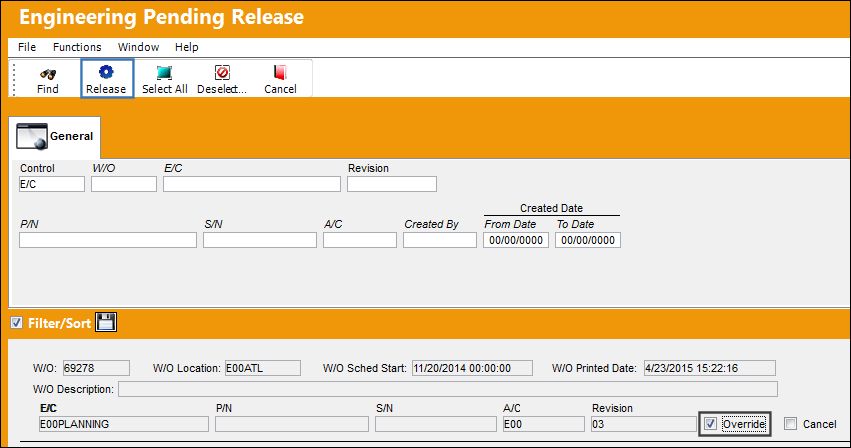
By checking this box, you decide whether the newer revision of the task card or E/C should be issued to the work order instead of the older version.
Release  button
Select to override all documents that are checked to be updated. The system will automatically update the work order and replace the document with the latest revision.
W/O Location 
Indicates the Work Order's creation date.
W/O Sched Start
Indicates the Work Order scheduled start date.
W/O Printed Date
Indicates the date and time that the Work Order was printed.
_____________________________________________________________________________________
Select the Override checkbox for the Work Orders to be updated with a new revision and select the Release button.
When the user searches for the Work Order, it is no longer available in this window.
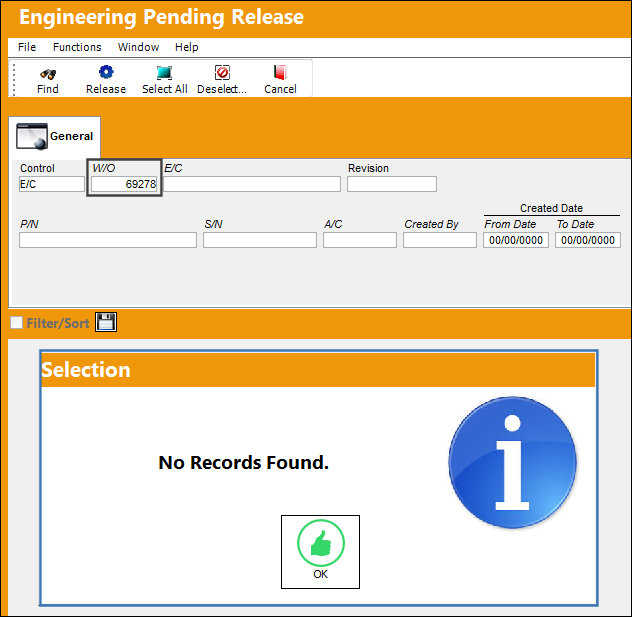
The new revision is now linked to the Work Order.
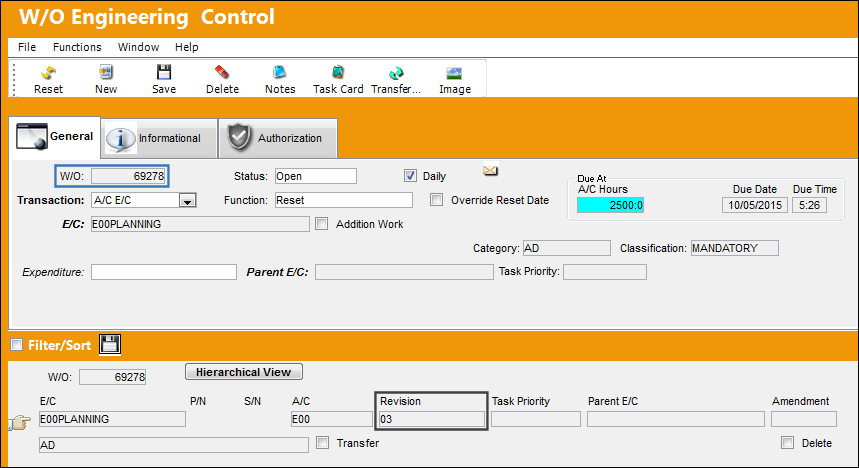
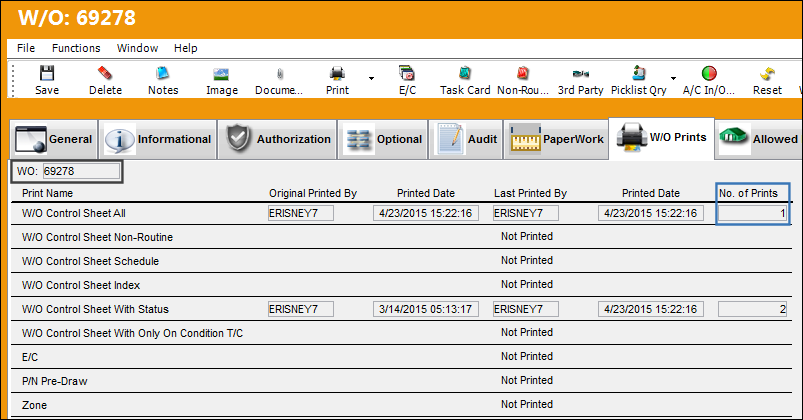
It is recommended to verify if the Work Order has been printed with the older revision of the document. To do so, go to Production/ W/O/ W/O Prints tab. Check for the No. of Prints field in case the Work Order has been printed before the re-issuing of a Work Order and print it with the latest documents.
Share
Print
|
©1997-2026 Trax USA Corp. All rights reserved. This manual may not be copied, photocopied, reproduced, translated, or converted to any electronic or machine-readable form, in whole or in part, without prior written approval from Trax USA Corp. |
 |