
 Share
Share
 Print
Print
|
|
|
|
|


The Task Card Status  button opens a window that displays the status of all Task Cards in the system. This window is informational only.
The Task Card Status button also appears in the Shop Work Order window and contains the same functionality for a Shop Work Order.
The top part of the screen shows a summarization of all task cards:
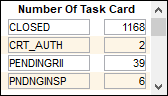
In the lower half of the screen, all task cards are displayed:
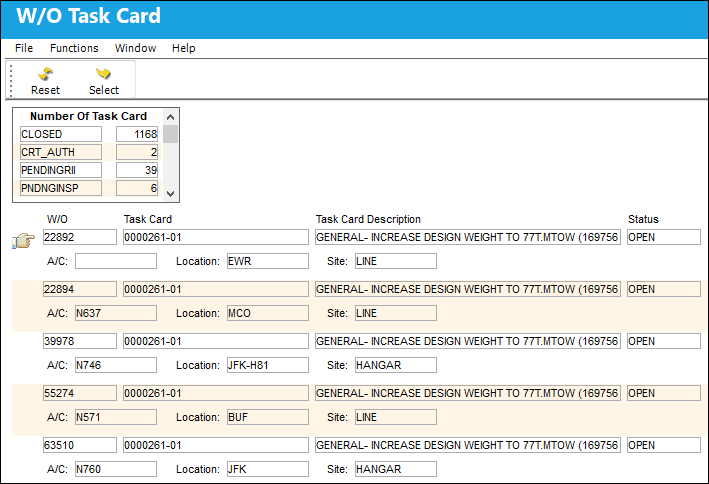
The following information is displayed for each Task Card:
_____________________________________________________________________________________
W/O
The Work Order used to categorize, manage, and schedule work requirements for aircraft maintenance.
Task Card
The Task Card / Job Card that details the scheduled maintenance work.
Task Card Description
The description of the Task Card.
Status
The current status of the Task Card. The status of the Task Card is helpful in determining the stage the Task Card is at with regard to it's completion. Ultimately, the completion of the Task Cards will result in the closing of the Work Order.
A/C
The individual aircraft tail number.
Location/Site
The Location for maintenance events, inventory stores, orders, transactions, or training events. This is the Site where the Work Order is planned.
Defer Information
If the Work Order is deferred, the defer reason is displayed in red.
P/N S/N
The Serial Number for the specific serialized part.
Corrosion
This checkbox indicates that this is a Corrosion Card. When selected, the appropriately related field will appear on the Work Order.
SEQ
The sequential number for a Task Card when it appears in multiple instances within the same Work Order.
Defect
The Defect Report associated to the W/O Task Card.
Phase
The particular phase of the work flow that this particular card pertains to.
_____________________________________________________________________________________
Users can select Task Cards with the Select  button. By doing so users are directed to the W/O Task Card informational window.
Share
Print
|
©1997-2026 Trax USA Corp. All rights reserved. This manual may not be copied, photocopied, reproduced, translated, or converted to any electronic or machine-readable form, in whole or in part, without prior written approval from Trax USA Corp. |
 |