
 Share
Share
 Print
Print
|
|
|
|
|


Users may search for a Customer Invoice by using any one or more search option shown below. Enter any of the below search criteria to query for a desired Customer Invoice and select the Find  button. In the following example, the user will search by A/C. Enter a Work Order in the Work Order field and select the Find button.
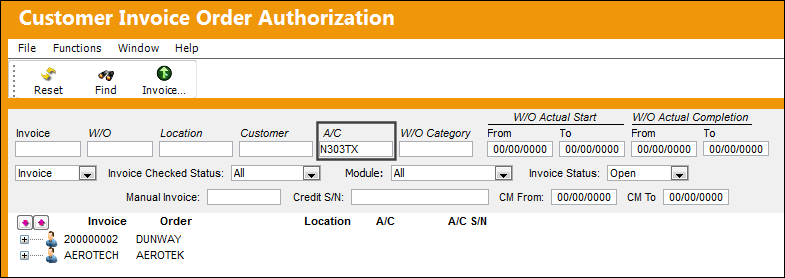
The following information/options are available in this window:
_____________________________________________________________________________________
Invoice
Enter the Invoice reference to query for.
The invoice field in not right clickable. The user must type in an invoice number.
W/O
The Work Order used to categorize, manage, and schedule work requirements for aircraft maintenance.
Location
The Location for maintenance events, inventory stores, orders, transactions, or training events.
Customer
The customer being invoiced for the work.
A/C
The individual aircraft tail number. This is the aircraft that the work was performed on.
W/O Category
Enter the Work Order Category to query for.
W/O Actual Start (From-To)
Enter the W/O Actual Start Date (From-To) Range to query for.
W/O Actual Completion (From-To)
Enter the W/O Actual Completion Date (From-To) Range to query for.
Invoice drop down 
Select from the following Invoice types to query for:
- Invoice
- Credit Memo
- All
Invoice Checked Status drop down
Select from one of the following to query for invoices by Status:
- All
- Completed
- Open
- Partial
- Re-Open
Module drop down
Select from one of the following, to query for invoices by module:
- All
- Exchange Out
- Production
- Rental
- Sales Order
- Shop
Invoice Status drop down
Select from the following Invoice statuses to query for:
- Open
- Closed
Manual Invoice
An invoice number that was created manually in the system. Manual Invoice Reference is created through the Manual Invoice field of the Manual Invoice Entry, which is available from the Post and Close Invoice  button, which appears when Switch
  WOMNLINVREF is set to Yes.
Credit S/N
Enter the Customer Credit reference to query by. This is a free text field.
CM From/To
Enter the From/To date of the Customer Credit reference to query by. This is a free text field.
_____________________________________________________________________________________
The following Work Order appears in the search result:
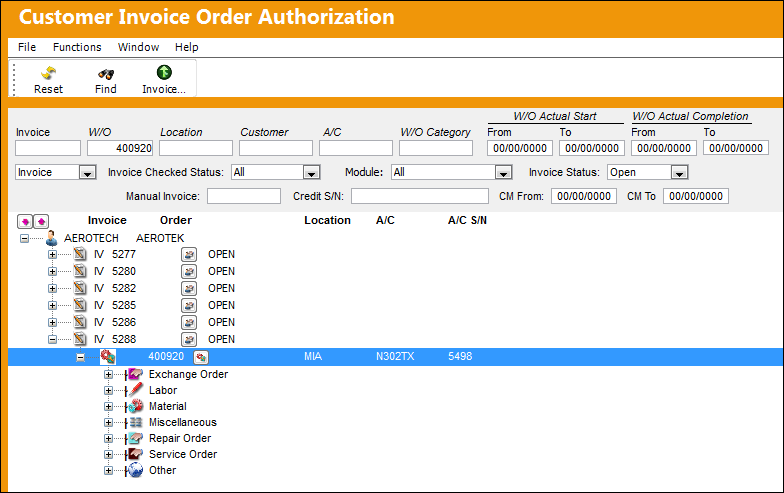
For detailed information regarding each charge, refer to Customer Invoice Authorization Charges, via the Production Training Manual.
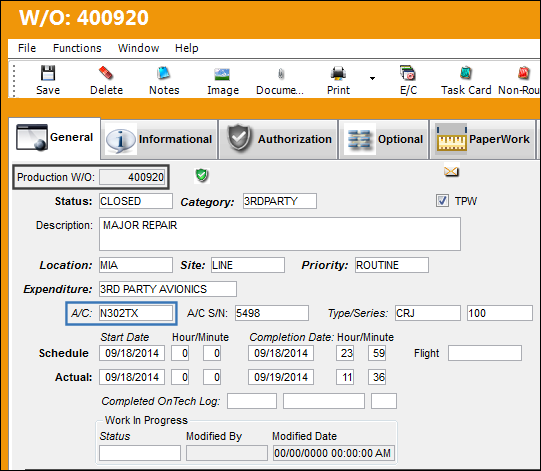
The results display Work Order 400920 which is associated to A/C N302TX:
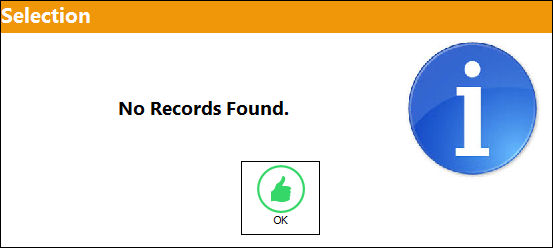
If the selection does not appear in the Customer Invoice Authorization window, the following pop up will appear:
The search option works the same way for all of the query fields.
As long as an invoice is not yet authorized, all unauthorized Customer Invoices will be updated with any changes against related Customer Contracts.
Share
Print
|
©1997-2026 Trax USA Corp. All rights reserved. This manual may not be copied, photocopied, reproduced, translated, or converted to any electronic or machine-readable form, in whole or in part, without prior written approval from Trax USA Corp. |
 |