
 Share
Share
 Print
Print
|
|
|
|
|


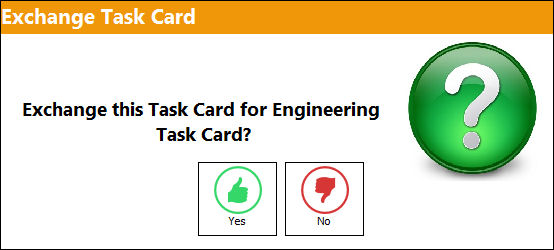
When the Task Card is placed on the Work Order, the information is copied from the original (Engineering) Task Card, then placed on the Work Order Task Card (that the system creates upon save). After the Task Card is placed on a Work Order, some information can be modified to customize the Task Card to that particular Work Order. For example, you might decide to change the information on the Description field. After saving the Task Card, you can “undo” those changes by clicking on the Exchange  button.
Select the Exchange button to refresh the fields on the Work Order Task Card to match the information that appears on the original (Engineering) Task Card.
Functionality is applied to 'On Condition' or 'Open' Task Cards only.
Share
Print
|
©1997-2026 Trax USA Corp. All rights reserved. This manual may not be copied, photocopied, reproduced, translated, or converted to any electronic or machine-readable form, in whole or in part, without prior written approval from Trax USA Corp. |
 |