
 Share
Share
 Print
Print
|
|
|
|
|


The View Signed PDF  button is available from the Work Order Task Card window and from the W/O Task Card Assignment Workshop window. This button allows users to view the electronic signatures that have been previously created via PDF for specific Task Cards by the user who completed the T/C through the W/O Task Card Assignment Workshop window.
The functionality of this button is dependent on Production Switch  WOTCESIGN being set to Yes. When set to Yes, an electronically signed PDF document is automatically created when a Work Order Task Card is closed. When set to No, an electronically signed PDF document is not created when a Work Order Task Card is closed. For more information refer to Switch WOTCESIGN from the Production Switches Manual.
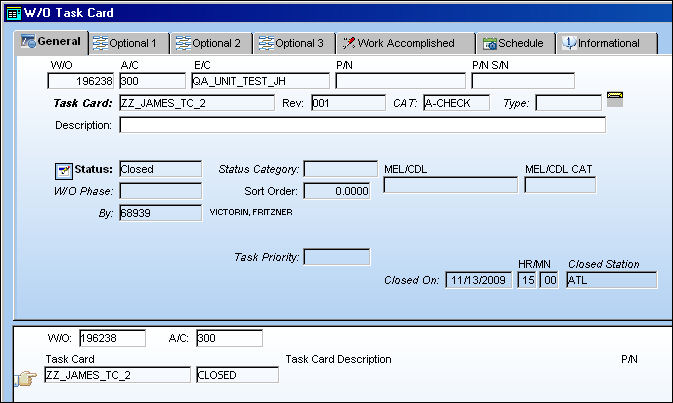
From the Work Order detail window select the Task Card  button. Choose a Task Card that has been completed and contains a signed PDF indicating all of the details. Select the View Signed PDF button.
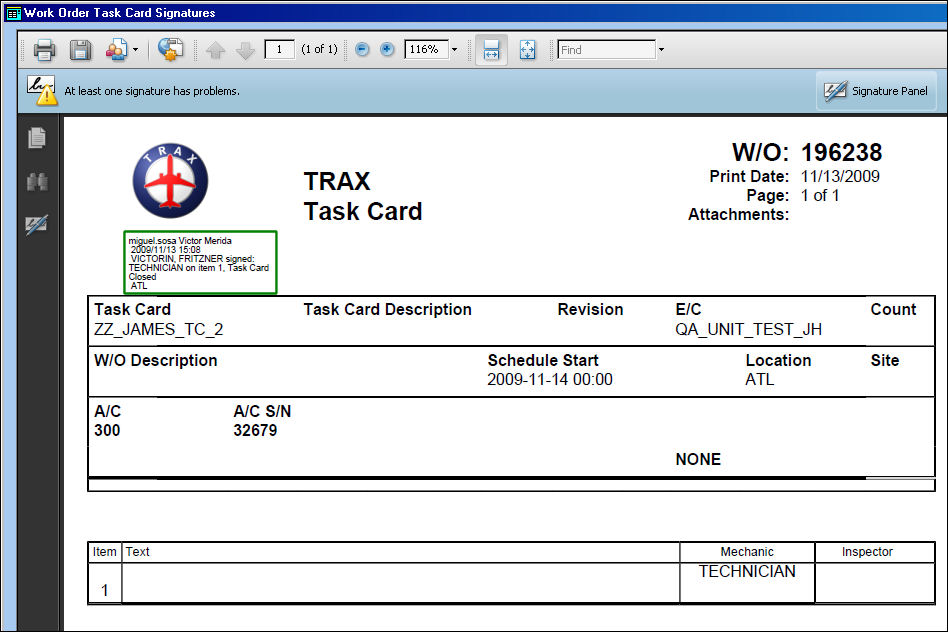
The Work Order Task Card Signature page pops up. This page includes general W/O Task Card information but most importantly it includes the electronic signature to the top left of the page. This signature includes the user's name, time the work was completed, location, Skill and Item number. When the field is selected the Signature Validation Status prompt appears. This prompt includes detailed information of the document properties.
For more information regarding the signature document properties and how to modify it to a company's needs, consult with a TRAX system administrator.
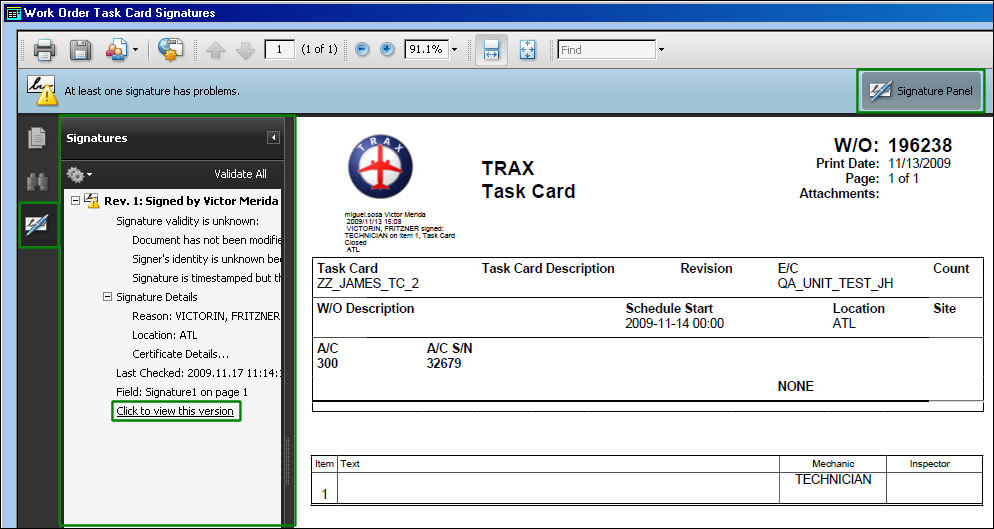
Users can view more information by selecting the Signature Panel  button.
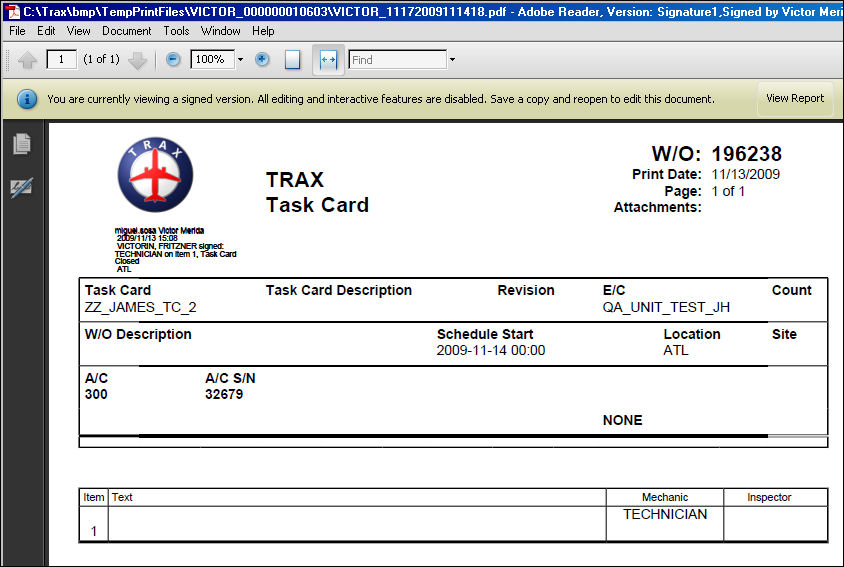
By selecting the 'Click to view this version' button, the following signed version of the PDF appears which is saved to the user's PC.
Share
Print
|
©1997-2026 Trax USA Corp. All rights reserved. This manual may not be copied, photocopied, reproduced, translated, or converted to any electronic or machine-readable form, in whole or in part, without prior written approval from Trax USA Corp. |
 |