
 Share
Share
 Print
Print
|
|
|
|
|


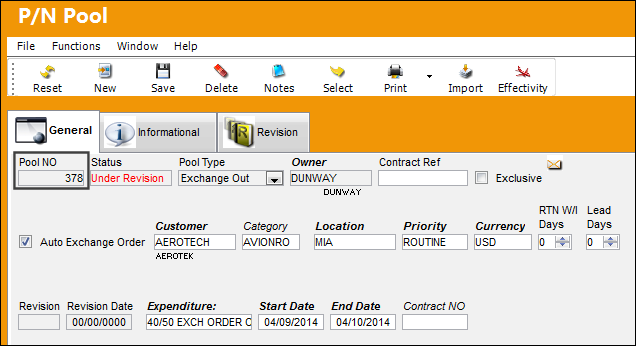
In the following scenario, when the P/N Pool Agreement is created, the aircraft specified in the Pool Agreement does not exist in the A/C Master.
The status of the P/N Pool is 'Under Revision' until all parts are added to the P/N Pool Detail and the Pool Agreement is completed.
Once the header has been saved, the user will be taken to the P/N Pool Detail.
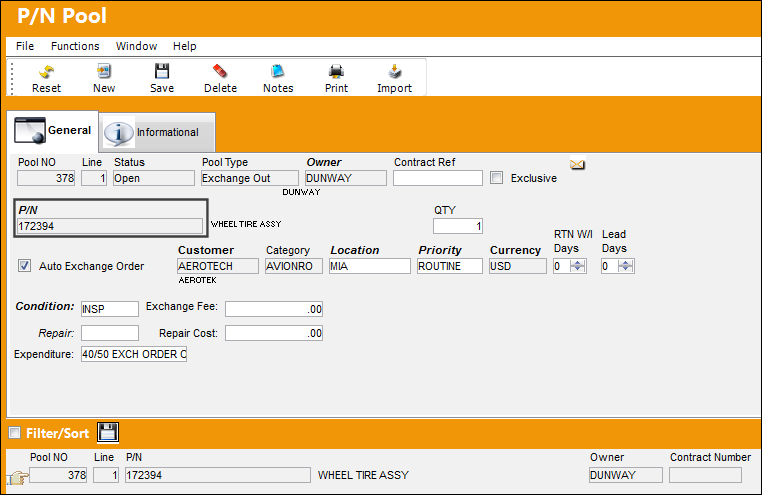
The following part is added to the P/N Pool.
If the Condition and Location of the part in the P/N Pool does not match the Condition and Location of the part in Inventory, a Picklist will not be generated when there is a need for the part.
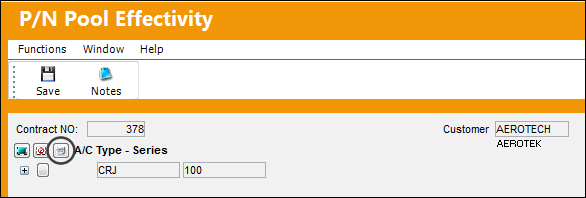
Return to the Header and select the Effectivity  button. Select the New
  button.
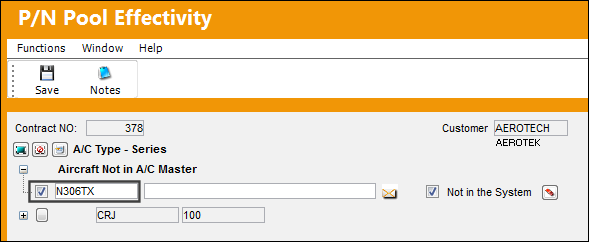
Enter the aircraft (not in the A/C Master) and make the part effective to this aircraft. Save the changes.
When the user attempts to exit the P/N Pool Detail, the following pop-up will appear. Do not end the revision until all parts have been added to the P/N Pool.
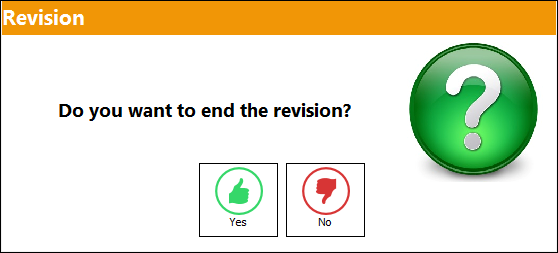
The status of the P/N Pool is now in 'Open' status. The status of the P/N Pool must be in 'Open' in order for the Auto Exchange Order Out functionality to work correctly.
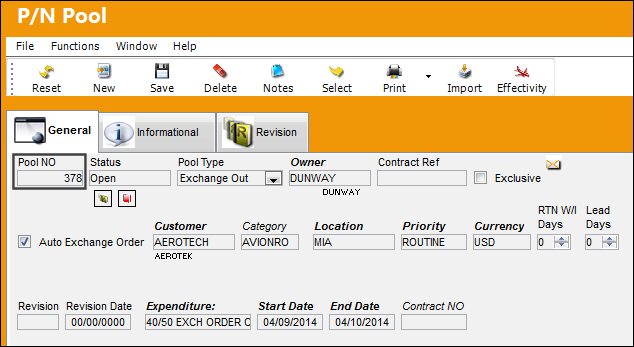
The P/N Pool is now ready to be utilized once an aircraft requires a component from the P/N Pool established.
Work Order Creation:
An aircraft is in the hangar and requires maintenance. This aircraft does not exist in the A/C Master however requires an exchange out of a part. A Work Order will be created for an aircraft. The Vendor must create a Third Party Work Order for the work that will be done for this aircraft. The Work Order will be linked to a Customer Contract.
The following Third Party Work Order is created:
Since the TPW checkbox is selected, the system will not validate the aircraft existing in the A/C Master.
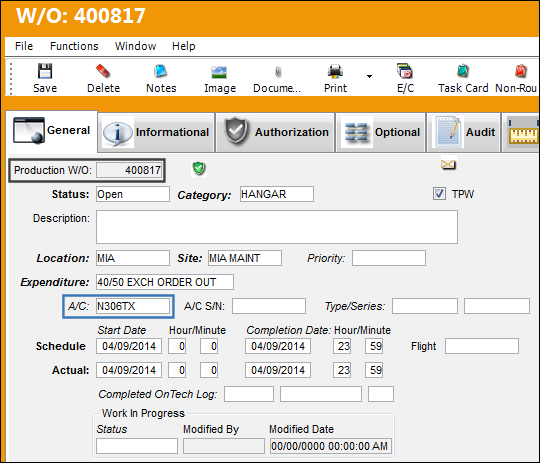
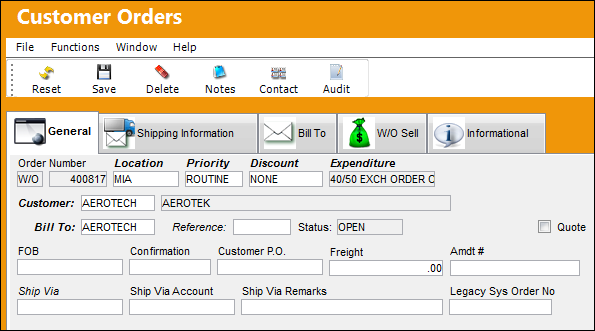
The Work Order must be linked to a Customer Contract. The Customer and Bill To fields are not populated, because there is no aircraft to link a Contract and Billing information to. In this example, this information must be manually entered.
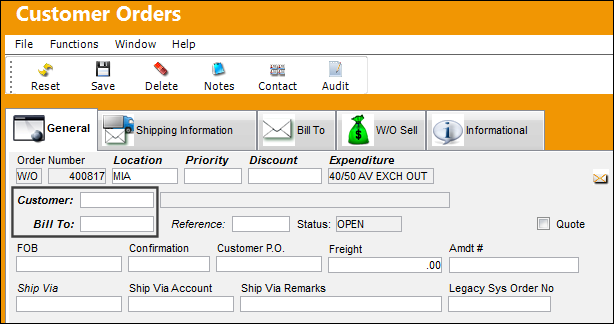
Enter all relevant information and select the Customer Orders, W/O Sell tab.
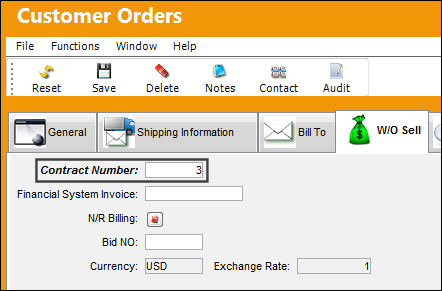
Enter the Contract Number and save the changes.
Issue Parts to Work Order:
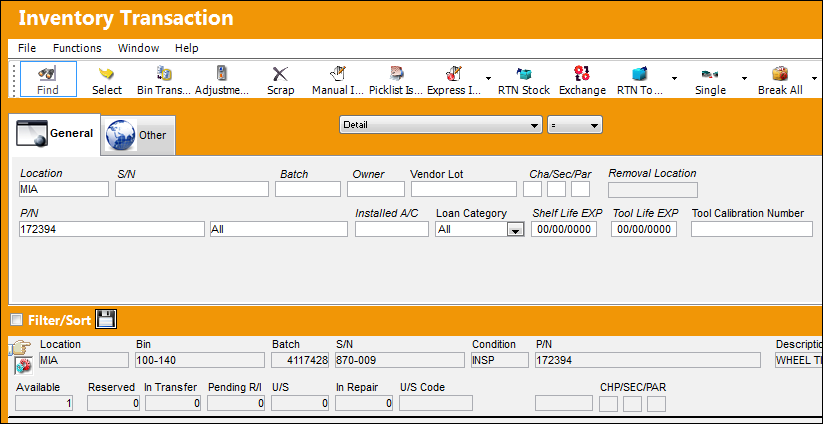
At this point, the components must be located in the correct inventory location and in the correct condition. Once the components have been located, they will be issued to the Work Order. Once the Supplied S/N is issued, the Core S/N will be exchanged out. This transaction will require an Exchange Order Out to be created.
Return Core S/N To Stock:
The Core S/N must be returned to stock. The return to stock transaction will trigger the auto Exchange Order Out.
Select the Return To Stock  button.
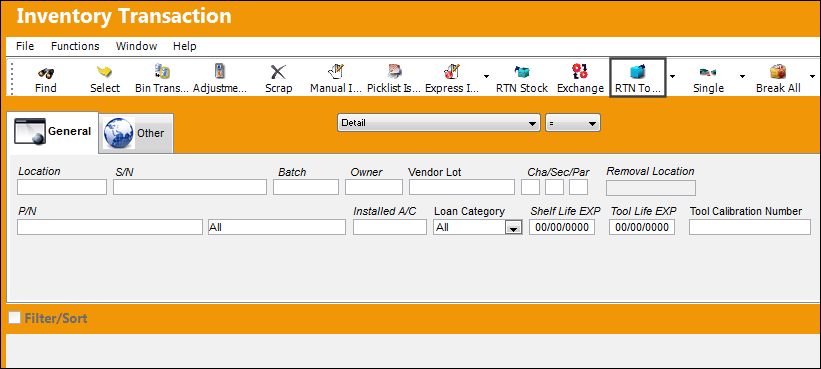
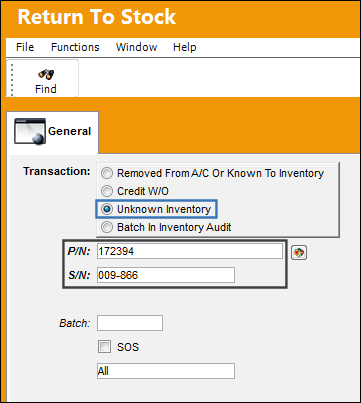
Select the 'Unknown Inventory' transaction and populate the P/N and S/N fields. Select the Find  button.
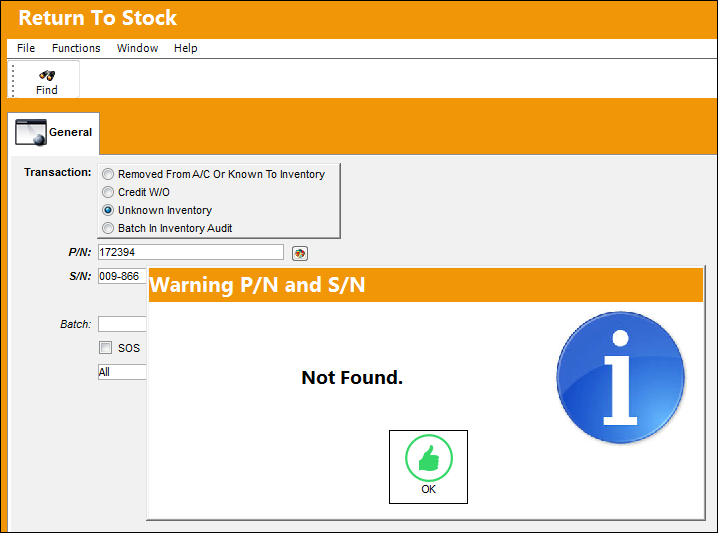
The following soft warning will appear. Select 'OK'.
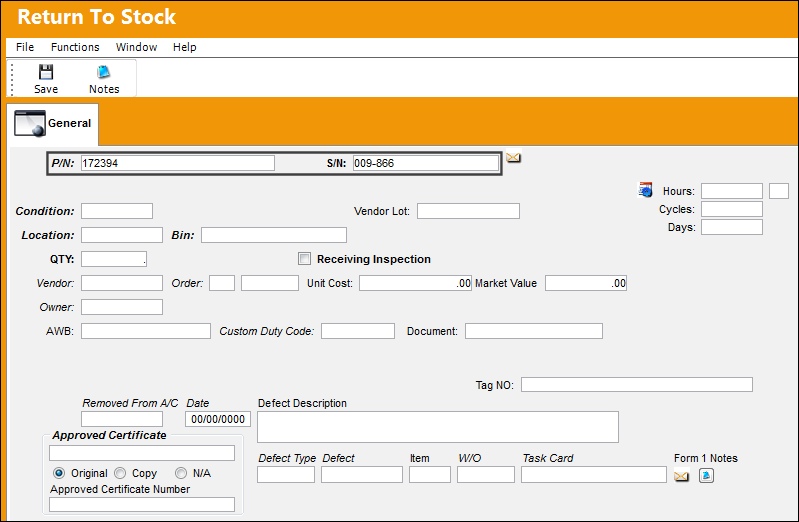
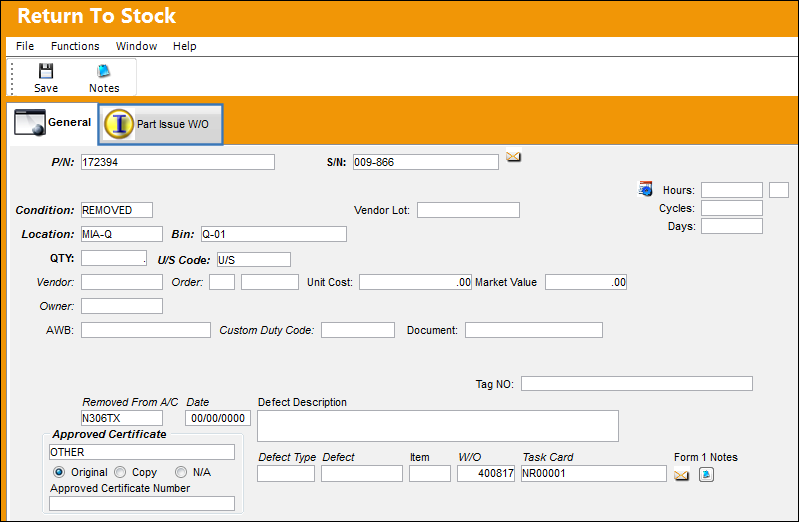
The following Return To Stock window appears with the P/N and S/N auto populated:
Upon populating the W/O field, the Removed From A/C field auto populates with the correct aircraft. The Part Issue W/O tab also appears.
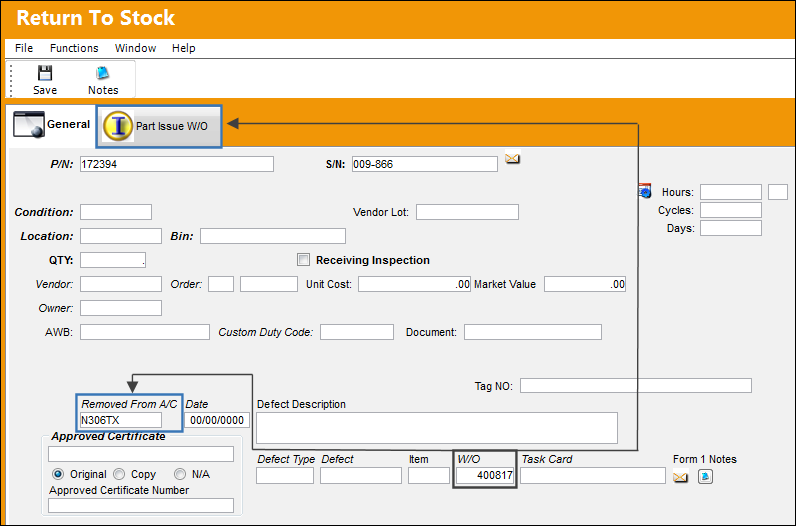
Enter all relevant information and select the Return To Stock, Part Issue W/O tab.
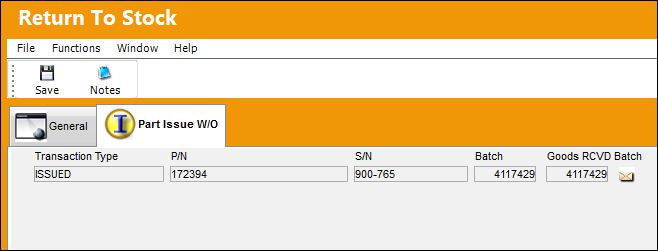
The Return To Stock, Part Issue W/O tab displays all S/Ns that have been issued to the specified Work Order:
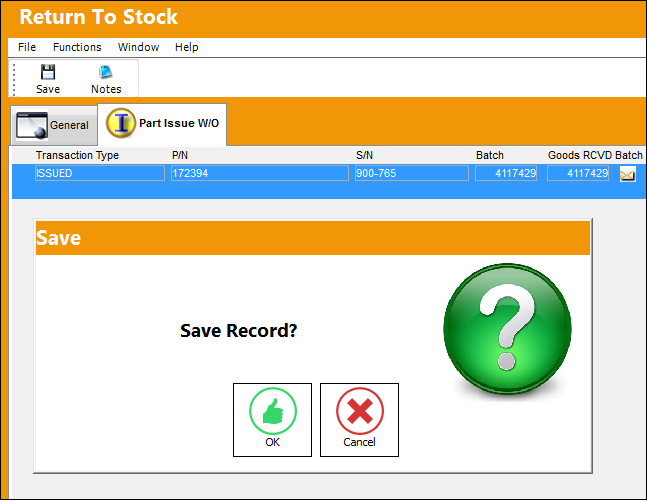
Select the S/N to be returned to stock and select the Save  button.
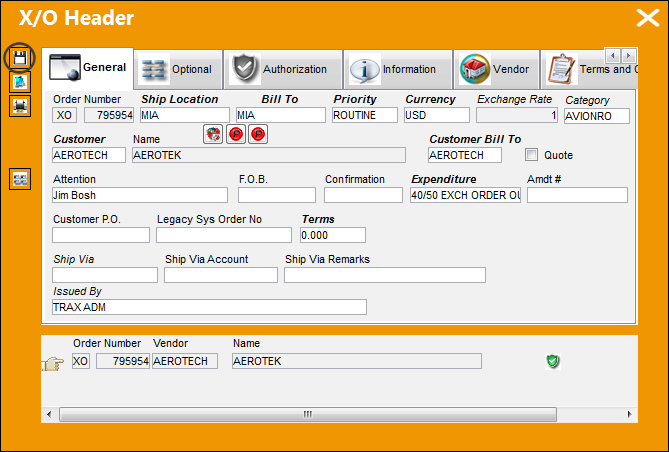
The Exchange Order Out is auto generated upon the Return To Stock transaction. Regardless of when the component is returned, the auto Exchange Order Out will be generated upon the RTS transaction.
Populate all relevant information and select the Save button.
Go to Order/ Query/ Orders Query
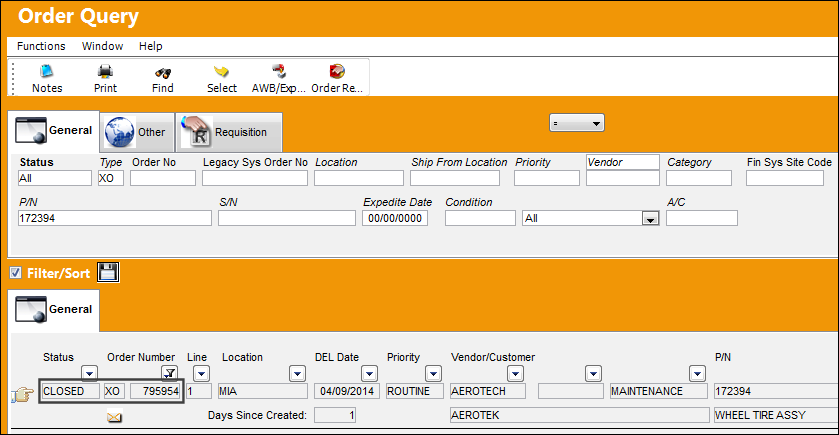
The Exchange Order Out appears is in 'Closed' status. Once the supplied S/N has been installed onto the aircraft, the Exchange Order Out will go to 'Closed' status.
Select into the details of the order.
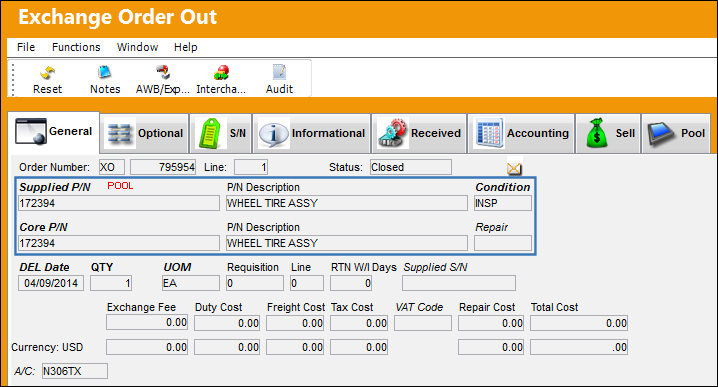
The Exchange Order Out has been created with the correct Pool part:
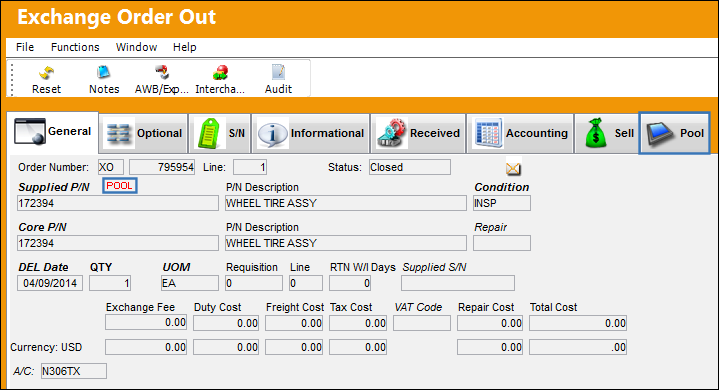
Note that the 'POOL' icon appears on the Exchange Order Out, General tab. The Pool tab is also available. Select the Exchange Order Out Detail, Pool tab.
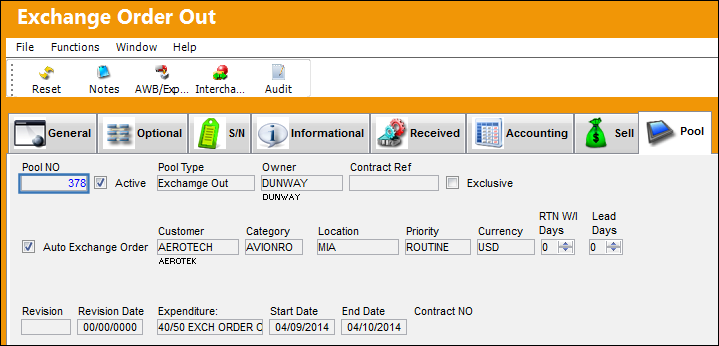
The Pool Agreement can be viewed from this tab. The user may select the hyperlink (highlighted in blue) to be directed to to the P/N Pool Detail.
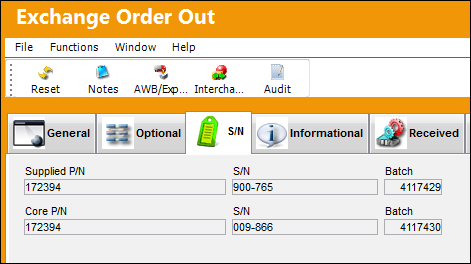
Select the Exchange Order Out Detail, S/N tab.
The correct S/Ns are recorded against the Exchange Order Out Detail, S/N tab:
Share
Print
|
©1997-2026 Trax USA Corp. All rights reserved. This manual may not be copied, photocopied, reproduced, translated, or converted to any electronic or machine-readable form, in whole or in part, without prior written approval from Trax USA Corp. |
 |