
 Share
Share
 Print
Print
|
|
|
|
|



The Override Order  button allows the user to apply a credit to a Sub Work Order. For example, if materials against a sub Work Order were not used, they can be credited to the sub Work Order.
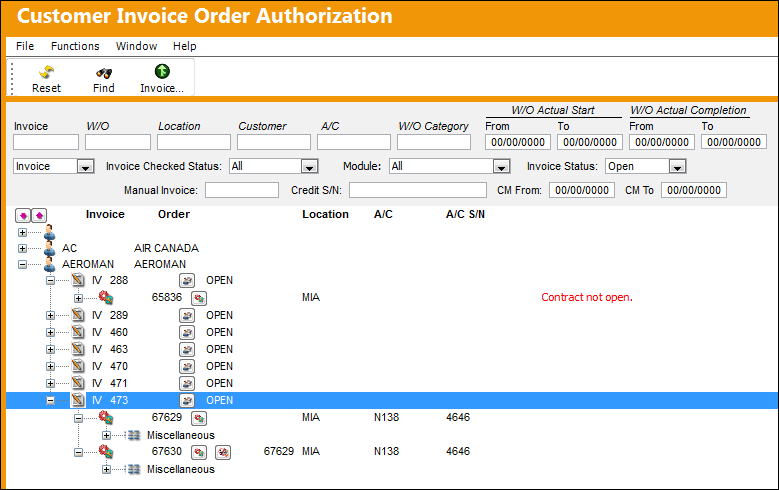
From the Customer Invoice Order Authorization window, select the highlighted invoice:
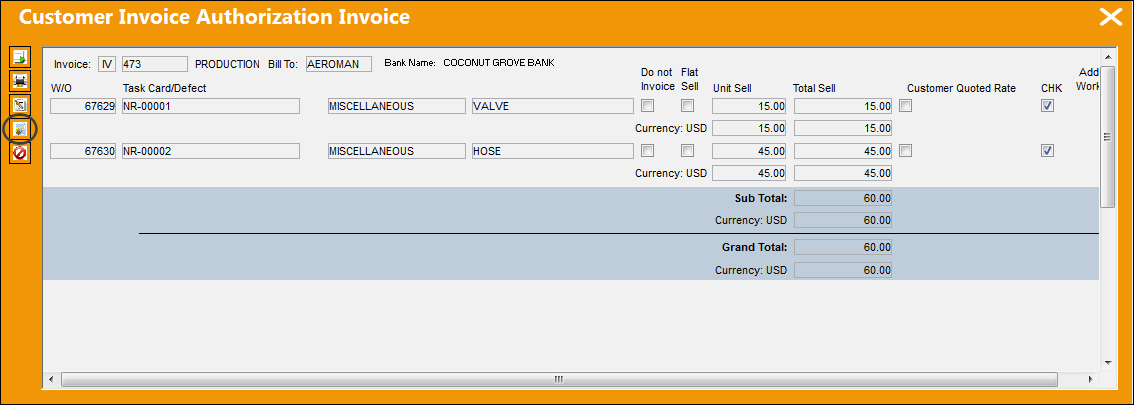
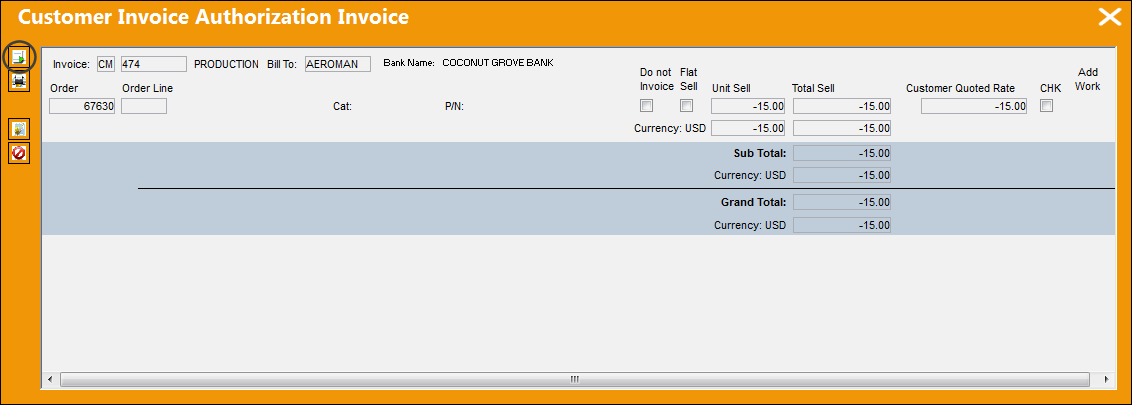
The Customer Invoice Authorization Invoice window appears.
Select the Credit Memo  button.
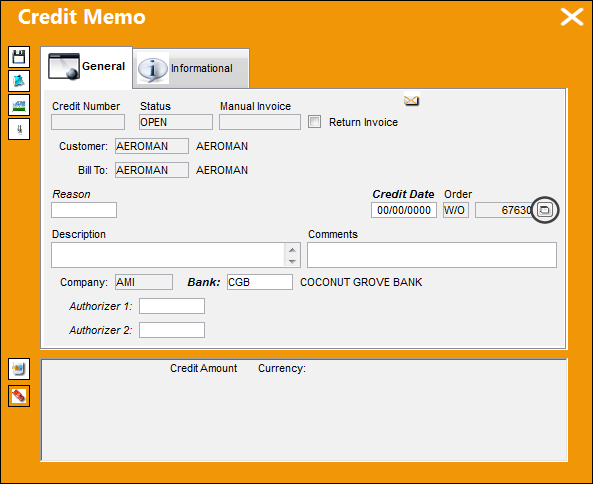
From the Credit Memo window, select the Override Order button.
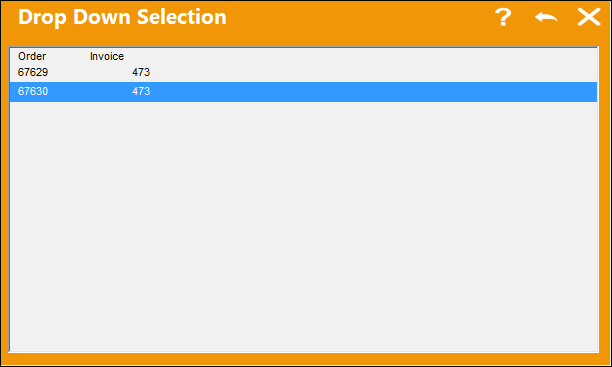
The following drop down selection window appears with the Parent Work Order (67629) and the Sub Work Order (67630). Select the Sub Work Order and exit the window.
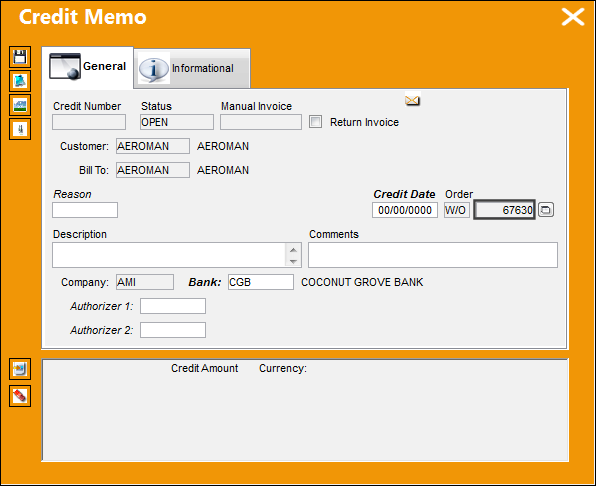
The Sub Work Order is defaulted as shown below:
Enter all relevant information and select the Save  button.
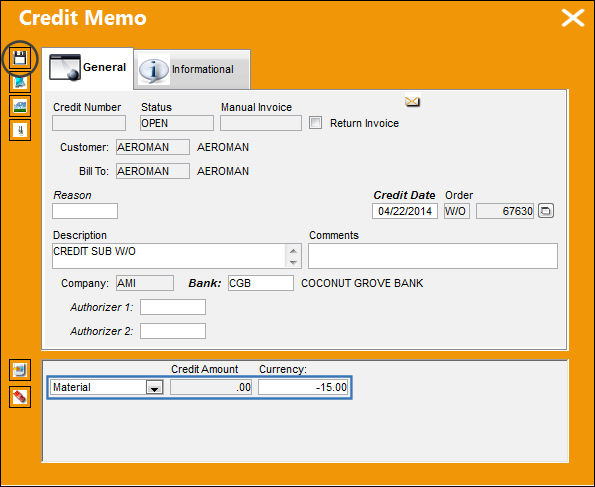
$15.00 will be credited to the Sub Work Order. Select the Save button.
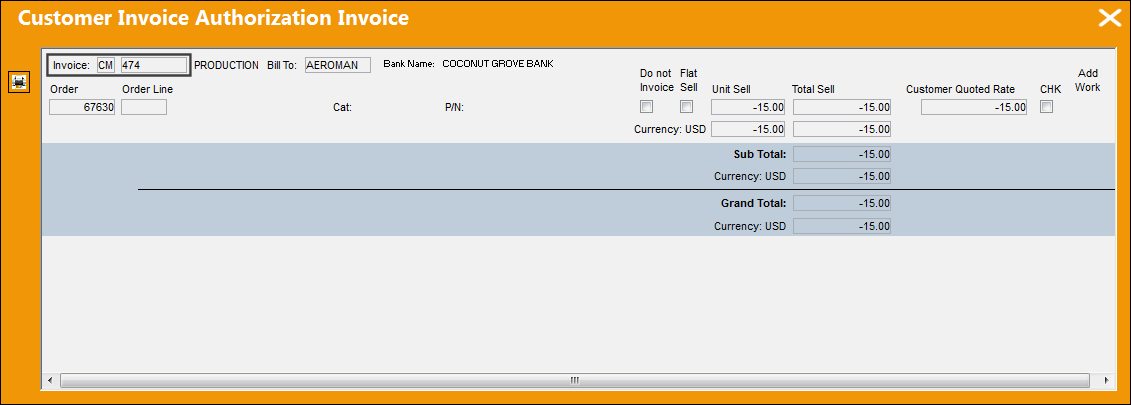
A new CM (Credit Memo) is created for the Sub Work Order 67630. Exit this window.
Query for Invoice 474 and select into the detail.
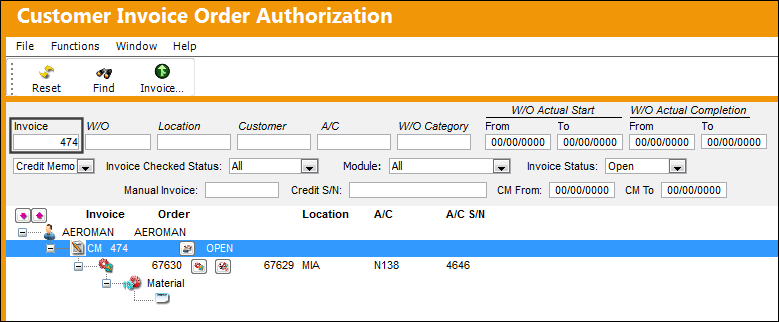
Select the Post and Close Invoice  button to post and close Invoice 474.
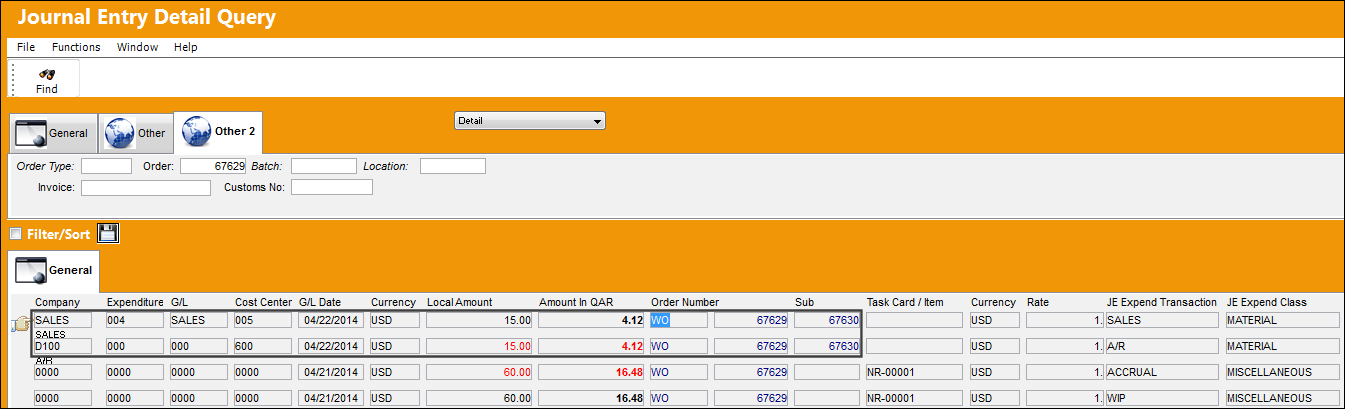
The G/L Account for the Sub Work Order reflects the credit of $15.00:
Share
Print
|
©1997-2026 Trax USA Corp. All rights reserved. This manual may not be copied, photocopied, reproduced, translated, or converted to any electronic or machine-readable form, in whole or in part, without prior written approval from Trax USA Corp. |
 |