
 Share
Share
 Print
Print
|
|
|
|
|


How to download and link videos to TRAX
The following paths have been configured in our Development database and will be available to you.
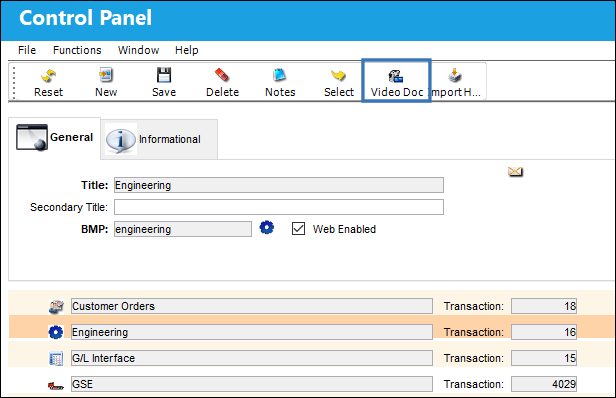
Go to System Administration/ Update/ Control Panel
From the Control Panel, select a specified module. In this example, the user will select the Settings module. Once the Hand  pointer is pointing to the desired module, select the Video Doc
  button.
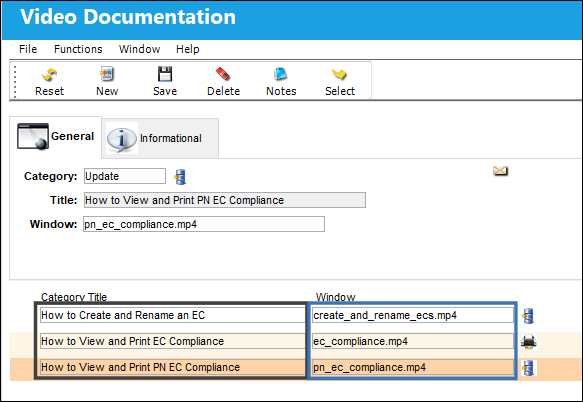
The following videos have been added to the Settings module. The path (highlighted in blue) will be available in your environment upon applying a SQL to your environment (See Step 3).
In order to view the videos via your TRAX environment, please follow the steps outlined below.
Step 1 - Download videos from the FTP
The How To Videos have been zipped and are available to be downloaded here: How To Videos Zip File.
Note: Once the link is clicked, the Zip file will download automatically.
Once the ZIP file is downloaded, unzip the content and save the video files in a shared location.
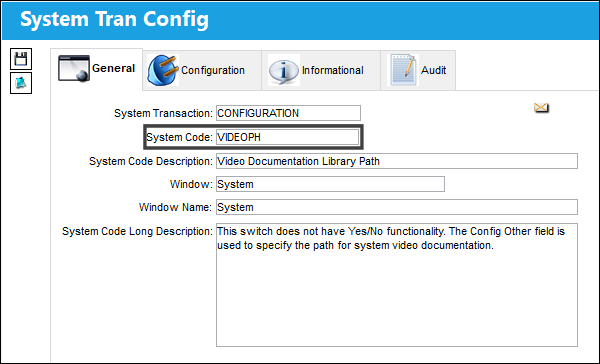
Step 2 - Configure Switch  VIDEOPH
Once the videos have been downloaded from the FTP and saved/stored in a specified location, specify the path to the location of the videos via switch VIDEOPH:
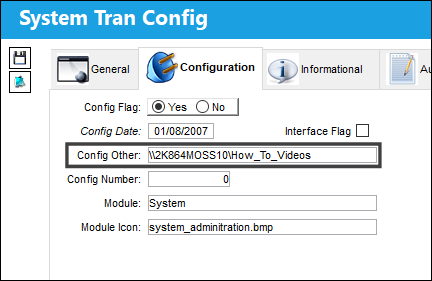
Specify the path to the destination where your videos are located in the Config Other field as shown below:
Step 3 - Download the SQL that will apply the video paths to your TRAX environment
Within the Zip file, locate the VIDEOS.TXT file.
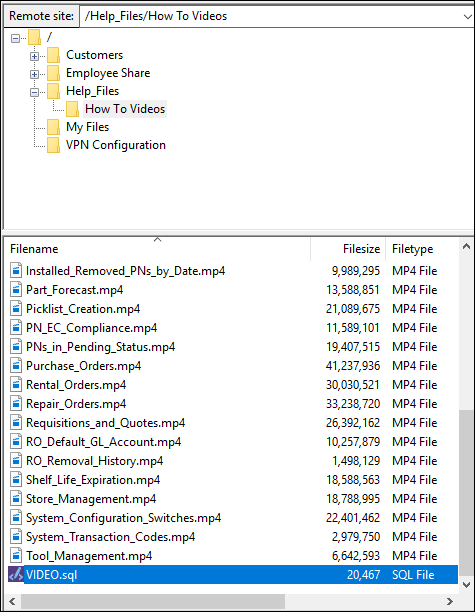
Run the SQL 'VIDEOS.TXT' and apply it to your TRAX environment.
Once the above steps have been completed, the videos may be viewed via the TRAX application as shown in the previous topic, View Access - TRAX Application.
Share
Print
|
©1997-2026 Trax USA Corp. All rights reserved. This manual may not be copied, photocopied, reproduced, translated, or converted to any electronic or machine-readable form, in whole or in part, without prior written approval from Trax USA Corp. |
 |