
 Share
 Print
|
|
|
|
|


The Copy A/C Template  button is used to copy the template of one aircraft to another. This includes P/N A/C Configuration, and effectivity across the system such as Task Card, MEL and Engineering effectivity.
 This button is security controlled via the Security Explorer/ Settings/ Update/ Aircraft/ Copy Template Button. For additional information, refer to the Security Explorer section of the System Administration Training Manual.
Setup:
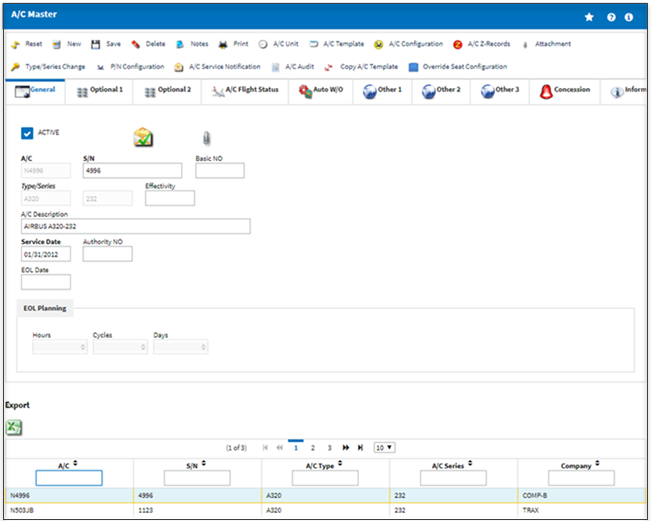
In the following example, we will be using aircraft N4996 and aircraft N503JB.
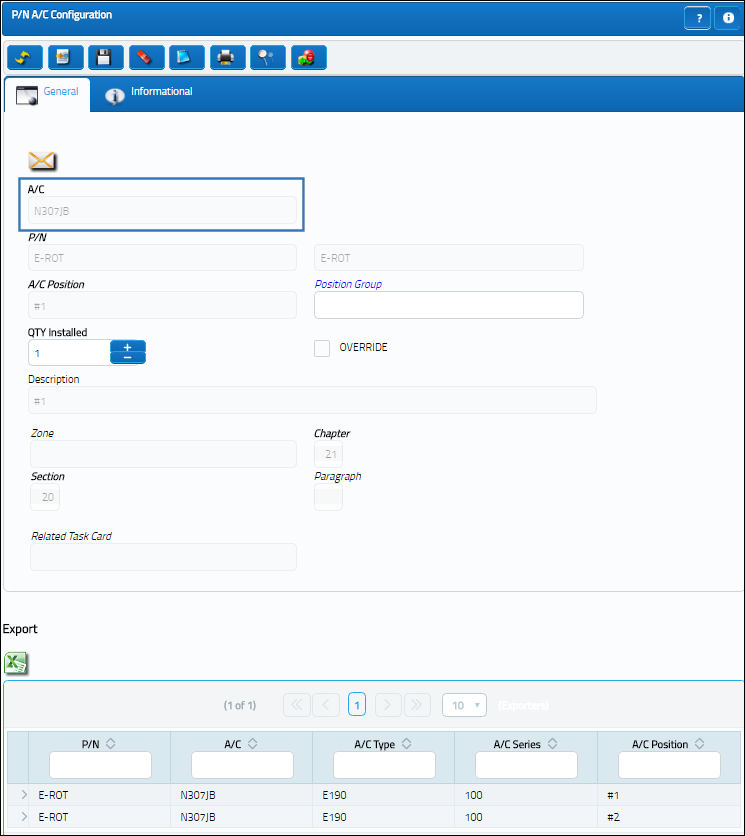
Note the P/N A/C Configuration of aircraft N307JB:
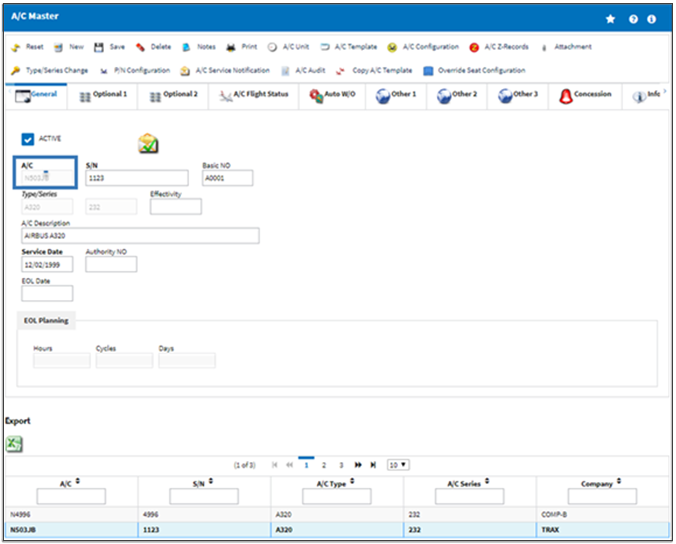
Note the P/N A/C Configuration of aircraft N503JB:
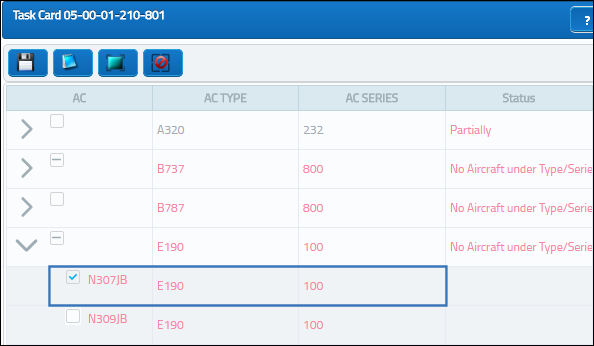
Navigate to the effectivity of the following Task Card. It is effective to aircraft N55D, but not effective to aircraft N57D:
Functionality:
From the A/C Master, select the Copy A/C Template button. Choose the aircraft the template is to be copied from.
The A/C Copy Template window appears. Enter the To A/C information and select the Save  button.
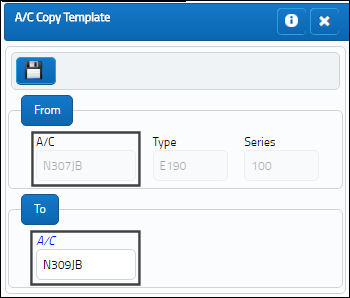
A pop up window will appear, informing the user that the template will be copied 'From' one template to the 'To' template. Select 'Yes'.
Results:
The P/N A/C Configuration has been copied from aircraft N307JB to aircraft N309JB:
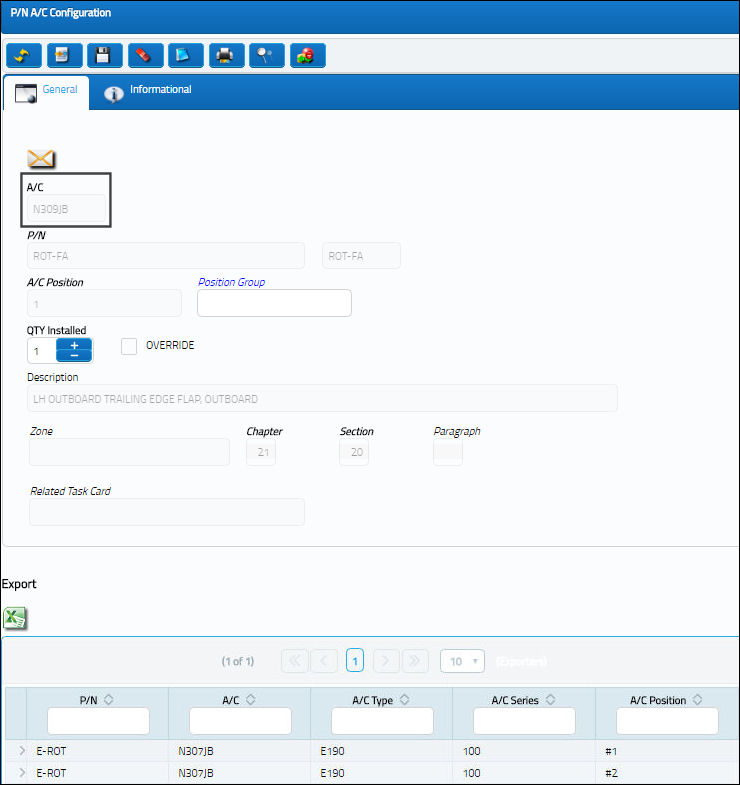
 Note: When the A/C Template is copied it will appear in the Print Queue. The status of the transaction will appear alongside it. For more information, refer to the Process Queue, via Print Queue in System Standards Training Manual.
The Task Card effectivity is also copied over.
Share
Print
|
©1997-2026 Trax USA Corp. All rights reserved. This manual may not be copied, photocopied, reproduced, translated, or converted to any electronic or machine-readable form, in whole or in part, without prior written approval from Trax USA Corp. |
 |