
 Share
 Print
|
|
|
|
|


CERTSQNO - Certificate Print Unique Tracking Number
Certificate Print Unique Tracking Number
Affected Window: w_training_class_employee_task_apv_final
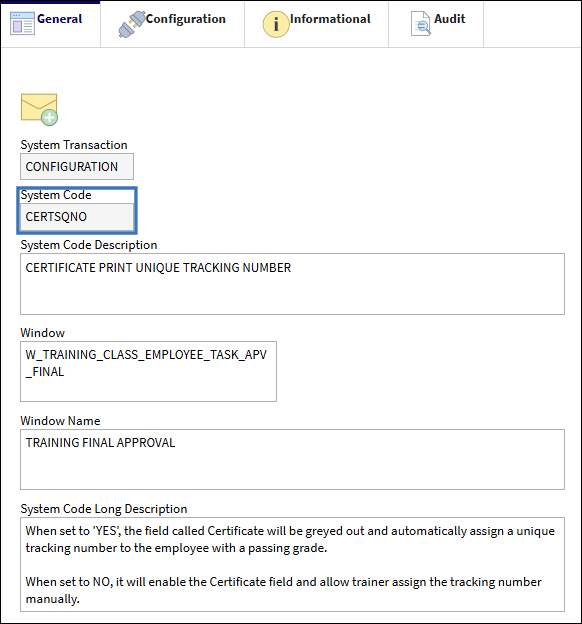
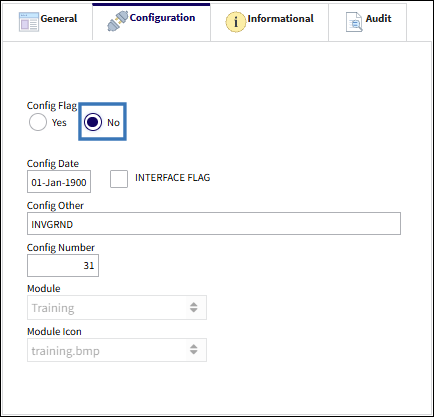
Switch Set to Yes:
When set to Yes, the Certificate field of the Training Final Approval window is grayed out and auto-populated by the next sequential number listed in the switch's Config Number field. This number is displayed in the certificate generated when the employee completes the training course.
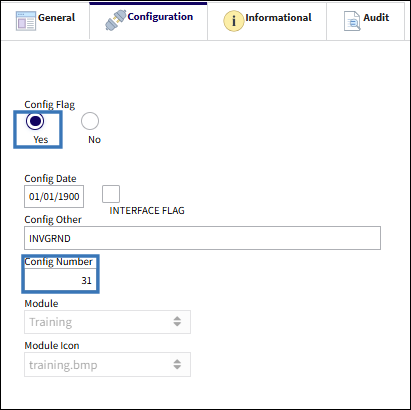
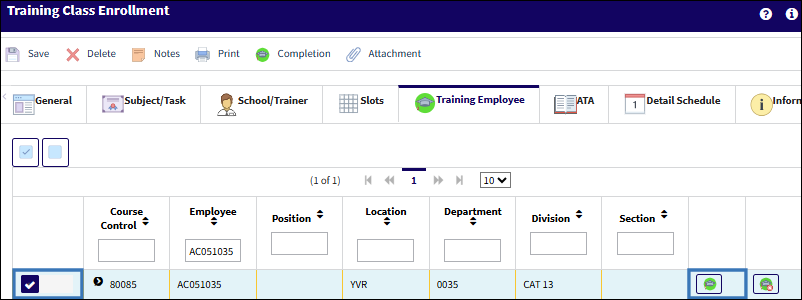
From the Training Class Enrollment, Training Employee tab, select the Employee who completed the training and select the Complete  button.
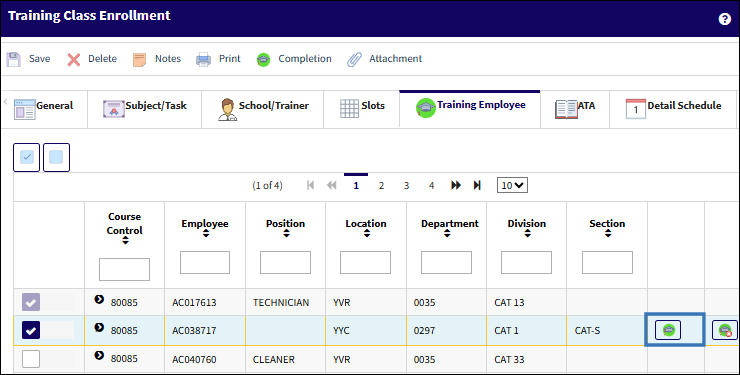
When the Training Final Approval window appears, notice that the Certificate field is empty and grayed out. Populate the required fields then save.
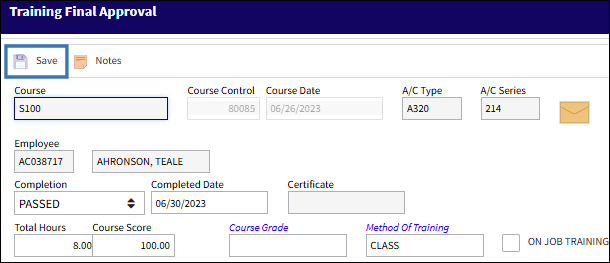
Once saved, the Certificate field is auto-populated based on the next sequential number of the switch's Config Number field.
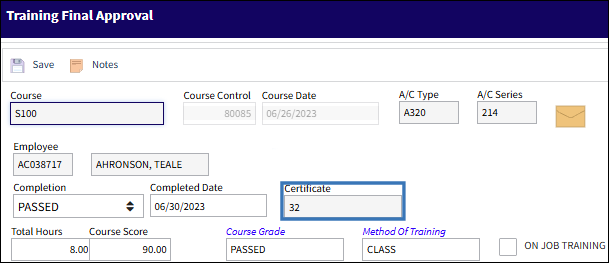
Once saved, the certificate will appear in the Print Queue located in the Prints window.
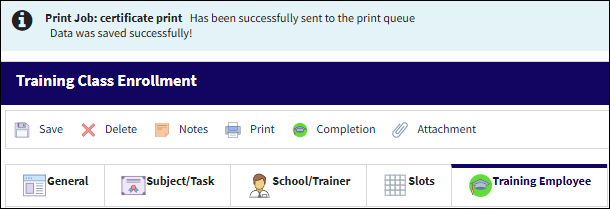
The certificate is then generated with the number from the Certificate field displayed.

Switch Set to No:
When set to No, the Certificate field of the Training Final Approval window is open for the user to populate manually. The information in this field is displayed in the certificate generated when the employee completes the training course.
From the Training Class Enrollment, Training Employee tab, select the Employee who completed the training and select the Complete button.
When the Training Final Approval window appears, notice that the Course and Course Grade fields are open.
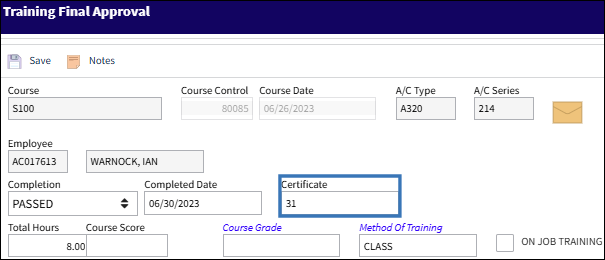
Populate the Certificate field and all other required fields then save.
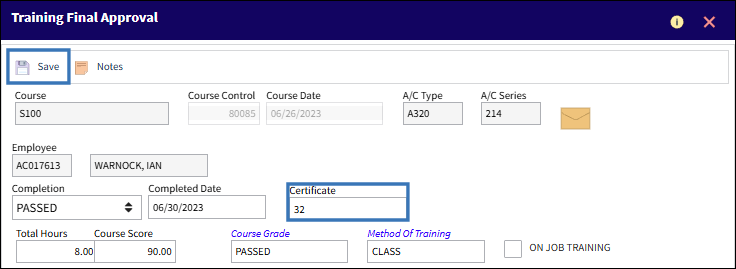
The certificate is then generated but the information from the Certificate field is not included.

Share
Print
|
©1997-2026 Trax USA Corp. All rights reserved. This manual may not be copied, photocopied, reproduced, translated, or converted to any electronic or machine-readable form, in whole or in part, without prior written approval from Trax USA Corp. |
 |