
 Share
 Print
|
|
|
|
|


Requisition Type
A System Transaction Code is defined with the Code Name and Description. The Code Description directly states its functionality and role in the system, populating applicable fields as tasks are performed.
Transaction Code |
Requisition Type. |
General Description |
Requisition Type that will be associated to each requisition and assigned authorization step(s). |
Are Authorization Steps Available? |
Y |
Is System Notification Available? |
Y |
Control Panel Path(s) |
Requisition/ Update/ Requisition. |
Windows(s) |
w_requisition_eu |
Related Switch(s) |
|
Functions |
Categorizing the requisitions by normal, AOG and etc . . . for sorting print and searching purposes. |
Reports |
|
Available Functionality:
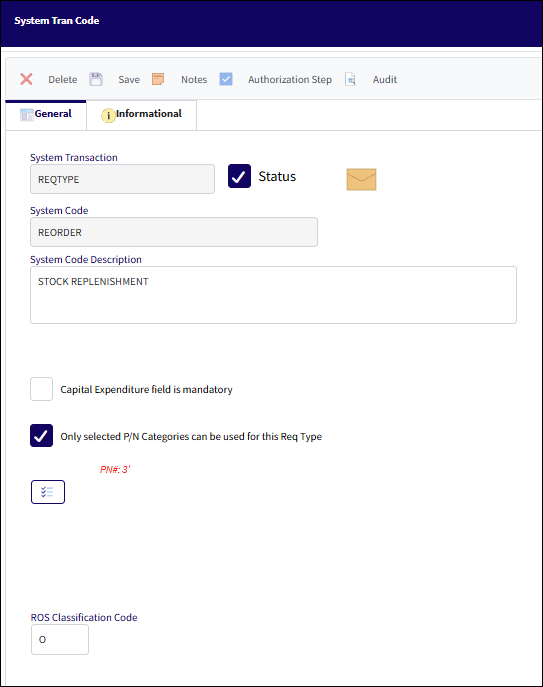
The following information/options are available in this window:
_____________________________________________________________________________________
Capital Expenditure field is mandatory checkbox 
Select this checkbox to make the Capital Expenditure field mandatory via the Requisition Detail, Optional tab.
Note: Switch  REQCAPEXFLAG must be set to Yes and switch REQCAPEX must be set to No for the this checkbox to function correctly.
Only Selected P/N Categories can be used for this Req Type checkbox
Select this checkbox to define the P/N Categories that can be used for Requisitions created with the specified Requisition Type. When a Requisition is created for a set of required parts, when this Requisition Type is used, only the parts listed that have the applicable P/N Category will be included in the Requisition. For example, if multiple parts are required for a Task Card, when a Requisition is created for the W/O that the Task Card is linked to, the Requisition will only include the T/C's parts with the specified P/N Category.
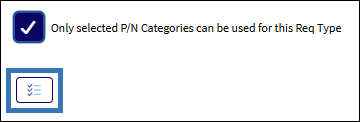
Once the checkbox is selected, the Multi PN Category button becomes activated. This is where the relevant P/N Categories are selected.
Note: Switch REQCAPEXFLAG must be set to Yes and switch REQCAPEX must be set to No for the this checkbox to function correctly.
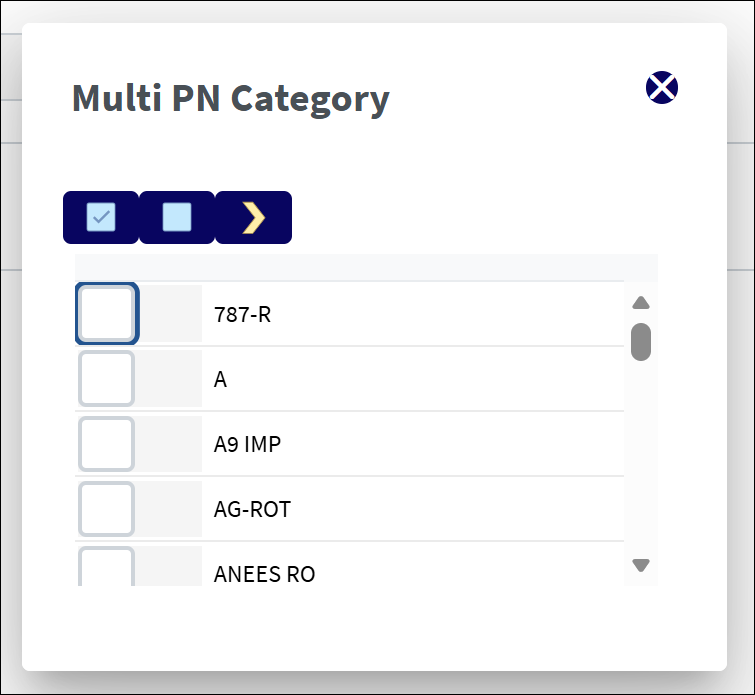
Multi PN Category button - Select this button to select one or multiple P/N Categories via a popup window. If multiple P/N Categories are selected, the number of P/N Categories selected will appear below this button in red text.
ROS Classification Code
The ROS Classification Code.
M (Mandatory) - When the Classification Code is 'M', whether the RO Control checkbox is selected or deselected, the user may not edit this Code.
O (Optional) - When the Classification Code 'O' is selected, the user may change the code from the drop down menu. If the user deselects the RO Control checkbox, the ROS Classification Code becomes null or blank.
D (Improvements) - When the Classification Code 'D' is selected, the user may change the code from the drop down menu. If the user deselects the RO Control checkbox, the ROS Classification Code becomes null or blank.
R (Recommended) - When the Classification Code 'R' is selected, the user may change the code from the drop down menu. If the user deselects the RO Control checkbox, the ROS Classification Code becomes null or blank.
 This field is only available for customers who have an Interface set up. For additional information, contact the appropriate Interface Administrator.
Authorization Steps  Button
Select the Authorization Steps button to access the Requisition Authorization Steps window where steps may be set up. For additional information, see below.
_____________________________________________________________________________________
Authorization Steps Button
Users may pre-define authorization processes for Requisition Types. In order to define Requisition Authorization Processes, the user must select the Authorization Steps  button.
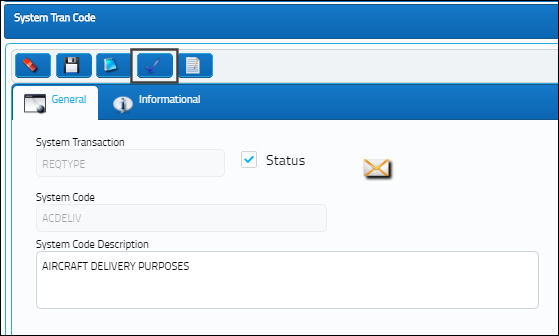
The user will receive the following authorization set-up window.
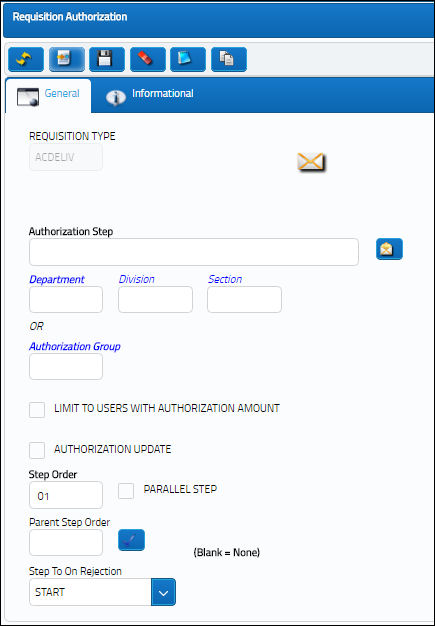
The following information/options are available in this window:
_____________________________________________________________________________________
Authorization Step
A description of the Authorization Step; each Authorization Step can have its own unique description to describe the steps general purpose.
Department
The department which has authority for approval of this step. The Authorization Step can only be performed by an individual in the department specified here. See Settings/ Update/ Employee Master to verify that the employee is assigned to the appropriate department. Authorizing employees must have security access to the appropriate Authorization Explorer option. When this field is left blank, the Authorization Group field is available.
Note: Department is the only mandatory option for this feature.
Division
The division which has authority for approval of this step. The Authorization Step can only be performed by an individual in the division specified here.
Section
The section which has authority for approval of this step. The Authorization Step can only be performed by an individual in the section specified here.
Authorization Group
The Authorization Group which has authority for approval of the step. The Authorization Step can only be performed by an individual that is included in the Authorization Group specified here.
Limit To Users With Authorization Amount checkbox
Select this checkbox to limit the authorizer to their authorized dollar amount for any order. This will limit the authorizer to the authorization amount set up for them in the Authorization Master, via Setting/ Update/ Authorization Master.
Authorization Update
When selected, the checkbox indicates that the current Authorization Step will be the last step in the authorization process. During the creation of the Authorization Steps, this checkbox should only be selected for the final step before the record is to be released from authorization.
Step Order
This number indicates the order of Steps if one or multiple Steps are created. This number is automatically created and can be overridden and changed to any number. It is recommended that the user enter Steps in a standard incremental pattern (i.e. Step 5, Step 10, Step 15, etc.) to allow for the insertion of Steps into the sequence at a later time if required.
Parent Step
The Parent Step Order field allows for the creation of a Parent/Child relationship between steps in the Authorization Process. This may be useful if two individuals from the same department need to authorize a particular step (i.e. a Manager and a Supervisor).
Step To On Rejection
Users may also define a reject process flow per authorization step. Users will have the opportunity to a return, back to ‘Start’ the beginning of the authorization process, to a particular step at rejection within the authorization process. Or Re-Release, send the revision back to the issuer of the Requisition revision, which is usually flagged against the final authorization step in the process.
_____________________________________________________________________________________
The following is an example authorization steps created for a requisition.
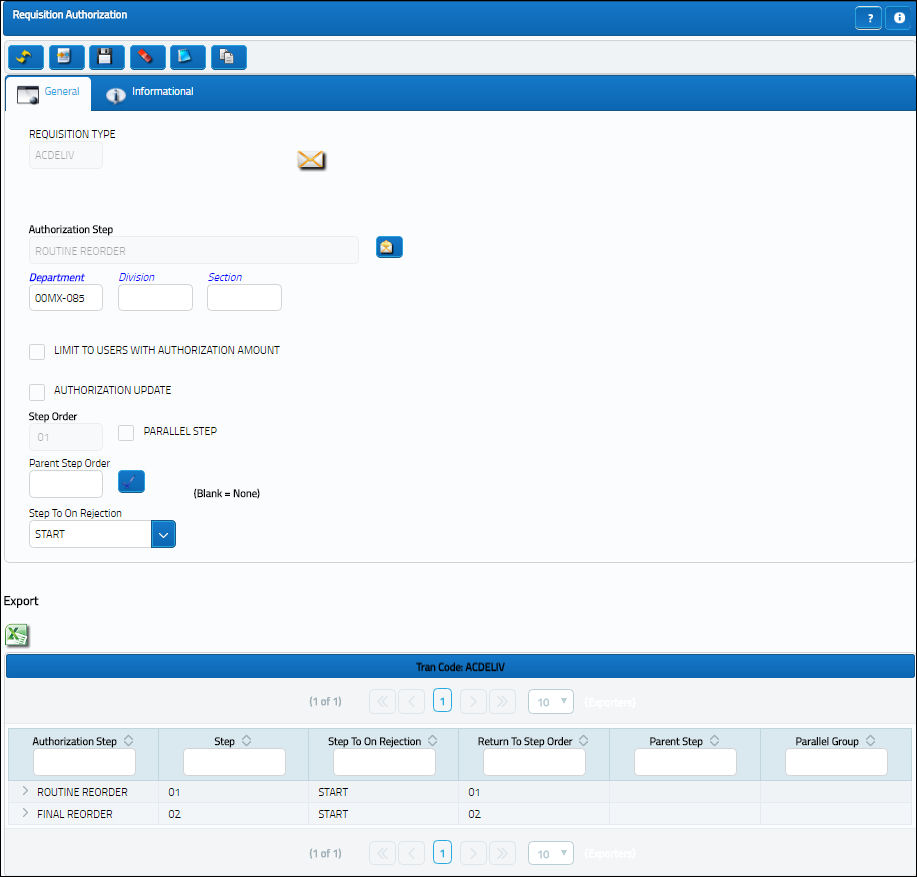
Go to the Requisition Authorization window for a hierarchical view.
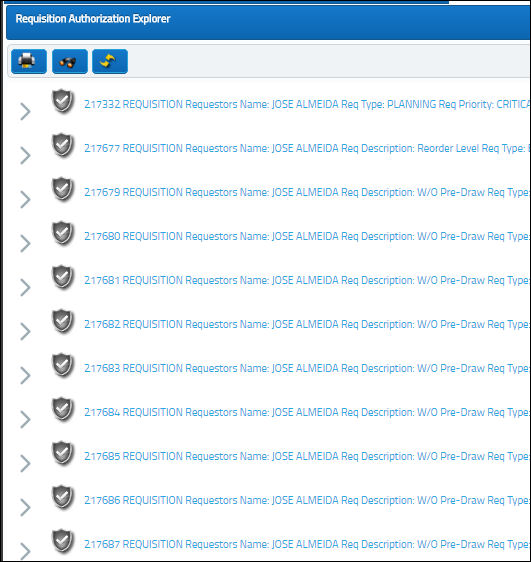
 Note: From version 7 and onward, the Requisition Authorization Explorer is no longer available and the Requisition Authorization window via the Update section will take its place. For more information, refer to Requisition Authorization.
Share
Print
|
©1997-2026 Trax USA Corp. All rights reserved. This manual may not be copied, photocopied, reproduced, translated, or converted to any electronic or machine-readable form, in whole or in part, without prior written approval from Trax USA Corp. |
 |