
 Share
 Print
|
|
|
|
|


The MEL manual provides an approved list for a particular A/C type that includes items that may be unserviceable at the start of a flight. The manufacturer for this manual is Airbus.
The system allows the user to load MELs into a database via TraxDoc.
When uploading a document into TraxDoc, the file that is being uploaded must be in a location where the eMRO server will recognize it. See below instructions:
- The IT department on the user side must select a directory to work as a repository for all the OEM manuals that would be uploaded to eMRO via the TraxDoc module.
- This directory must be accessible from the application server (Wildfly).
- Create a way for users to provide the OEM manual revisions to be placed in the repository.
- The path for the repository directory will be defined by the traxdoc_manual variable on the data.source.properties file. This can be found under the application server (/%WILDFLYHOME%/deployments/emro.war/WEB-INF/classes/resources/).
SaaS customers should refer to the instructions outlined in this document in iCentral: SaaS - How to Upload TraxDoc Manuals.
The following topic will explain in detail how to complete the below steps:
- How to create a TraxDoc for the MEL doctype
- How to Load a MEL manual into TraxDoc
- How to Import the MEL into the system
TraxDoc Setup (MEL):

Create a TraxDoc.
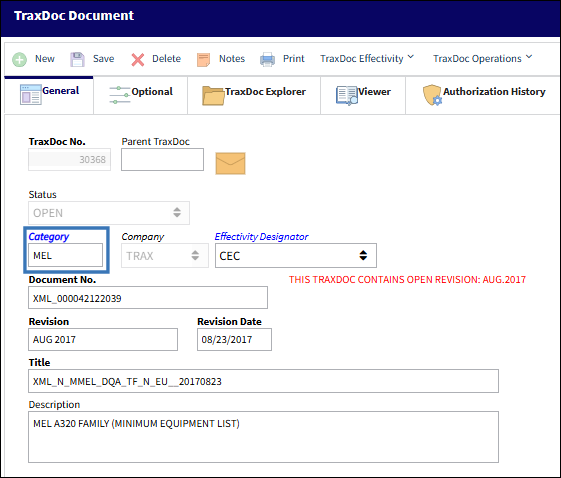
 Note: For the MEL and MELCU Doctypes, the Company selection in the TraxDoc Detail, General tab cannot be set to 'ALL', but must instead be set to a specific Company. The Company should be set to the same Company as the Aircraft that will be assigned to the TraxDoc through the Effectivity button.
Specify the SGML/XML Doctype in the TraxDoc Document Detail, Optional tab.
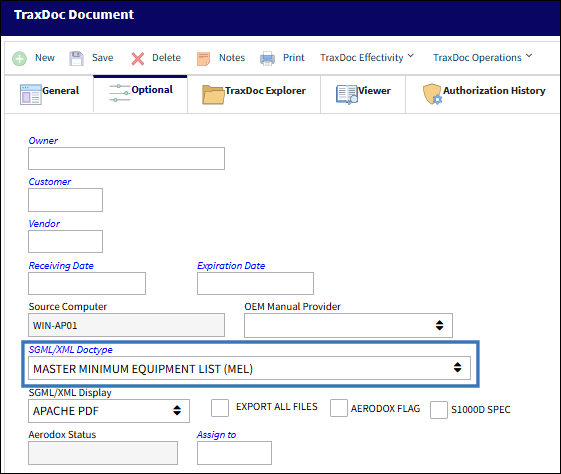
Loading an MEL into TraxDoc:
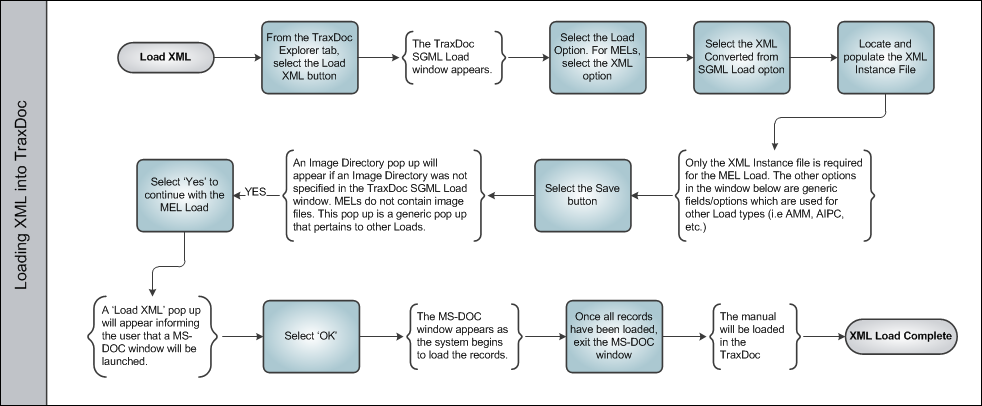
From the TraxDoc Explorer, click into and select the Load OEM  button as shown below.
When uploading a document into TraxDoc, the file that is being uploaded must be in a location where the eMRO server will recognize it. See below instructions:
- The IT department on the user side must select a directory to work as a repository for all the OEM manuals that would be uploaded to eMRO via the TraxDoc module.
- This directory must be accessible from the application server (Wildfly).
- Create a way for users to provide the OEM manual revisions to be placed in the repository.
- The path for the repository directory will be defined by the traxdoc_manual variable on the data.source.properties file. This can be found under the application server (/%WILDFLYHOME%/deployments/emro.war/WEB-INF/classes/resources/).
SaaS customers should refer to the instructions outlined in this document in iCentral: SaaS - How to Upload TraxDoc Manuals.
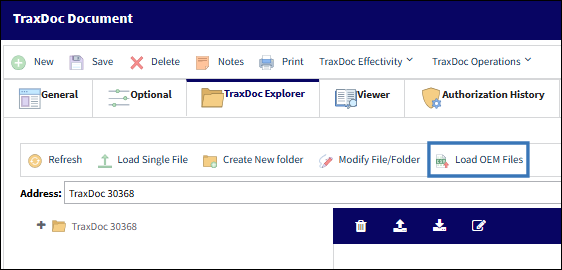
From the TraxDoc SGML Load window, populate the XML Instance File.
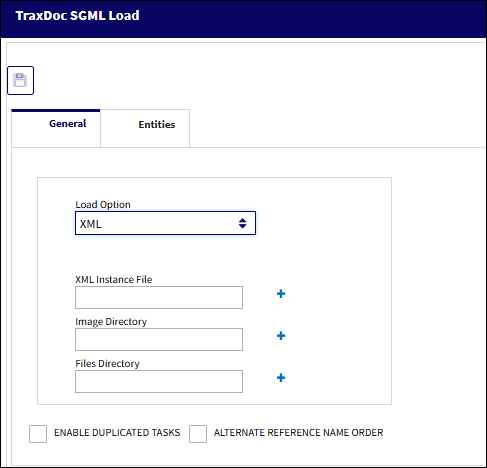
Note: The TraxDoc files displayed in the SGML Load window are sorted alphabetically.
Note: Only the XML Instance file is required for the MEL Load. The other options in the window below are generic fields/options which are used for other Load types (i.e AMM, AIPC, etc.).
Note: Import files for eMRO should be saved as .csv (comma delimited) or .xlsx and cannot have spaces in the title of the file. Spaces in the file path will cause errors when importing.
The following information/options are available in this window:
_____________________________________________________________________________________
Load Option
Select XML for an MEL load. This is the default setting for the MEL Load.
XML Instance File
Select the specified XML file.
Image Directory
Browse the directory (on the portable media) where images are stored and and select media to be imported.
This does not pertain to the MEL Load.
Enable Duplicated Tasks checkbox
Select this checkbox to load duplicate tasks from duplicate chapters. The TraxDoc XML Load program will add the last four digits of the XML file name to each task, regardless if the task is repeated or not.
This does not pertain to the MEL Load.
Alternate Reference Name Order checkbox
When this checkbox is selected, elements with ATA information such as Task/Subtask will be in the form (CHAPNBR-SECNBR-SUBJNBR-FUNC-SEQ-VARNBR-CONFLTR). When this checkbox is de-selected, these items will be in the form (CHAPNBR-SECNBR-SUBJNBR-FUNC-SEQ-CONFLTR-VARNBR).
This does not pertain to the MEL Load.
_____________________________________________________________________________________
Once the user has selected into the XML Instance File field, locate the correct XML file.
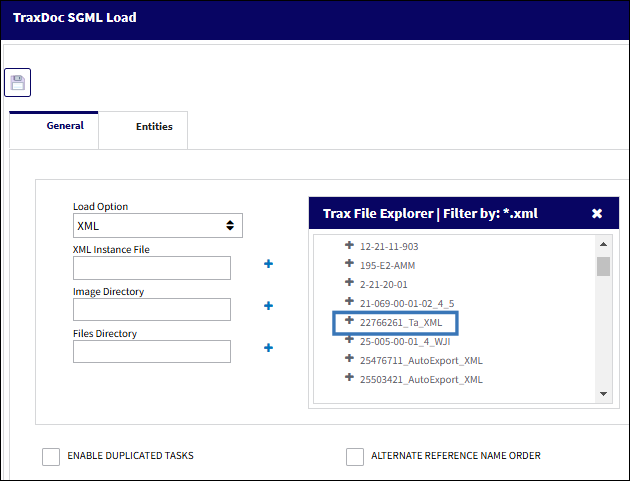
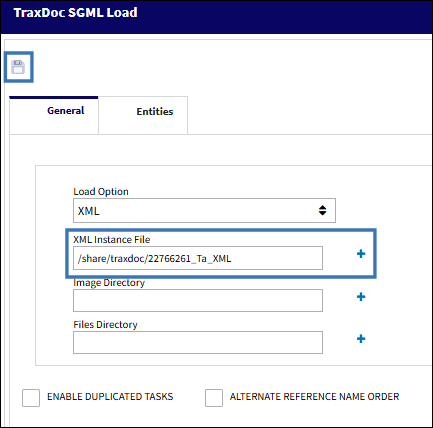
Once the XML file is populated, select Save.
If an image directory was not selected, the system will prompt the user with the following message. Select 'Yes' to continue with the MEL XML Load without including images.
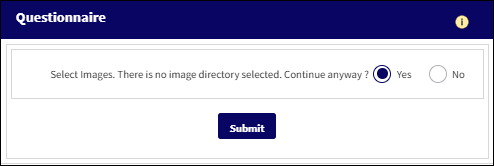
Note: MELs do not contain image files. This pop up is a generic pop up that pertains to other Loads.
After submitting, the TraxDoc will begin loading into the system. The load progress can be viewed within the TraxDoc Progress window via the Navigation Panel. For more information, refer to TraxDoc Progress Queue.
Importing MELs into the System:
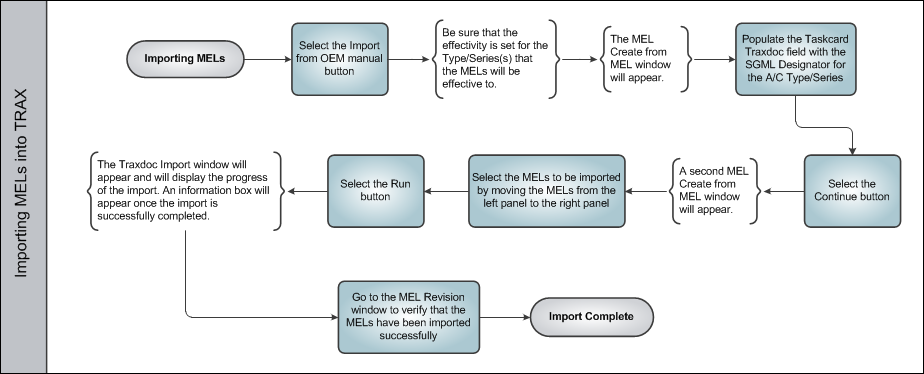
Once the XML has been loaded successfully into TraxDoc, the user must import the manual into the system to create the MEL.
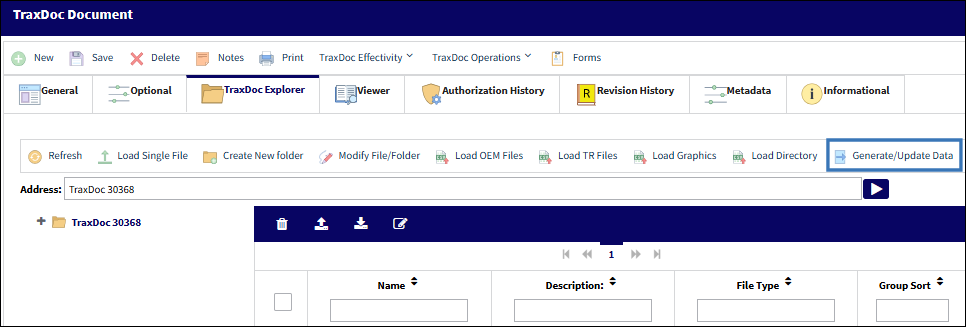
From the TraxDoc Document, General tab, select the Generate/Update Data  button.
The TraxDoc is effective to the following A/C Type/Series:
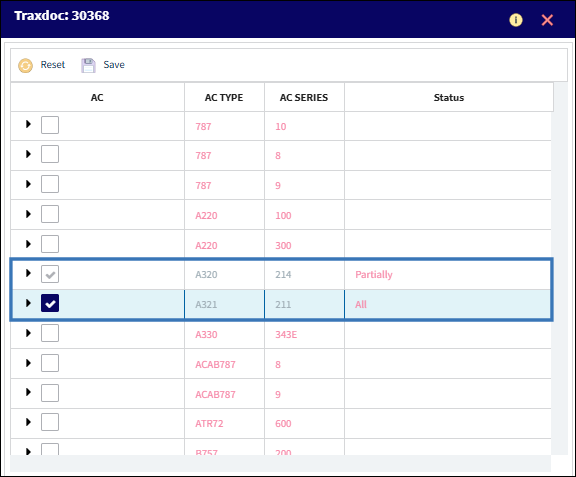
Note: Effectivity can also be reviewed through the View MEL Effectivity  button.
The MEL Create from MEL window appears. Populate all mandatory and desired information and run the import the same as any other. Select the Next  button.
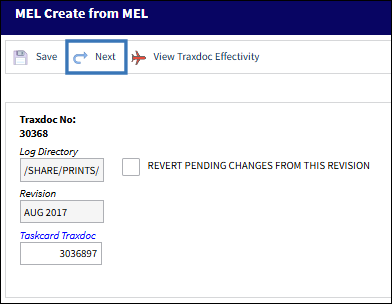
Note: The Taskcard TraxDoc field is populated with the SGML Designator for the A/C Type/Series.
The following window is displayed, allowing the user to select the MELs to be imported. Use the buttons in the middle of the window to move the MELs from the Available Tasks panel to the Selected Tasks panel.
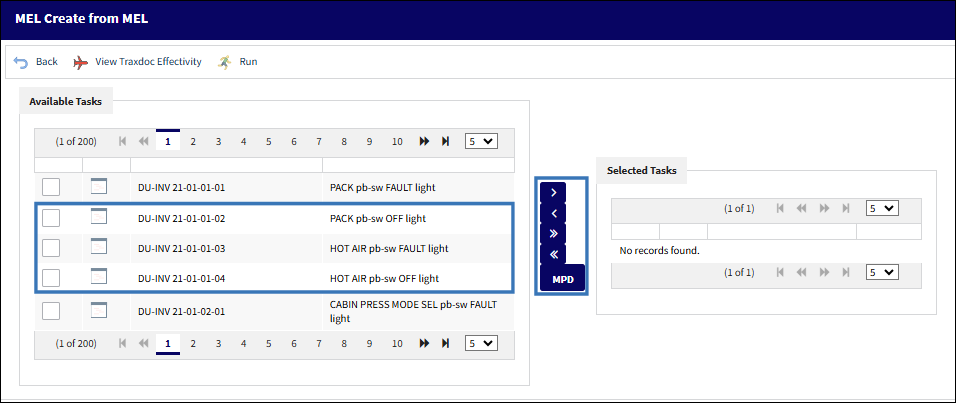
Once all desired MELs have been moved to the right panel, select the Run  button.
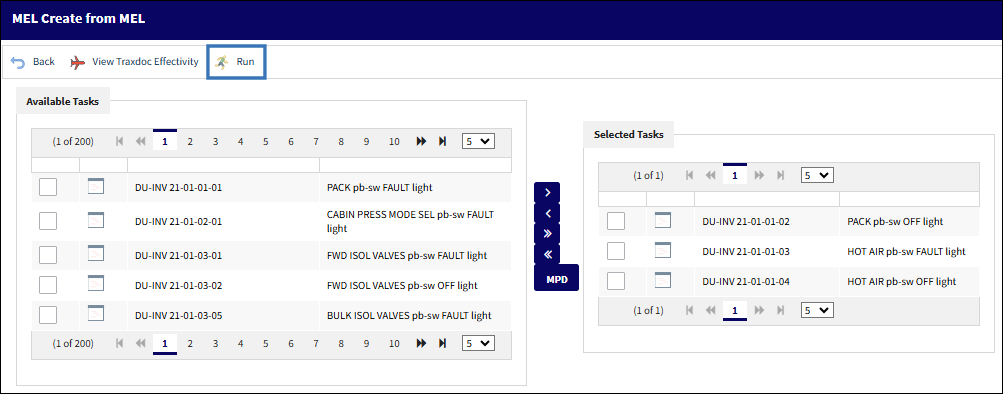
The generate progress can be viewed within the TraxDoc Progress window via the Navigation Panel. For more information, refer to TraxDoc Progress.
Share
Print
|
©1997-2026 Trax USA Corp. All rights reserved. This manual may not be copied, photocopied, reproduced, translated, or converted to any electronic or machine-readable form, in whole or in part, without prior written approval from Trax USA Corp. |
 |