
 Share
 Print
|
|
|
|
|


Orders Creation/Update Supervisor, General Tab
The Orders Creation / Update Supervisor, General Tab has all of the same functionality as the Orders Creation / Update window. The main difference being that the supervisor window will display all orders, regardless of the User ID that created the order. This window is used for supervisors and managers to review the orders before they are sent for authorization.
 This window is security controlled via Security Explorer/ Orders/ Update/ Orders Creation / Update Supervisor. For additional information, refer to the Security Explorer via the System Administration Training Manual.
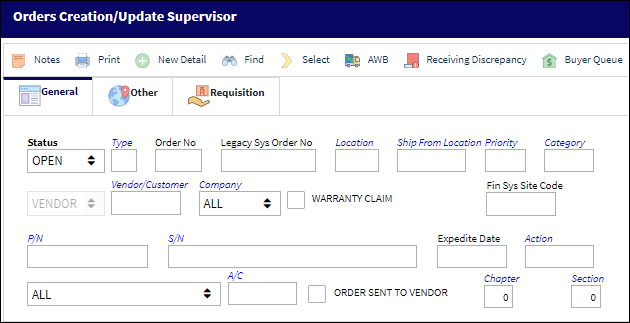
The following information/options are available in this window:
_____________________________________________________________________________________
Status
The current status of the order.
Type
The Type of Order which are as follows:
C/O - Contract Order
E/C - Exchange order
L/O - Loan Order
M/O - Manufacturer Order
X/O - Exchange Order Out
P/O - Purchase Order
R/O - Repair Order
S/V - Service Order
T/O - Transfer Order
W/C - Warranty Claim Order
Order No
The type of order and the order number for the transaction.
Legacy Sys Order No
The legacy number related to the order. The legacy number is typically identified and used by customers during implementation to cross reference their old systems order number to the new systems order number.
Note: Does not apply to C/O, M/O or W/C order types.
Location
The Location for maintenance events, inventory stores, orders, transactions, or training events.
Ship From Location
Location from which order has been shipped.
Priority
The priority placed on the transaction (e.g., routine, AOG, etc.). For additional information and functionality, refer to the Priority transaction code via the Orders Transaction Codes.
Category
The appropriate category for this transaction. This also works with the Authorization Process as defined against the Order Type.
Vendor/Customer
The vendors are defined in the Vendor Master. All vendors must have the required criteria (i.e. supplier, service, etc) to be used against the particular order type. Otherwise, the below message may be received stating that the user will not be able to save the order with that particular vendor.
The customer the order is being placed with requiring the items.
Company
The company the order is being created for.
Note: For more information, refer to the Multi Company Functionality.
Financial Sys Site Code
The order's financial system site code.
P/N
The Part Number reference for the aircraft part.
S/N
The Serial Number for the specific serialized part.
Company Column  - Located within the S/N Drop Down Selection Window, this field allows users to filter, sort, and otherwise identify materials with their associated Company.
Expedite Date
The accelerated delivery date of this Order; rushed order based part requirement and order priority. Expedite Date may be defaulted as defined in the Order Priority System Tran Code.
Condition
The condition of the part.
Inventory Type drop down
The type of inventory the item is registered as in the system. The available options are All, General, GSE and Maintenance Inventory. All is set as the default.
A/C
The individual aircraft tail number.
Order Sent To Vendor checkbox
When performing an order query, with this checkbox selected the system will only retrieve Purchase Orders that have the Sent to Vendor checkbox selected in the P/O header.
Chapter 
The ATA Chapter.
Section
The ATA Section.
Authorization Status drop-down
The Authorization Status drop-down is used to filter orders based on their release and authorization status. The options are as follows.
- All
- Pending Release
- Pending Authorization
- Authorized
_____________________________________________________________________________________
Results Section:
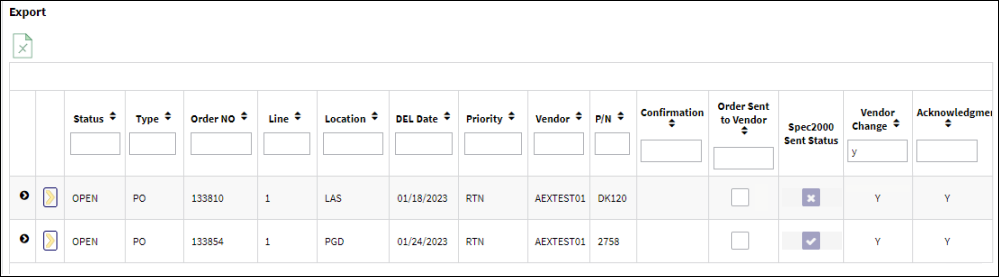
The following information/options are available in this window:
_____________________________________________________________________________________
Order Sent to Vendor checkbox
When performing an order query, with this checkbox selected the system will only retrieve Purchase Orders that have the Sent to Vendor checkbox selected in the P/O header.
Status
The current status of the order.
Type
The Type of Order which are as follows:
C/O - Contract Order
E/C - Exchange order
L/O - Loan Order
M/O - Manufacturer Order
X/O - Exchange Order Out
P/O - Purchase Order
R/O - Repair Order
S/V - Service Order
T/O - Transfer Order
W/C - Warranty Claim Order
Order NO
The type of order and the order number for the transaction.
Line
The specific Line item of the Order. Each Line item could represent a different part included in the same order.
Location
The Location for maintenance events, inventory stores, orders, transactions, or training events.
DEL Date
The required delivery date expected to receive the Core P/N.
Priority
The priority placed on the transaction (e.g., routine, AOG, etc.).
Vendor
The vendors are defined in the Vendor Master. All vendors must have the required criteria (i.e. supplier, service, etc) to be used against the particular order type. Otherwise, the below message may be received stating that the user will not be able to save the order with that particular vendor.
P/N
The Part Number reference for the aircraft part.
Confirmation
The confirmation reference along with applicable information.
Order Sent to Vendor checkbox
This checkbox will be selected if the Order has been sent to a Vendor.
Spec2000 Sent Status checkbox
If selected, the Spec2000 message that corresponds to the order has been sent to the vendor indicated on the order.
Vendor Change
Indicates if the associated vendor with the record has been changed. A 'Y' indicates that the Vendor has been changed and a 'N' indicates the Vendor has not been changed.
Note: A red  indicates a changed vendor. A black
 indicates an unchanged vendor. These colors are part of the AeroXchange (AEX) interface functionality.
Acknowledgment
Indicates if an acknowledgment has been processed against the record. A 'Y' indicates one has been processed and a 'N' indicates one has not been processed.
_____________________________________________________________________________________
The Export as Excel  button can be selected to view the queried data (including all pages) in an Excel spreadsheet. This Excel file can be saved for later use. For more information refer to the Export as Excel Button via the eMRO System Standards manual.
The Columns  button is used to select which columns will appear in the the window's search results/table section. For more information, refer to Columns Button via the eMRO System Standards manual.
The Filter/Sort  button is used to alter the search criteria for records associated with the host module and window. For more information, refer to Filter/Sort Button via the eMRO System Standards Module.
Share
Print
|
©1997-2026 Trax USA Corp. All rights reserved. This manual may not be copied, photocopied, reproduced, translated, or converted to any electronic or machine-readable form, in whole or in part, without prior written approval from Trax USA Corp. |
 |