 Download Online Help
 Print
|
|
|
|
|


From the Engineering Effectivity Override window, select the Override  button. Select OK when the Save prompt appears.
The system then displays the following window. This option allows the select/de-select override and change/edit compliance and reset the date for the Serial number.
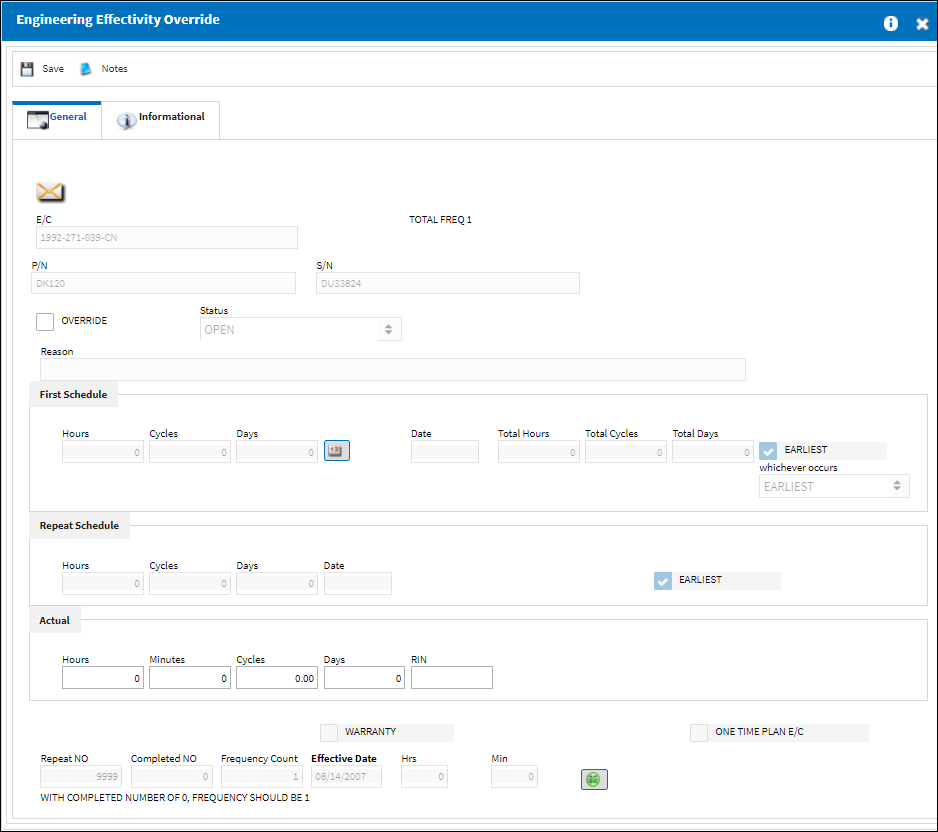
 If the E/C in use is under Revision, and the user does not have security, changes can not be made to the Engineering Effectivity Override window. Security for this functionality can be found via the Security Explorer/ Engineering/ Update/ Engineering Control/ P/N Control Supervisor. For additional information, refer to the Security Explorer via the System Administration Training Manual.
The following options/information is available in this window:
_________________________________________________________________________
E/C
The Engineering Control that specifies aircraft or component scheduled maintenance intervals.
P/N
The Part Number reference for the aircraft part. This is the P/N registration number for the E/C Engineering Effectivity Override Record. All items within this window will only pertain to this P/N and may not match the default blanket schedule on the Engineering Control, Schedule Tab due to override information added.
S/N
The Serial Number for the specific serialized part.
Total Freq
The total number of 'phases' included in this E/C. This field works in conjunction with the Schedule Control Tab. The Schedule Control Tab is a preferred method of creating complex relationships between E/Cs and their scheduling, which can make an E/Cs occurrence dependent on another E/Cs schedule. The benefit of this is that it eliminates the need for the Next E/C option (K1, K2, K3, K4, etc.).
Override checkbox
Allows for the user to update many fields within this window and apply an alternate schedule against the E/C for a particular A/C tail number or P/N S/N. If the Override checkbox remains selected, any changes against the blanket schedule (Engineering Control, Schedule Tab) will not affect the A/C tail number or P/N S/N that has the checkbox selected; the Override A/C tail number or P/N S/N will only follow the schedule as defined here on the Engineering Effectivity Override, General Tab.
Note: The configuration of switch  ECVIAREV determines the accessibility of this checkbox as well as which information can be edited/updated in this window. The same functionality is also available when this window is accessed through the Engineering Control Supervisor window.
Reason
The Reason field allows for additional notations to be added against the Engineering Effectivity Override for a particular P/N.
Status
The Status of the E/C for the particular P/N. For additional information regarding definition of each status, see the Engineering Control, General Tab via the Engineering - E/C Training Manual.
Note: If the status is manually changed to a status which prevents the E/C from appearing in Planning Forecast, the Reason field will become mandatory for the saving of the record.
First Schedule
E/C schedule's threshold for initial compliance. For additional information on the First Schedule field, refer to the Engineering Control, Schedule Tab via the Engineering - E/C Training Manual.
Note: First Schedule within the Engineering Effectivity Override window only applies to the selected P/N and E/C. If the Override checkbox remains selected then this P/N will have its own schedule and will not be reset/changed by any changes made on the blanket schedule (Engineering Control, Schedule Tab).
Date to Days Calculator  button
The Date to Days Calculator allows users to select future dates. Once selected, the button calculates the difference between the Effective Date and the Selected Date.
Repeat Schedule
The E/C schedule's interval of repeat compliance requirements. For additional information on the Repeat Schedule field, refer to the Engineering Control, Schedule Tab via the Engineering - E/C Training Manual.
Note: Repeat Schedule within the Engineering Effectivity Override window only applies to the particular P/N and E/C. If the Override checkbox remains selected then this P/N will have its own schedule and will not be reset/changed by any changes made on the blanket schedule (Engineering Control, Schedule Tab).
Actual
The user may enter accumulated flight times applicable to the E/C prior to the A/C In Service Date. The Actuals (Hours, Cycles and Days) will be added to any flight times recorded since the A/C last compliance date and/or Effective Date for the E/C in Planning to produce the P/Ns E/C Actuals.
Note: The Engineering Effectivity Override Actual fields are only used for the P/Ns initial induction. This feature is typically not employed for the induction of new aircraft from the manufacturer.
Earliest checkbox
The Earliest checkbox option is selected if the E/C Schedule parameters are to be planned at the earliest occurrence. For the latest occurrence, this option should not be selected. By selecting the Earliest checkbox, the schedule will be determined by which occurrence comes first; Hours, Cycles, or Days.
Note: If a combination of the Schedule Hours, Schedule Cycles, Schedule Days, and Schedule Date fields are populated with a schedule, checking the Earliest checkbox will make the E/C become due at whichever schedule option comes due first.
Calendar Days checkbox
When the Calendar Days checkbox is selected, Planning calculates the P/N E/C's Due Date based on the Calendar Days starting from the E/C's Effective Date. When the Calendar Days checkbox is not selected, Planning calculates the P/N E/C's Due Date starting from the associated part's Installed Date (if the part's installed date is after the P/N E/C's Effective Date).
The Calendar Days checkbox is only visible when Planning Switch PN_EC_INSTDAYS is set to Yes and is only available for P/N E/Cs.
While the Switch is set to No, the Calendar Days checkbox in not visible and the system functions as though it is always selected, allowing the Days field to function as Calendar Days rather than Installed Days. The Hours and Cycles fields can also be used in conjunction with the Days field.
Warranty checkbox
Select this checkbox to indicate that there is a warranty against the P/N for the E/C. It is informational only in this window.
One Time Plan E/C checkbox
Indicates that the Child E/Cs schedule is being overridden as a one-time only E/C for the selected Aircraft. For Child E/Cs that are adopting its parent E/Cs schedule for a Work Order, if the Child E/C is transferred from that Work Order to another W/O, then this checkbox is selected for the W/Os specific Aircraft. Once the Child E/C is complied with for that Aircraft, the checkbox is automatically deselected. The One Time Plan checkbox should only be used through the functionality of Switch ECCHLDTRC (when set to Yes). The functionality of this checkbox is for correcting purposes through the switch's automated functionality, and should therefore not be selected manually from the override window.
- ECCHLDTRC - (Set One Time Plan to Checked status if Transferred/Canceled from a W/O) - When set to Yes, when a child E/C is TRANSFERRED or CANCELED (via TC cancel) from a W/O; the respective Child E/C will set to 'one time plan' on its own. After it takes the next compliance, the E/C will reset the one time plan. This functionality works if the transferred Child E/C has its own schedule; if not, the system will prevent the transfer/cancel.
Note: The Child E/C must be brought onto the Work Order via a Parent E/C for this to function correctly.
Repeat NO
The number of occasions the E/C will be repeated. If the Repeat Number is set to 1, the E/C is a one time only E/C and only the First Schedule is applicable. If the Repeat Number is set to 9999, the E/C will be carried out on the First Schedule 1 time and then the Repeat Schedule indefinitely.
If the Repeat Number is a specific number, such as 5, the E/C will be carried out on the First Schedule 1 time and then be repeated 4 times according to the parameters configured on the Repeat Schedule (and then terminated).
Completed NO
The number of times that the E/C has been complied with against the P/N.
Note: Frequency Count and the Completed NO fields must match the Completed/ Frequency Flag for the proper E/C Called On functionality.
Frequency Count
The E/Cs current frequency status. For example, there are 4 Total Frequencies to the E/C A-Check (A1, A2, A3 and A4). This P/N may be on the 3rd Frequency Count (A3) out of the 4 Phases. This field tells planning which frequency the record is currently on, and which Called On E/C dependencies to pull onto the Work order. For additional information on the Called On functionality, refer to the Engineering Control, Schedule Control Tab via the Engineering - E/C Training Manual.
Note: Frequency Count and the Completed NO fields must match the Completed/ Frequency Flag for the proper E/C Called On functionality.
Effective Date Hrs/Min
The Effective Date is the date from which hours, cycles, and days accumulate. It is used to calculate times accrued and due dates in the Planning Query.
Note: If the effective date is greater than the current date, planning will not forecast for this E/C until the effective date has been met.
Note: The Effective Date is cascaded down from the Reset Date entered during Receiving Inspection. For additional information, refer to the P/N E/C Button, via Receiving Inspection of the Receiving Training Manual.
Compliance  button
Select to view all P/N history of compliance records associated with the selected E/C. For additional information, refer to the Compliance button via Engineering Control Buttons of the Engineering - E/C Training Manual.
Completed/Frequency flag
The Completed/Frequency flag indicates that with the Completed NO being 'X' then the P/N Frequency Count should be 'Y' for the correct phase of the Check to be forecasted. For example, if an E/C C-Check has a Total Frequency of 8 (C1,C2, C3, C4, C5, C6, C7 and C8 Checks) and a Complete NO of 111, then the A/C should be on Frequency Count 8, as seen below:
Note: For proper E/C Called On functionality it is required that the Completed NO and Frequency Count match the Completed/ Frequency Flag.
_________________________________________________________________________
The user may enter accumulated flight times applicable to the P/N E/C prior to the P/N S/N Last Installation. The Actuals (Hours, Cycles and Days) will be added to any flight times recorded since the P/N last compliance date and/or Effective Date for the E/C in Planning to produce the A/C's E/C Actuals.
Note: The Engineering Effectivity Override Actual fields are only used for the A/C's initial induction. This feature is typically not employed for the induction of new aircraft from the manufacturer.
Download Online Help
Print
|
©1997-2018 Trax USA Corp. All rights reserved. This manual may not be copied, photocopied, reproduced, translated, or converted to any electronic or machine-readable form, in whole or in part, without prior written approval from Trax USA Corp. |
 |